Feature
Team roles and access
Putting your books on the team's phones only works if each person sees what their job needs and no more. Cashflow OS has roles per company: owner, admin, accountant, staff and salesperson. A salesperson sees items and their own customers, not the company's accounts.
- Five roles, set per company
- No shared passwords
- Approval before Tally
- Remove access the same day
Start free trialBook a free demo
Works with your TallyPrime14-day free trialJaipur team, call +91 70738 53555

Who it’s for
Who uses team roles
- Owners and partnersFull view of the company, and the final say on entries
- Family businessesDifferent access for each family member and firm
- In-house accountantsBooks, reports and GST views without owner rights
- CA firmsA client's company only, removed when the work ends
- Distributors with sales teamsSalesmen limited to items and their own customers
- Showrooms with floor staffVisits and wishlists without the Balance Sheet
- Groups with several firmsOne person, different roles in each company
- Branch managersTheir own company's figures, not the whole group's
Pain → fix
The problems team roles solves
What goes wrong without it, and what changes with Cashflow OS.
- The problemEveryone shares one Tally password
A salesman who left last year still knows it, and nobody can say who did what.
With Cashflow OSEach person signs in with their own mobilePhone sign-in by mobile number, and web sign-in by scanning a QR with that phone.
Tally on the web - The problemCounter staff can see the Balance Sheet
Margins, bank balances and other salesmen's customers are open to anyone with the login.
With Cashflow OSStaff and salesperson roles keep accounts outA salesperson sees items and their own customers, not the company's accounts.
Staff app - The problemAn ex-employee still has access
Changing a shared password means telling everyone else the new one.
With Cashflow OSTake them off the team the same dayRemove the person from the company's team in the app; nobody else's access changes.
- The problemVouchers deleted with no explanation
A sale disappears from the books, and the trail goes cold.
With Cashflow OSOnly authorised users delete, with a reasonDeleting a voucher in Tally from the app is limited to authorised users and asks for a reason.
Create Tally vouchers from your phone - The problemSalesmen's orders go into the books unchecked
A big order for a party past his credit period is billed before anyone looks.
With Cashflow OSApproval before frontline orders reach TallyOrders from frontline staff can be set to need approval by an owner or manager first.
Sales orders to Tally - The problemThe CA needs access, but not to every firm
Sending backups or a remote desktop login opens up far more than one company.
With Cashflow OSAccountant role for just that companyRoles are set per company, so the CA sees the firm they handle and nothing else.
Multiple Tally companies in one account
What it does
What you can do with team roles
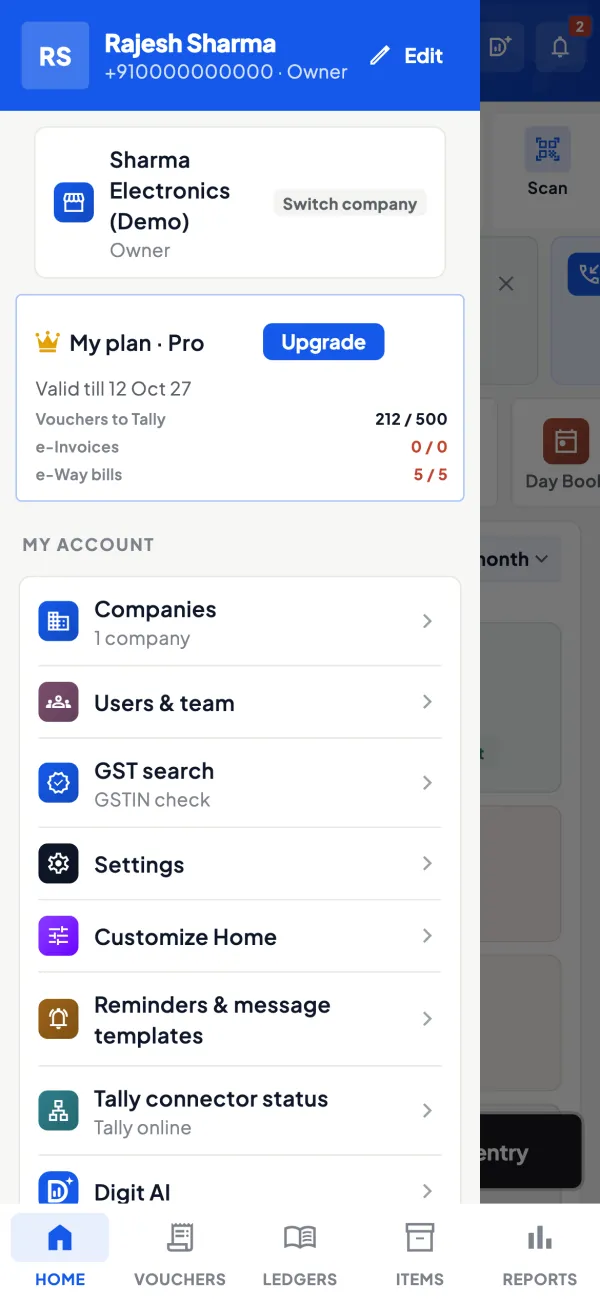
Owner and admin: the whole company
How it works. Owners see everything and decide when writing into Tally is switched on. An admin is a trusted manager who helps run the company in the app.
- Writing into Tally off until the owner allows it
- Owner sees the team's activity
- Admins help without owning the company
In practiceRajesh and his brother are owners of their Jaipur distribution firm; their operations manager Kiran is an admin who handles the team list.
Accountant: books, reports and GST
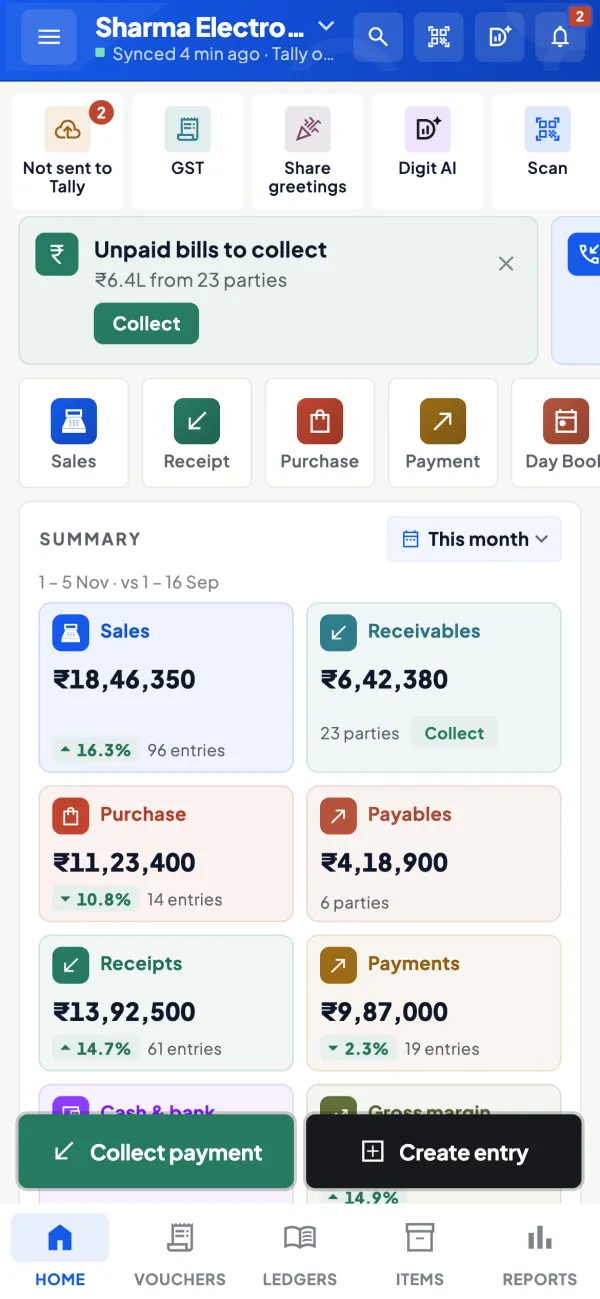
How it works. The accountant role suits the in-house accountant or the CA firm: ledgers, reports and GST views for the companies they are invited to, and nothing in the others.
- Per-company access for the CA
- No backups or remote logins to share
- Removed in one step when the work ends
In practiceThe family's CA is accountant in two of their four companies, reviews the October ledgers from his office, and sees nothing of the other two firms.
Salesperson: items and own customers
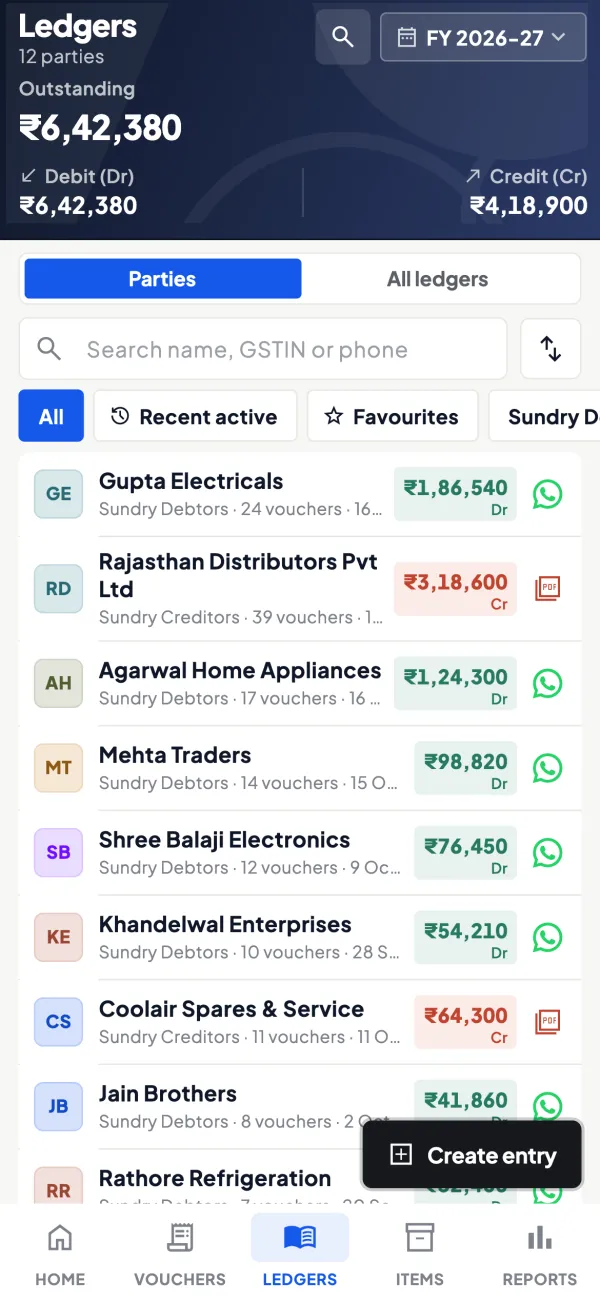
How it works. Salespeople see items and their own customers on the staff app's Today screen: visits, orders and collections, without the company's accounts or other salespeople's customers.
- Full use of the selling side
- No margins, bank balances or Balance Sheet
- Customers mapped per salesperson
In practiceThree salesmen each see their own 40 to 60 retailers. When Manoj leaves in March, his customers are reassigned and his access removed the same day.
Approval and Tally's own checks
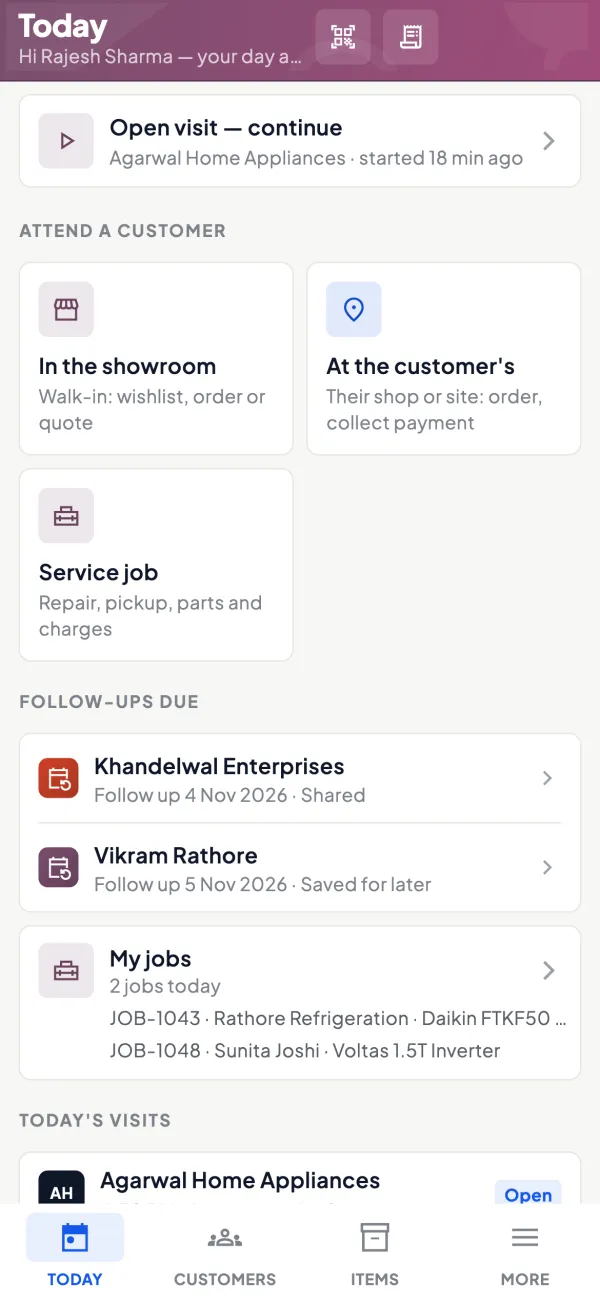
How it works. Orders from frontline staff can need approval before the connector posts them. Every entry that reaches Tally is validated by Tally, and a refused one comes back with the reason.
- A senior check on new or large orders
- Tally validates every entry
- Refusals come back with Tally's reason
In practiceA new salesman books ₹1,80,000 for a party with bills at 95 days. The partner sees it in approval and holds it until a payment comes in.
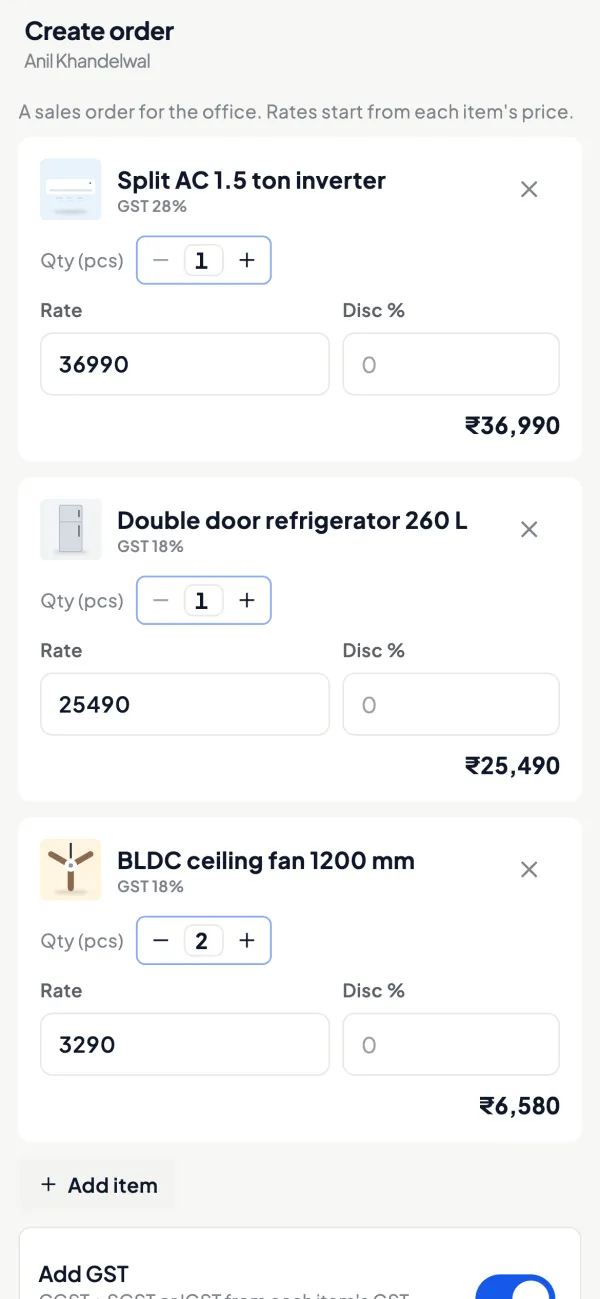
Guide
Team roles: the full guide
How it works day to day, who does what, and the points to watch.
The five roles
| Role | Typically given to |
|---|---|
| Owner | The proprietor, partners or directors |
| Admin | A trusted manager who helps run the company in the app |
| Accountant | The in-house accountant or the CA firm |
| Staff | Office, counter or godown staff |
| Salesperson | Field and showroom salespeople; sees items and their own customers, not the company's accounts |
Roles are set per company. The same person can be an accountant in one of your companies and have no access at all to another.
Controls around the roles
- Writing into Tally is off until the owner switches it on for the company. Until then, the team can read but nothing goes into Tally.
- Approval for frontline orders. Orders from frontline staff can be set to need approval before they reach Tally.
- Tally's own checks. Every entry that does go to Tally is validated by Tally; a refused one comes back with the reason.
- Deleting is restricted. A voucher can be deleted in Tally only by authorised users, with a reason.
- App lock with fingerprint, face or PIN.
- Activity. The owner can see the team's usage and activity in the app.
- Web sign-in by QR from the phone app, so there is no shared web password.
A worked example: a distributor with eight people
A distributor has two partners, an accountant, a billing clerk, a godown in-charge and three salespeople. The partners are owners. The accountant gets the accountant role. The billing clerk and godown in-charge get the staff role. The three salespeople get the salesperson role, each mapped to his own customers, and order approval is switched on. On day one, writing into Tally stays off; the team just uses the app to look things up. After two weeks the partners switch writing on. Now salesmen's orders arrive for approval, one partner approves them on his phone, and they go to Tally. When one salesperson leaves in March, the partners take him off the company's team the same day. Nobody had to change a shared password. For delegating safely, see delegating accounts work to staff.
Tips
- Start narrow. Give the smallest role that lets a person do the job; widen it if needed.
- Map salespeople to their customers before they start, or their list will be empty or wrong.
- Keep approval on for new salespeople for the first few weeks.
- Review activity monthly. It is the simplest internal control you have; see internal controls for small business.
- Remove people the day they leave.
Roles and the selling modules
Roles matter most once selling tools are switched on, because that is when many more people use the app. In a showroom, salespeople look customers up by mobile number, build wishlists and turn them into sales orders. In the field, they check in at visits, record collections and work from the staff app's Today screen. All of that works on your Tally items and parties, and none of it needs the company's accounts. The salesperson role is built for exactly that split: full use of the selling side, no view of your Balance Sheet, margins or other salespeople's customers.
Combine it with approval for frontline orders and you get a sensible chain: the salesperson books, a senior person approves, the connector posts to Tally, Tally validates. If anything is wrong, it is caught at one of those steps, and the activity view shows who did what.
Giving your CA access
Many owners want their CA to look at the books between visits. Inviting the CA to the company with the accountant role is cleaner than sending backups or sharing a remote desktop: access is personal, limited to that company, and can be removed. See giving your accountant access safely.
What it does not do
- It does not change user rights inside TallyPrime itself; Tally's own users and security stay as you set them.
- It does not replace good habits: removing departed staff and reviewing activity are still the owner's job.
This page is general information for Indian businesses, not tax, legal or financial advice. Rules and rates change — check the official portals or your CA before acting.
Set-up
Start using team roles in 4 steps
Works on top of your TallyPrime — nothing to migrate, no second set of books.
- 1
Open the company's team settings in the app
- 2
Invite each person with a link
- 3
Pick the smallest role that fits their job, per company
- 4
Turn on order approval and review activity every month
Buyer’s checklist
What to look for in team roles software
Whatever you choose, check these before you commit.
- A separate sign-in for every person, never a shared office login
- Roles that can differ per company for groups with several firms
- A sales role that cannot open the company's accounts
- Read-only use until the owner chooses to allow entries
- Approval for orders from frontline staff
- Deletions limited to authorised users, with a reason recorded
- A view of who did what in the app
- Access removed the same day someone leaves, without changing anyone else's
Plans
Simple yearly plans
- 14-day free trial on your own books
- 3-year term saves up to 25%
- Premium modules (catalogue, field force, price lists, store…) priced extra
Start free trialGet the price for your business
Compare all plans- Growth₹3,000/year + GSTBooks, reports, outstanding and sharing
- Pro₹5,000/year + GSTEverything in Growth, plus entries into Tally
- Pro+₹7,000/year + GSTEverything in Pro, plus e-invoice and e-way bill
Why Cashflow OS
Why use team roles in Cashflow OS
- Roles per companyThe same person can be accountant in one firm and have no access to another.
- Read before writeWriting into Tally stays off until the owner switches it on for the company.
- Personal sign-inMobile number on the phone and QR on the web, so there is no shared password.
- Tally checks every entryEntries go through the connector and Tally validates each one.
- App lock on every phoneFingerprint, face or PIN keeps a lost or shared phone from opening the books.
- Activity in viewThe owner can see what the team did in the app, the simplest internal control there is.