Business software & ERP Business software
User roles and access control
Access control means each person can see and do only what their job needs. Set it up with a few clear roles, add approvals for risky actions, and review the list every few months.
- Owners of growing teams
- Distributors with sales staff
- Accountants and admins
- Family businesses
- Businesses with several companies
On this page 12
Why roles matter more as you grow
In a five-person business, everyone knows everything. At twenty people, with salespeople, a billing desk, two accountants and a godown team, open access creates three problems: mistakes by people working outside their area, information leaking (rates, margins, dealer lists), and no clear accountability when something goes wrong. Roles fix all three without slowing anyone down, as long as they match real jobs.
Start with four or five roles
Resist creating a role for every person. Most MSMEs need only:
- Owner: everything, including settings, users and deletions.
- Admin or manager: runs operations, approves orders, manages masters, but does not change owner-level settings.
- Accountant: enters and checks vouchers, runs reports and GST data.
- Staff: billing desk, godown or counter staff with limited entry rights.
- Salesperson: items and their own customers, orders and visits, without company accounts.
A sample role matrix
| Action | Owner | Admin | Accountant | Staff | Salesperson |
|---|---|---|---|---|---|
| See P&L and balance sheet | Yes | Optional | Yes | No | No |
| Create sales invoice | Yes | Yes | Yes | Yes | No |
| Book sales order | Yes | Yes | Yes | Yes | Own customers |
| Change rates or discounts | Yes | Yes | No | No | Needs approval |
| Delete a voucher | Yes | With reason | With reason | No | No |
| Add or remove users | Yes | No | No | No | No |
Adjust to your business, but write it down. A written matrix makes it easy to answer "why can't I do this?" without arguments.
Approvals: the middle ground
Some actions are too risky to allow freely and too frequent to reserve for the owner. For these, use approvals:
- Orders from salespeople or counter staff, before dispatch.
- Discounts beyond the price list.
- Orders that take a customer over their credit limit.
- Deleting or altering an entry in a closed period.
Approvals keep work moving while leaving a clear record of who agreed. They also protect staff: a salesperson who gave a special rate with approval cannot be blamed later.
Separation of duties in small teams
The classic control is that the person who records a payment should not also approve it or reconcile the bank. In a small business you may not have enough people for perfect separation, but you can still split the riskiest pairs: the person who creates new supplier ledgers should not be the only one making payments to them, and the person who handles cash should not be the only one recording receipts. The internal controls guide goes deeper.
Common mistakes
- Everyone is admin. Usually because it was quicker during setup. It is the first thing to fix.
- Roles given to people, not jobs. When "Ramesh's role" outlives Ramesh's job change, access creeps up.
- Temporary access that never ends. A salesperson given accountant access to help at year end still has it in July.
- No owner backup. If only the owner can add or remove users and the owner is unreachable, a departing employee keeps access. Name a second trusted person with admin rights.
- Roles set in one system only. If the accounting software is locked down but the mobile app or shared drive is open, the weakest point decides your security.
Review access every quarter
- Export or list every user and their role.
- Remove anyone who has left or no longer needs access.
- Check that nobody has a higher role than their job needs, often given "temporarily".
- Look at activity for unusual patterns: logins at odd hours, many deletions, bulk exports.
Roles in Cashflow OS
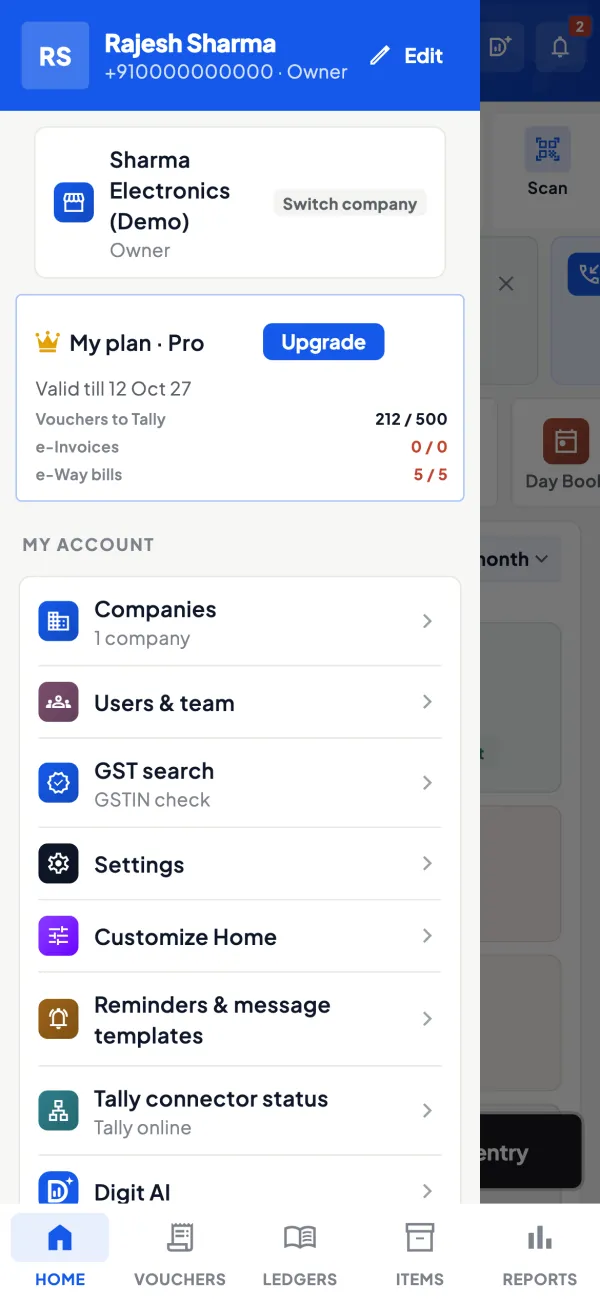
In Cashflow OS, roles are set per company: owner, admin, accountant, staff and salesperson. A salesperson sees items and their own customers, not the company's accounts. Orders from frontline staff can be set to need approval, voucher deletion in Tally needs a reason and is limited to authorised users, and the owner can see the team's activity. Writing into Tally stays off until the owner switches it on for that company. See team roles and the guide to cost centres for salespeople.
Avoid these
Common mistakes
- MistakeEveryone set up as admin during setupDo this instead
Move each person to the role their job needs; admin should be for one or two trusted people.
- MistakeTemporary access that never endsDo this instead
Note an end date when you raise someone's access, and check it at the quarterly review.
- MistakeOnly the owner can remove usersDo this instead
Name one trusted senior person as a backup admin so a departing employee can be removed quickly.
- MistakeAccounts locked but the mobile app left openDo this instead
Set roles in every system that holds business data; the weakest point decides your security.
Keep handy
Checklist
User roles and access control — 7 checks. Tick them as you go.
In Cashflow OS
How Cashflow OS helps
Cashflow OS puts your TallyPrime books on every phone in the team. Where it fits this topic:
Roles per company
Cashflow OS sets roles per company: owner, admin, accountant, staff and salesperson. A salesperson sees items and their own customers, not the company's accounts.
See Team roles and access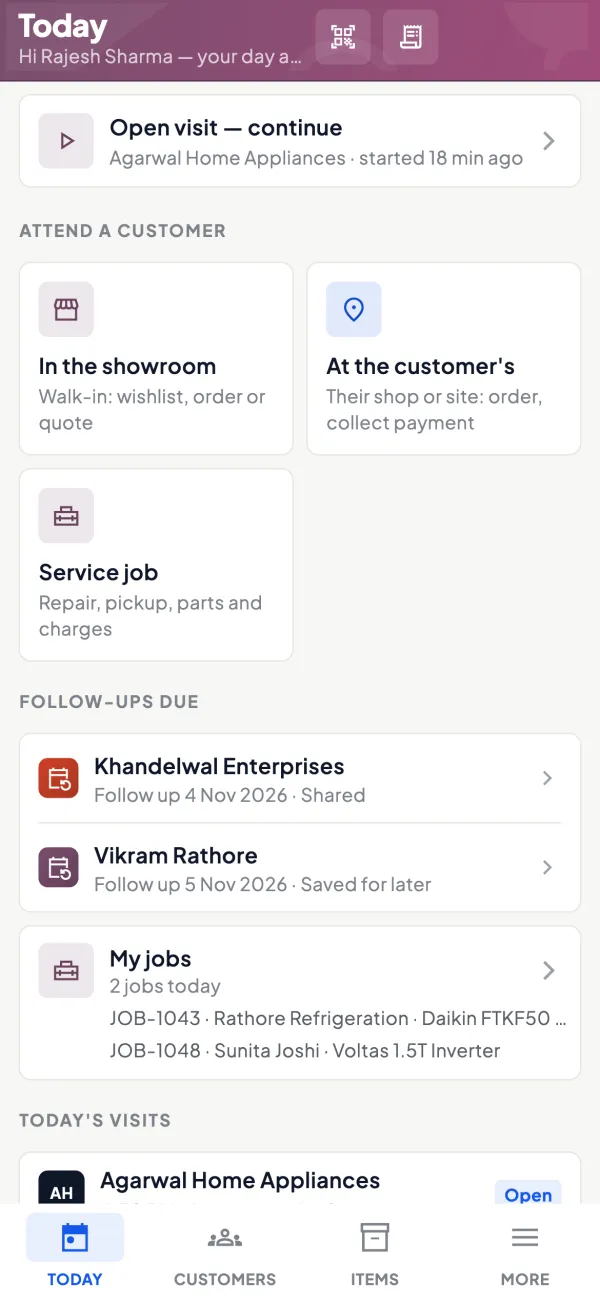
Approvals before Tally
Orders from frontline staff can need approval before they go to Tally, and writing into Tally stays off until the owner switches it on.
See Sales orders to Tally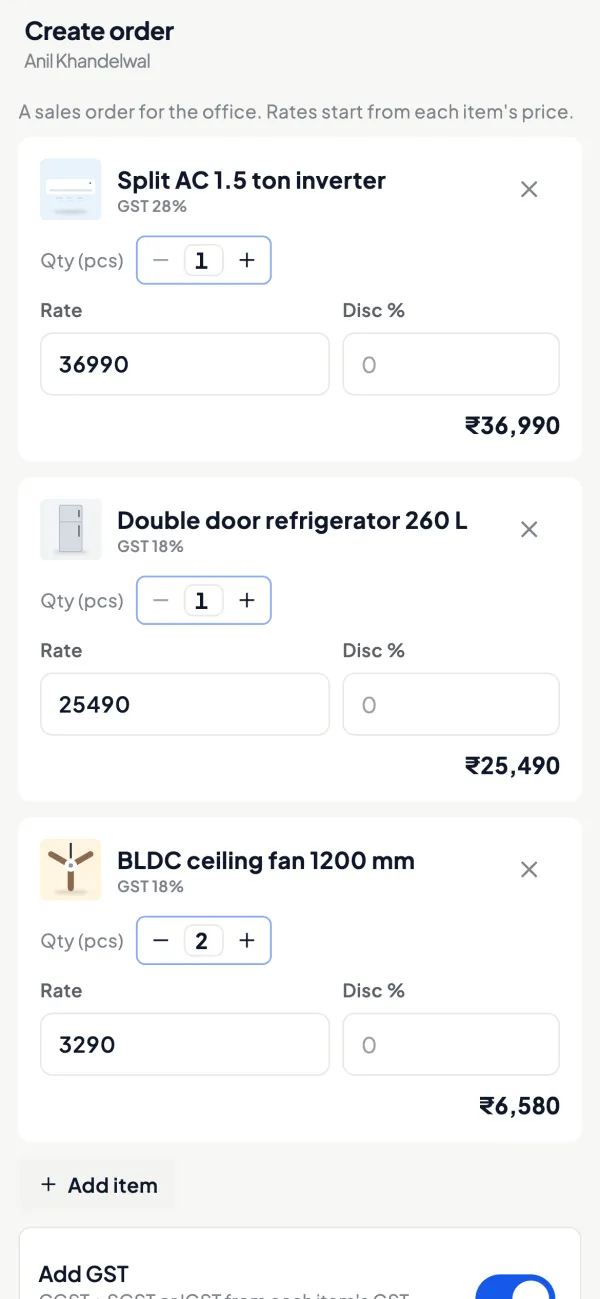
Questions people ask
How many roles should a small business have?
Should the accountant be able to delete entries?
What if one person does several jobs?
Do salespeople need to see outstanding?
Who should be allowed to add new users?
Can roles differ by company?
What is separation of duties?
How do I see what my team is doing in the app?
This page is general information for Indian businesses, not tax, legal or financial advice. Rules and rates change — check the official portals or your CA before acting.