Business software & ERP Business software
Giving your accountant access safely
Give your accountant or CA their own login with the access their work needs, never your owner password. Agree what they may change, keep a record of their changes, and remove access when the work ends.
- Business owners
- In-house accountants
- Visiting or part-time accountants
- CAs and auditors
- Office managers

On this page 12
Three kinds of accountant, three kinds of access
| Who | Typical work | Access that fits |
|---|---|---|
| In-house accountant | Daily entries, reconciliations, GST data | Full entry rights, no owner settings or user management |
| Part-time or visiting accountant | Weekly or monthly entries and checks | Entry rights during engagement, reviewed regularly |
| CA or auditor | Review, returns, audit, adjustments at year end | Read access to books and reports; editing only for agreed adjustments |
Sending data copies vs live access
Many businesses still send the CA a copy of the data at month end or year end. That is simple and limits access to a moment in time, but it has drawbacks: the copy goes out of date immediately, adjustments made by the CA on their copy must be carried back to yours, and data files travel by email or pen drive. If you send copies, send them through a secure channel, keep a note of what was sent and when, and agree that the CA's adjustments come back as a list of journal entries for you to post or approve.
Live access through separate logins avoids the back-and-forth but needs proper roles. The guide to user roles explains how to set them.
Agree the rules in writing
A short written understanding avoids most disputes:
- Which periods the accountant may edit, and which are locked (for example, months whose GST returns are filed).
- Whether they may create new ledgers and parties, or must ask.
- Whether they may delete entries, and if so, with a recorded reason.
- How year-end adjustments are communicated before they are posted.
- Confidentiality of your customer, supplier and rate data.
Review their work without micromanaging
Once a month, look at entries made or changed by the accountant: especially deletions, entries in earlier months, new supplier ledgers and changes to opening balances. Most of it will be routine. Unusual items, such as a payment to a new supplier just created, are worth a question. The guide to preparing for a meeting with your CA lists what to bring to these reviews.
A sample month with a visiting accountant
Consider a trader with ₹3 crore turnover who uses a visiting accountant twice a month. A workable setup: the billing clerk enters sales and receipts daily with a staff login; the visiting accountant has an accountant login and, on each visit, enters purchases and expenses, reconciles the bank, and checks the billing clerk's entries. Before the GSTR-1 due date, the accountant prepares the return data and the owner reviews the summary. Once the return is filed, that month is treated as closed, and any change after that needs the owner's approval and a recorded reason. At year end, the CA receives read access, sends a list of adjustments such as depreciation and provisions, and the accountant posts them. Everyone works in their own login, and every change can be traced.
Ending the engagement cleanly
- Remove the accountant's login on the last day.
- Ask for any data copies they hold to be returned or deleted, in writing.
- Collect working papers for returns filed on your behalf: computations, challans, acknowledgements.
- Change any shared passwords they knew, such as the GST portal or email, if those were shared.
- Hand over to the new accountant through their own fresh login.
Accountant access with Tally and Cashflow OS
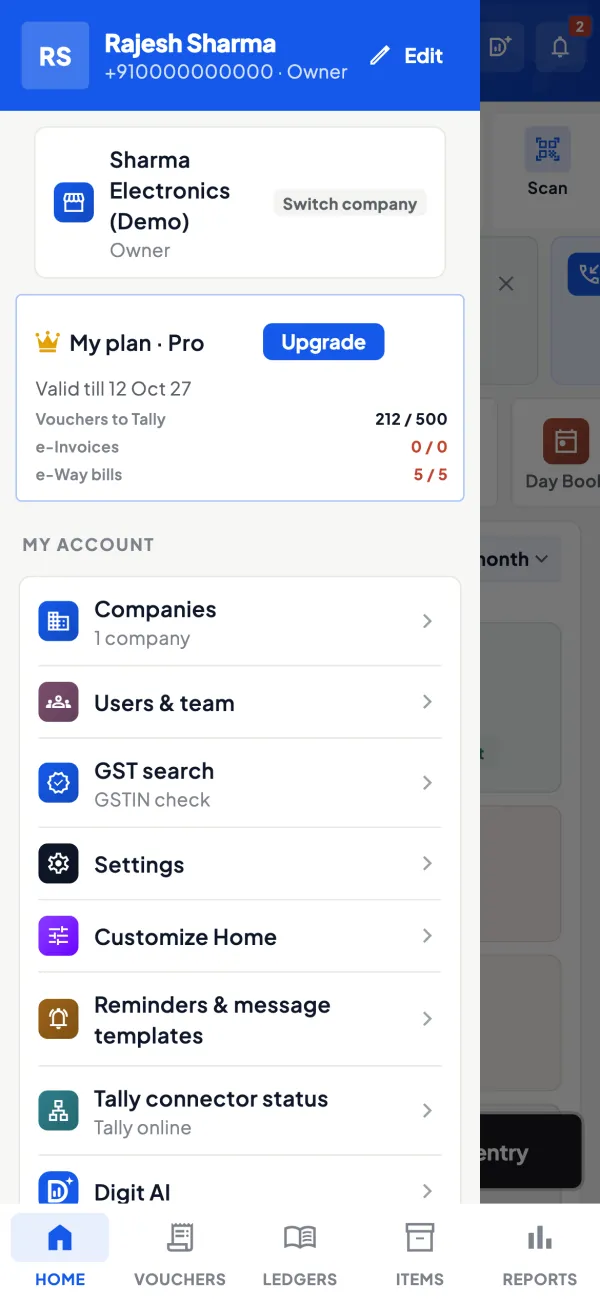
Inside TallyPrime, you can create separate users with different security levels, so your accountant does not need the administrator password; ask whoever manages your Tally to set this up. In Cashflow OS, you can invite your accountant by link with the accountant role for a specific company. They see the synced ledgers, reports and GST views on the web, and can create vouchers only if the owner has switched on writing into Tally for that company. The owner can see the team's activity and remove access at any time. See the page for chartered accountants.
Avoid these
Common mistakes
- MistakeSharing the owner login with the accountantDo this instead
Create a separate user for them, so every entry and deletion can be traced to the right person.
- MistakeLeaving filed GST months open to editsDo this instead
Treat months whose returns are filed as closed, and require owner approval and a reason for changes.
- MistakeNever looking at what the accountant changedDo this instead
Once a month review deletions, back-dated entries, new supplier ledgers and changes to opening balances.
- MistakeLeaving access open after the engagement endsDo this instead
Remove the login on the last day, ask for data copies to be deleted in writing and change any shared passwords.
Keep handy
Checklist
Giving your accountant access safely — 7 checks. Tick them as you go.
In Cashflow OS
How Cashflow OS helps
Cashflow OS puts your TallyPrime books on every phone in the team. Where it fits this topic:
Invite the accountant with the right role
Invite your accountant by link with the accountant role for a specific company; they see synced ledgers, reports and GST views on the web, and enter vouchers only if writing is switched on.
See Team roles and access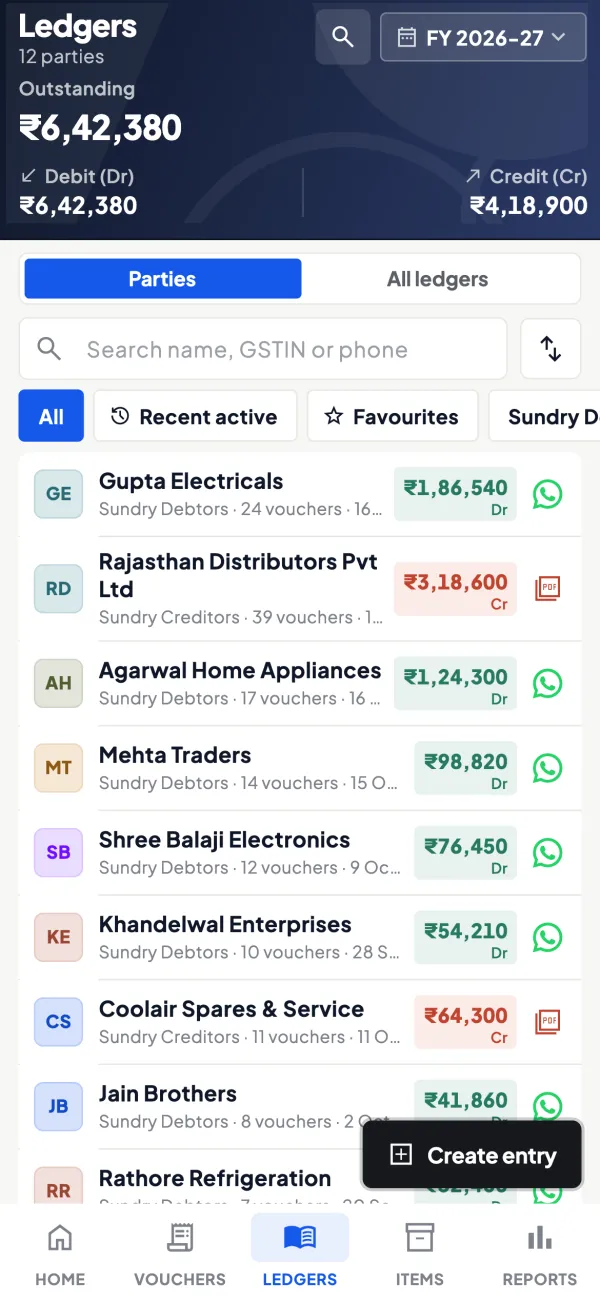
See the team's activity
The owner can see the team's activity and remove access at any time, and gets alerts when vouchers are added, changed or deleted in Tally.
See Tally on the web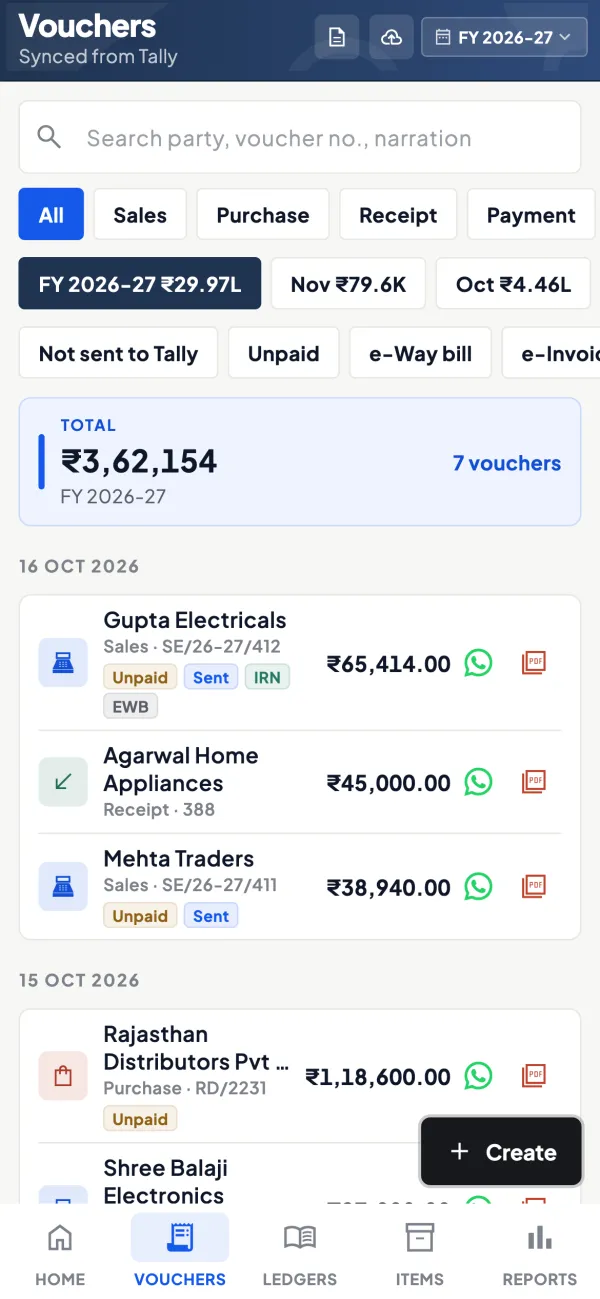
Questions people ask
Can my CA access my books without coming to the office?
Should my CA have permission to edit entries?
What if my accountant uses my computer?
Should I share my GST portal password with my accountant?
Should my accountant have the Tally administrator password?
What should a CA send back after year-end review?
How do I know if an accountant deleted entries?
Is it safe to send the data file by email?
This page is general information for Indian businesses, not tax, legal or financial advice. Rules and rates change — check the official portals or your CA before acting.