Feature
Tally on the web
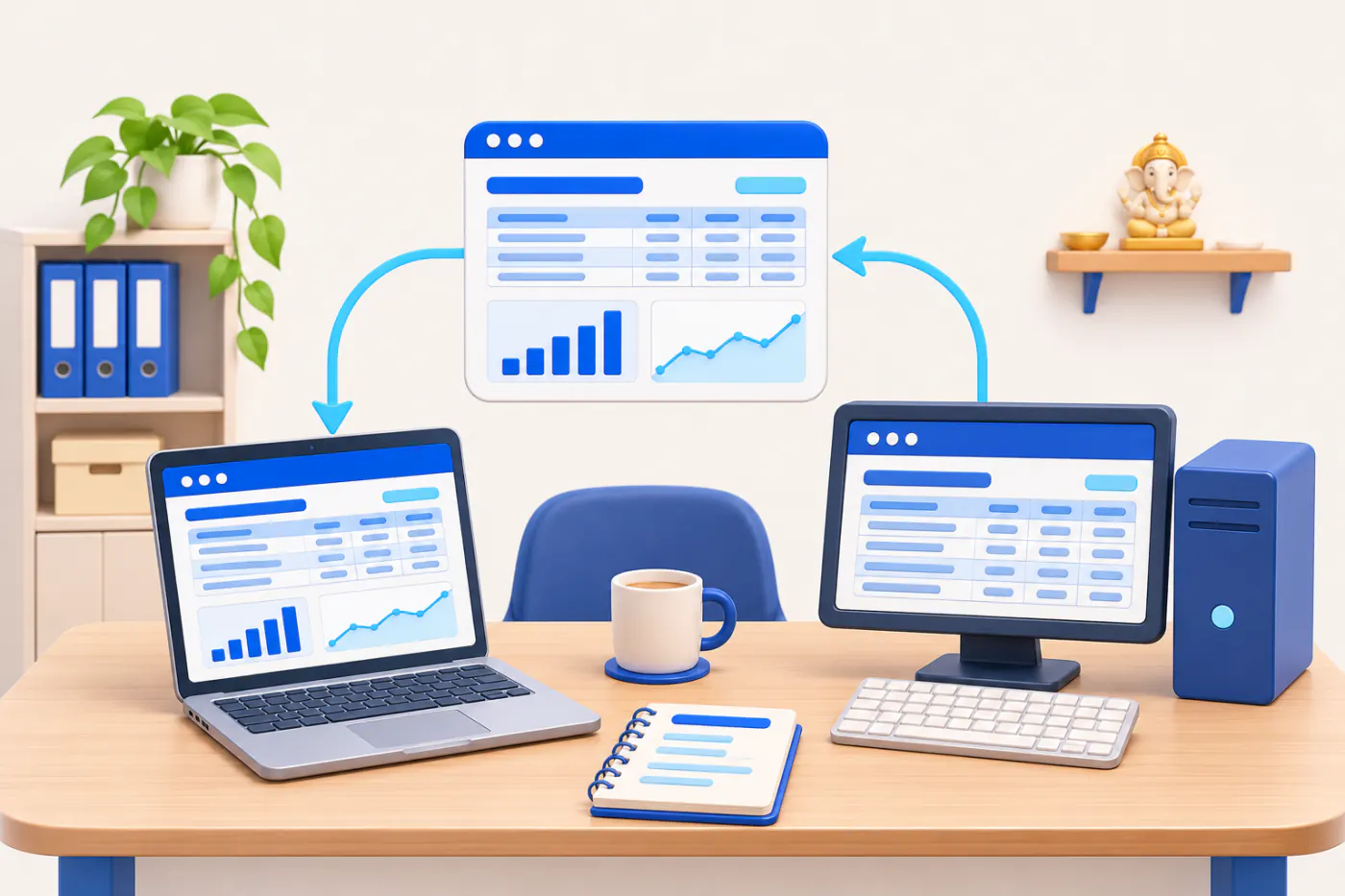
The Cashflow OS web app at app.cashflowos.in shows the same synced TallyPrime books as the phone app, on a bigger screen. You sign in by scanning a QR with the phone app, so there is no separate password to remember.
- Your Tally books in a browser
- QR sign-in, no password
- Leaves the Tally PC free
- Reports and GST on a big screen
Start free trialBook a free demo
Works with your TallyPrime14-day free trialJaipur team, call +91 70738 53555
Who it’s for
Who uses Tally on the web
- Owners working from homeThe day's position on a laptop, away from the office PC
- Accountants closing the monthDay Book, ageing and GST views while the Tally PC stays busy
- CAs and audit staffA client's books with the accountant role, no backup files
- Branch managersTheir own company's numbers without a Tally licence on the desk
- Office staffQuotations and purchase orders typed on a full keyboard
- Partners in another cityThe same figures as head office, in their own browser
- Family groups with several firmsSwitch between companies to prepare one view for a meeting
- iPhone usersThe web app works in the iPhone's browser until the app arrives
Pain → fix
The problems Tally on the web solves
What goes wrong without it, and what changes with Cashflow OS.
- The problemThe Tally PC is busy when you need a report
The billing clerk is entering bills, and you need the Day Book right now.
With Cashflow OSOpen the books in any computer's browserThe web app reads the synced copy, so the person at the Tally PC carries on undisturbed.
Tally on mobile - The problemShared office passwords that ex-staff still know
One login for everyone means nobody can say who saw or changed what.
With Cashflow OSSign in by scanning a QR with your own phoneThe phone app, signed in with your mobile number, signs the browser in as you, with your roles for each company.
Team roles and access - The problemLong ledgers are hard to check on a phone
Ticking a year of entries against a supplier's statement needs a proper screen.
With Cashflow OSLedgers, ageing and statements on a big screenParty ledgers with live balances and bill-wise outstanding, with statements to share when you are done.
Party ledger statements - The problemBank or CA wants reports by this evening
Four separate prints from the Tally PC, then a scan, then an email.
With Cashflow OSExport Excel or PDF straight from the browserProfit & Loss, Balance Sheet, ageing and stock summaries for any year or a custom range, ready to attach.
Reports in Excel and PDF - The problemGSTR-1 errors found on the last filing day
Missing GSTINs and wrong place of supply surface only when the portal objects.
With Cashflow OSCheck GSTR-1 bill-wise and HSN-wise before filingGSTR-1 tiles open bill-wise and HSN-wise detail, and the JSON downloads for the GST portal once corrected.
GST reports from your Tally data - The problemQuotations typed in Word, then again in Tally
The same items, rates and GST are keyed in twice, and the two copies drift apart.
With Cashflow OSMake documents on a keyboard; they convert to TallyQuotations carry your letterhead and logo, and convert into a Tally sales order or invoice once writing is on.
Quotations
What it does
What you can do with Tally on the web
Home and ledgers on a full screen
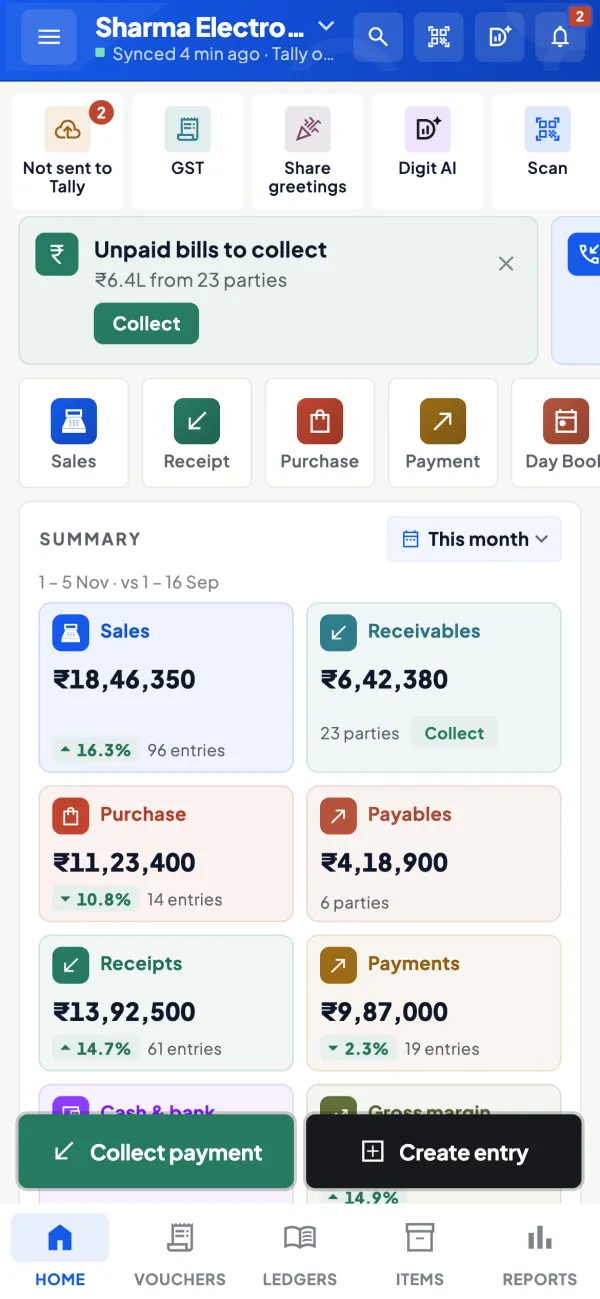
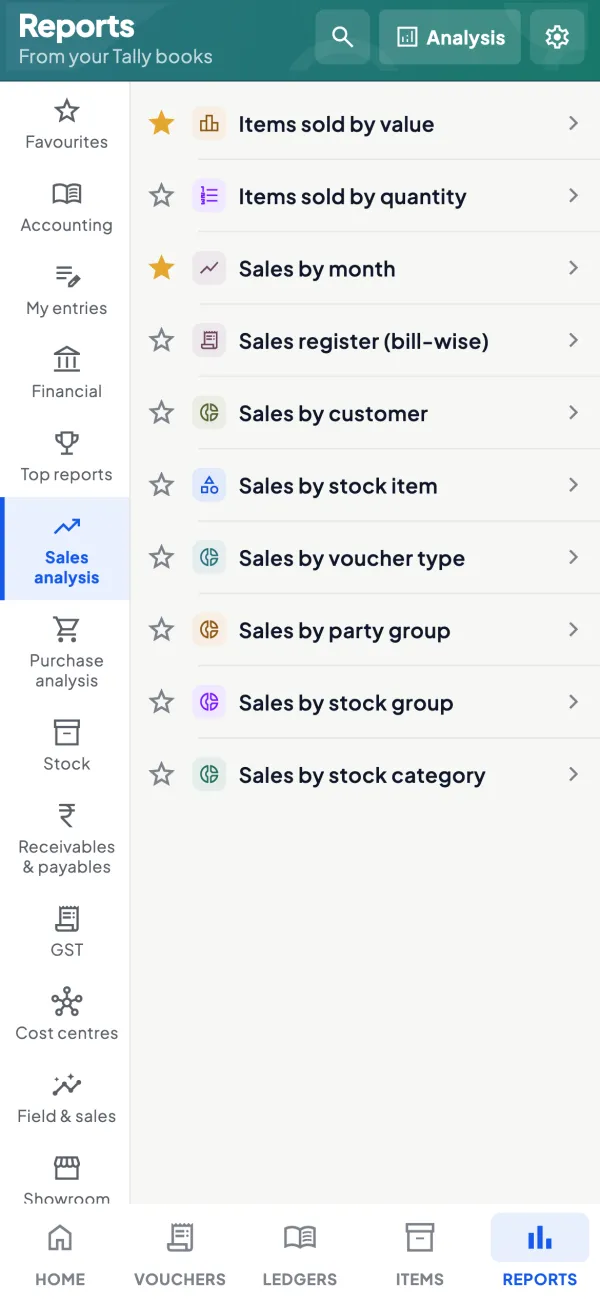
How it works. Open app.cashflowos.in, scan the QR with your phone and pick the company. Home shows sales, purchases, receipts, payments, cash and bank against the period before, and every ledger is a search away.
- Nothing to install on the computer
- Same synced books as the phone app
- Switch companies without signing in again
In practiceAnil Mehta works from his flat in Pune on Saturdays. He opens the web app on his laptop and checks the week's receipts of ₹8,40,000 without calling the office.
Reports and exports for the bank and CA
How it works. Run Profit & Loss, Balance Sheet, Trial Balance, Day Book, sales and the other reports for any financial year or a custom range, and export each to Excel or PDF.
- Date ranges that cross 31 March
- Excel for working, PDF for sending
- Figures that match Tally for the same period
In practiceFor a cash credit renewal, Pooja exports the year's P&L and Balance Sheet as PDF and the debtors ageing as Excel, and mails all three to the bank in one sitting.
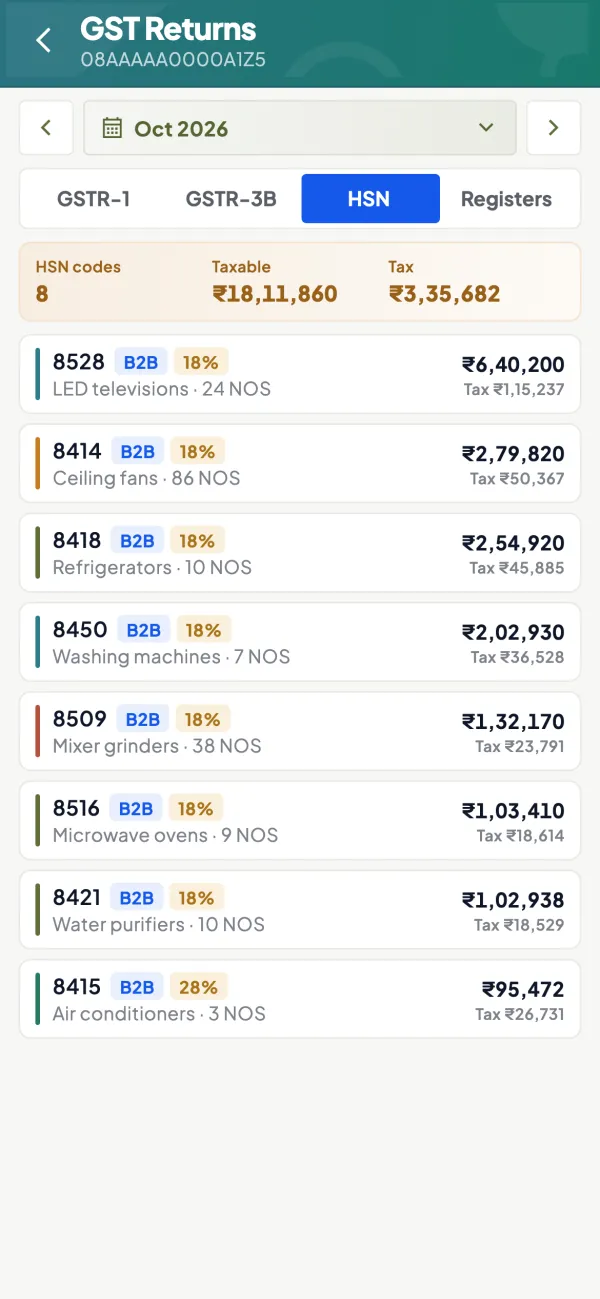
GST views, bill-wise and HSN-wise
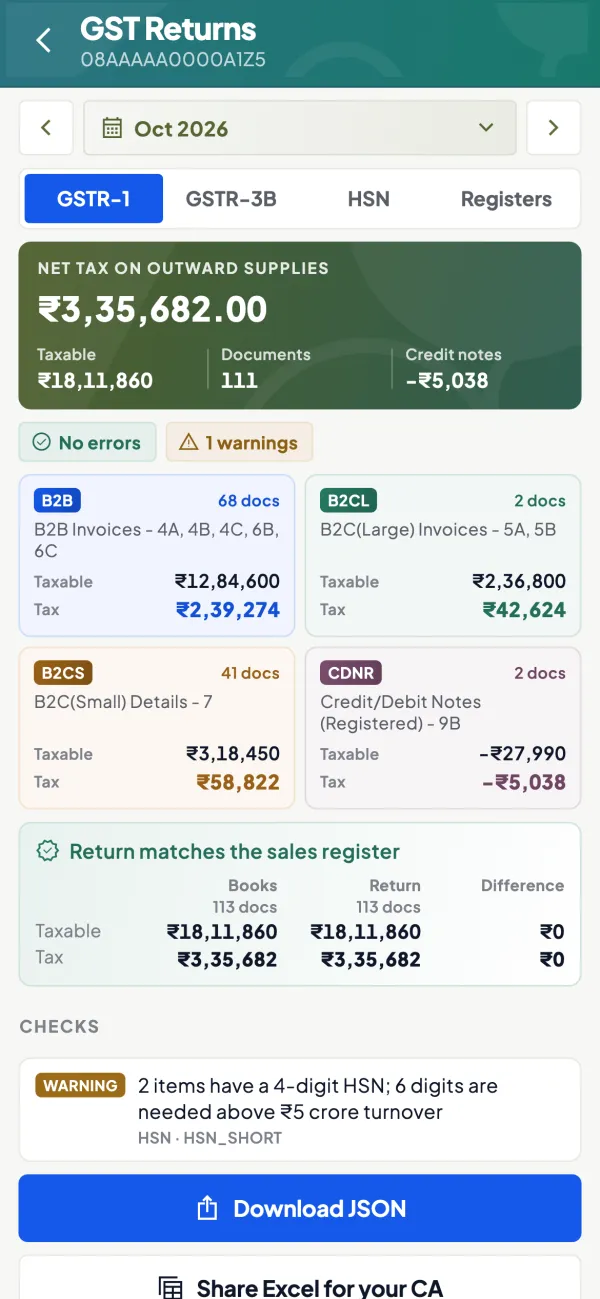
How it works. GSTR-1 and GSTR-3B views are prepared from the Tally data. Tiles open bill-wise and HSN-wise detail, and the JSON downloads for upload on the GST portal.
- Spot missing GSTINs before the due date
- HSN summary checked on a wide screen
- JSON ready for the portal after corrections
In practiceOn the 9th, the accountant finds two B2B invoices to a Surat buyer without a GSTIN, gets them corrected in Tally, and downloads the JSON after the next sync.
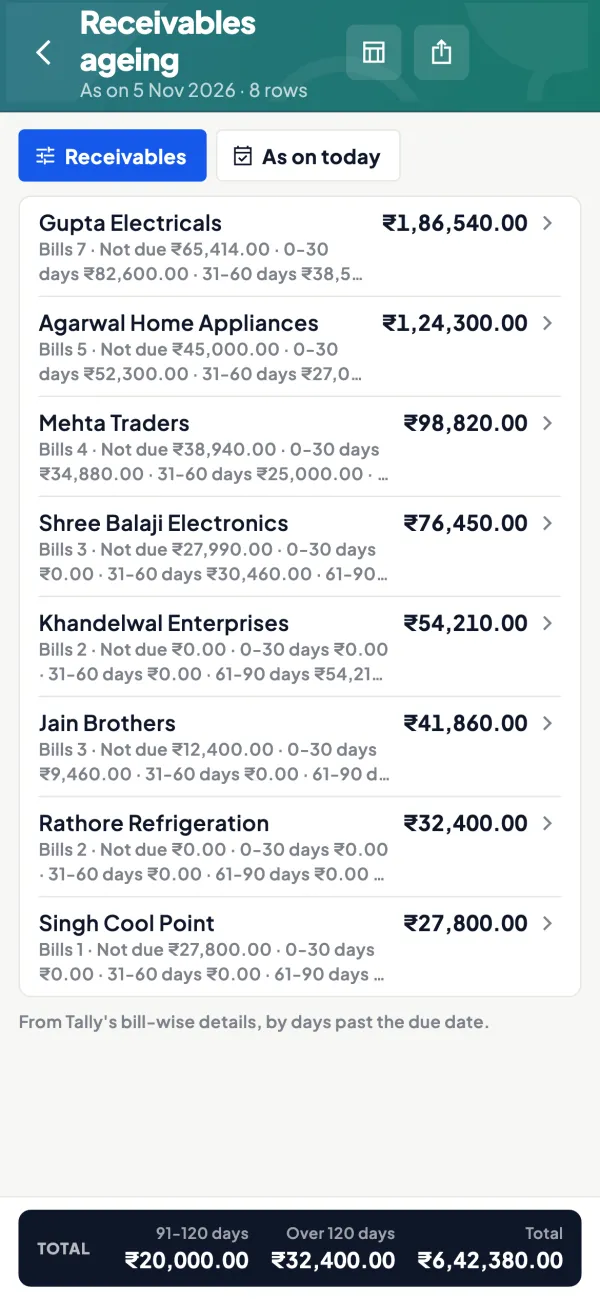
Outstanding to work through, party by party
How it works. Bill-wise receivables and payables with ageing are easier to work through on a big screen: sort by age, open the party ledger, share the statement.
- Oldest bills first for the collection calls
- Statements shared without printing
- Payables due this week in the same place
In practiceEvery Monday the office manager lists parties with bills over 60 days, totalling ₹4,25,000, and sends each one a statement before calling.
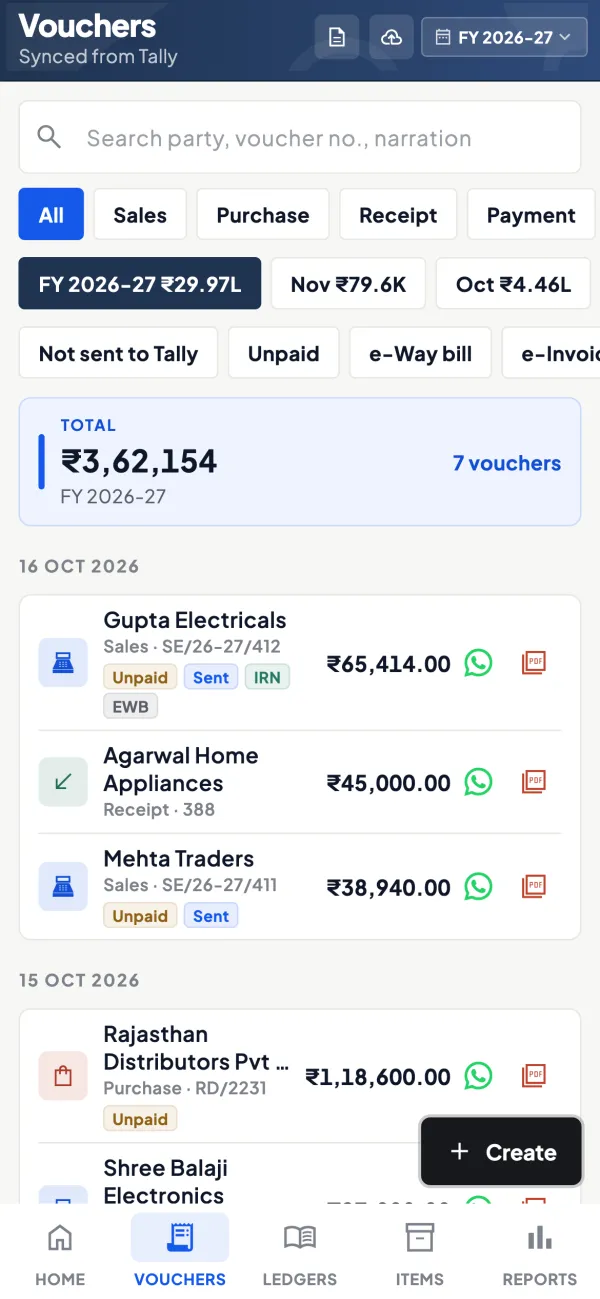
Entries into Tally from the browser
How it works. Once the owner switches writing on, create and alter vouchers and masters from the web app. Each entry goes through the connector and Tally validates it; a refused one comes back with Tally's reason.
- A full keyboard for long multi-line vouchers
- Tally checks every entry it receives
- Off until the owner turns it on
In practiceA purchase bill with 18 lines from a Delhi supplier is keyed in on the web app by the office assistant and arrives in Tally as a purchase voucher.
Guide
Tally on the web: the full guide
How it works day to day, who does what, and the points to watch.
Why a web version matters
Phones are good for quick checks. Some work needs a bigger screen: reviewing a long ledger, going through the GSTR-1 view bill by bill, exporting reports for the bank, or making a quotation with several lines. Most offices already have a computer that is not the Tally PC: the owner's laptop, a reception desk, a CA's office. The web app turns any of them into a window on the Tally books, without installing Tally or taking a remote session into the Tally PC.
What you can do in the web app
- See Home: sales, purchases, receipts, payments, cash and bank against the period before.
- Open ledgers and party ledgers with live balances, and share statements.
- Work through bill-wise receivables and payables with ageing.
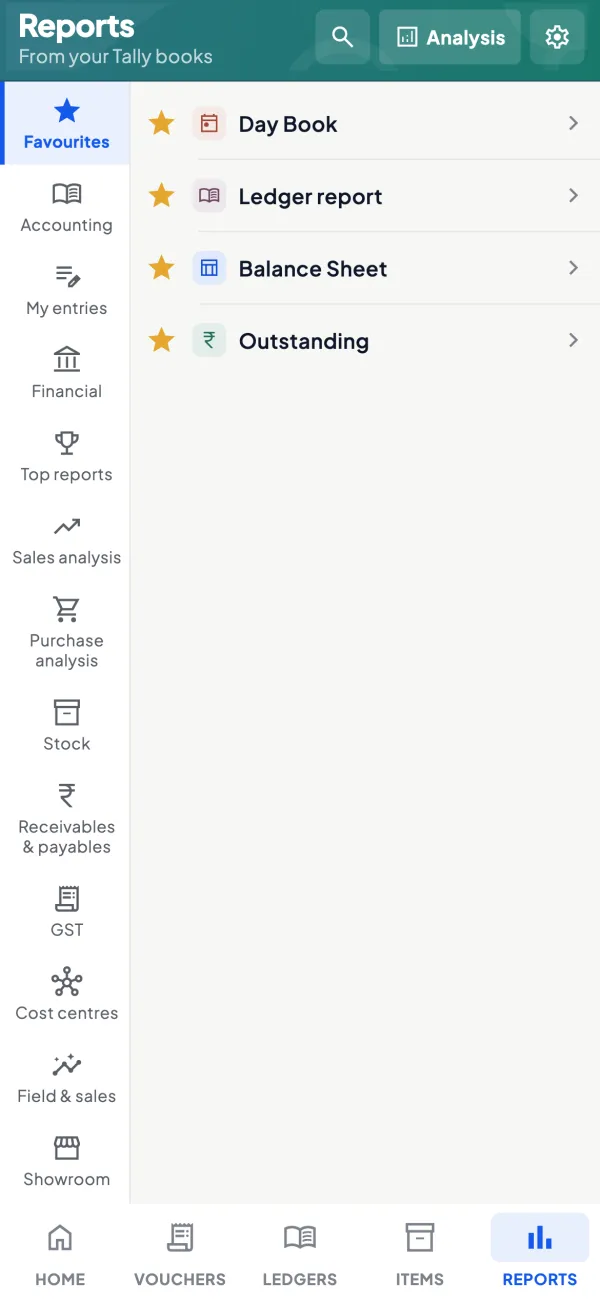
- Run reports: Profit & Loss, Balance Sheet, Trial Balance, Day Book, cash and bank book, ledger report, stock summaries, expenses, top customers, cashflow forecast. Export to Excel or PDF.
- Choose any financial year, or a custom date range spanning several years.
- Review GSTR-1 and GSTR-3B views and download the JSON for the GST portal.
- Once writing is switched on, create and alter vouchers and masters that go into Tally through the connector.
- Switch between the Tally companies in your account.
Signing in with a QR
The web app does not ask for a password. It shows a QR code; you scan it with the Cashflow OS app on your phone, which is already signed in with your mobile number, and the browser is signed in as you, with your roles. This keeps your access tied to your phone and your mobile number, and there is no shared office password that former staff still remember.
On a shared computer, sign out at the end of the session. For a wider view of safe access, read security of accounting data.
A worked example: month-end on the web app
Take an accountant who closes the month for a trading firm. On the 3rd she opens the web app on her laptop at home, scans the QR with her phone and picks the company. She runs the Day Book for the last week of the month to check that all purchase bills are in, then opens the GSTR-1 view and clicks the B2B tile to see bill-wise detail. Two invoices to a buyer in Gujarat are missing the party's GSTIN; she notes them for correction in Tally. Next she opens receivables ageing, exports it to Excel and sends it to the owner with the five parties over 60 days highlighted. Finally she exports the month's Profit & Loss as a PDF for the partners.
All of this happened without touching the Tally PC, which the billing clerk was using the whole time. Once the GSTINs are corrected in Tally and synced, she downloads the GSTR-1 JSON and files on the portal.
Who uses the web app
- Owners working from home or a second office.
- Accountants and CAs reviewing reports and GST views before filing.
- Office staff making documents such as quotations and purchase orders on a full keyboard.
- Branch managers who need their own company's numbers but not a Tally licence on their machine.
Web app or remote desktop?
| Question | Web app | Remote desktop into Tally PC |
|---|---|---|
| Does it block the Tally PC user? | No, it reads a synced copy | Often, the session takes over the screen |
| Works on a phone? | Yes, with the phone app | Awkward on a small screen |
| Per-person roles | Yes, per company | Usually whoever has the login sees everything |
| Full Tally features | No, its own screens and reports | Yes, it is Tally itself |
Both have their place; our page on Cashflow OS vs remote desktop for Tally goes through the trade-offs.
What it does not do
- It is not TallyPrime in a browser. It shows the synced data in Cashflow OS's own screens.
- It does not work without the connector for live data; if the Tally PC is off, you see the last synced copy.
- It does not file returns on the GST portal; it prepares the views and JSON.
- Writing into Tally stays off until the owner switches it on.
This page is general information for Indian businesses, not tax, legal or financial advice. Rules and rates change — check the official portals or your CA before acting.
Set-up
Start using Tally on the web in 4 steps
Works on top of your TallyPrime — nothing to migrate, no second set of books.
- 1
Link your Tally company from the phone app through the connector
- 2
Open app.cashflowos.in in any browser
- 3
Scan the QR on the screen with the Cashflow OS phone app
- 4
Pick the company, and sign out when you leave a shared computer
Buyer’s checklist
What to look for in Tally on the web software
Whatever you choose, check these before you commit.
- Works in a normal browser, with nothing to install on the computer
- Reads a synced copy, so it does not take over the Tally PC
- A personal sign-in for every user, with no shared office password
- Roles per company, so a branch manager sees only his company
- Reports for any financial year or a range that crosses 31 March
- Excel and PDF export from the same screen as the report
- GSTR-1 detail you can open bill by bill before filing on the portal
- The same numbers on the phone and in the browser, from one synced copy
Plans
Simple yearly plans
- 14-day free trial on your own books
- 3-year term saves up to 25%
- Premium modules (catalogue, field force, price lists, store…) priced extra
Start free trialGet the price for your business
Compare all plans- Growth₹3,000/year + GSTBooks, reports, outstanding and sharing
- Pro₹5,000/year + GSTEverything in Growth, plus entries into Tally
- Pro+₹7,000/year + GSTEverything in Pro, plus e-invoice and e-way bill
Why Cashflow OS
Why use Tally on the web in Cashflow OS
- Same books as the phoneThe web app and the phone app read the same synced copy of your Tally companies.
- No password to leakYou sign in by scanning a QR with your own phone, tied to your mobile number.
- The Tally PC stays freeNobody takes over the billing clerk's screen to check a report.
- Roles per companyA CA, a branch manager or a partner sees only the companies and screens their role allows.
- Writes back when you allow itEntries go into Tally through the connector, only after the owner switches writing on.
- 14-day free trialTry the phone and web app on your own Tally books before you pay.