Tally how-tos TallyPrime
Tally remote desktop vs a sync app
Remote desktop shows you the office PC's screen, so you work in Tally itself. A sync app shows a copy of your Tally data in screens built for phones and browsers. Remote desktop suits occasional full-Tally work; a sync app suits owners and teams who need numbers and quick entries every day.
- Owners who check figures daily
- Accountants working from home
- Distributors with sales teams
- Businesses with several users
- Teams that prefer Hindi screens
On this page 12
How each one works
Remote desktop: software on the office PC streams its screen to your device and sends your clicks and keys back. Tally does not know you are remote; you are simply using that PC from far away.
Sync app: a connector on the Tally PC reads data from the companies open in TallyPrime and keeps a copy online. You open an app that reads this copy. When you create an entry, the app sends it to the connector, which passes it to Tally, which validates and saves it. The guide to Tally sync covers this in detail.
Side by side
| Point | Remote desktop | Sync app |
|---|---|---|
| On a phone | Tiny Tally screen, pinch and zoom | Phone-sized screens and buttons |
| Users at once | Usually one per PC | Many |
| Limit what a user sees | Only through Tally's own security | Roles in the app, such as salesperson seeing own customers |
| Every Tally feature | Yes | Only what the app supports |
| Office PC | Must be on and reachable | Must be on with Tally open for fresh data |
| Weak mobile signal | Laggy, often unusable | Lighter, shows last synced data |
| Sharing PDFs on WhatsApp | Export, transfer, then share | Usually one tap |
When remote desktop is the better choice
- Your accountant works from home and needs full Tally: complex adjustments, configuration, year-end work, any report Tally offers.
- You need a Tally feature or a custom add-on that no app supports.
- Only one person ever needs remote access, and only from a laptop.
For these needs, remote desktop is simple and cheap. Secure it with a strong password and two-step sign-in, and avoid leaving unattended access permanently open.
When a sync app is the better choice
- The owner wants to check sales, cash, bank and outstanding several times a day on the phone.
- Salespeople need their customers' balances and want to book orders, without seeing company accounts.
- You share ledger statements and outstanding with parties on WhatsApp every day.
- Several people need access at the same time.
- Staff prefer Hindi screens.
A worked example
A building-materials distributor in Jaipur has one accountant, an owner who travels to suppliers, and five salespeople. Before: the owner phoned the accountant for balances, salespeople sent orders on WhatsApp, and the accountant used remote desktop twice a week from home. After: the accountant keeps remote desktop for her full-Tally work; the owner checks figures on the phone; salespeople see their customers' outstanding and book sales orders, which the owner approves before they post to Tally. The accountant's phone stops ringing for balances, and each tool does what it is good at.
Cost and setup effort
Remote desktop is quick to set up: install the tool on the office PC and on your device, set a password, and connect. Costs range from free personal tools to paid business licences. The ongoing cost is mostly hidden: the office PC must stay on and unlocked, and only one person can use it at a time.
A sync app needs a connector installed on the Tally PC and users invited to the app; setup usually takes under an hour for the first company. It is normally a subscription. The hidden cost here is learning which Tally features the app supports and which still need the PC. Test both against your real daily tasks before deciding.
Common mistakes
- Giving salespeople remote desktop access to the Tally PC "so they can check balances". They see everything, and only one can connect at a time.
- Treating any synced copy as a backup. Keep backing up Tally data separately; see backing up accounting data.
- Switching the Tally PC off at lunch or overnight while people in the field expect fresh figures.
Using Cashflow OS as the sync app
Cashflow OS is a sync app for TallyPrime. It shows ledgers, bill-wise outstanding, GST views and reports on Android and the web, shares party statements on WhatsApp, and, if the owner switches it on, creates vouchers into Tally, which validates each one. Roles per company keep salespeople to their own customers. For a full comparison, see Cashflow OS vs remote desktop for Tally.
Avoid these
Common mistakes
- MistakeGiving salespeople remote desktop access to the Tally PCDo this instead
Remote access shows them everything and allows one user at a time; use an app with roles that limit them to their own customers.
- MistakeLeaving unattended remote access open with a weak passwordDo this instead
Use a strong password and two-step sign-in, and turn off unattended access when it is not needed.
- MistakeSwitching the Tally PC off at lunch or overnightDo this instead
Both routes need the office PC; keep it on with Tally open while people are working outside.
- MistakeChoosing a tool without testing real daily tasksDo this instead
List the five things your team does every day and try each in both tools before deciding.
Keep handy
Checklist
Tally remote desktop vs a sync app — 7 checks. Tick them as you go.
In Cashflow OS
How Cashflow OS helps
Cashflow OS puts your TallyPrime books on every phone in the team. Where it fits this topic:
Phone-sized Tally figures for many users
Cashflow OS syncs ledgers, outstanding, GST views and reports to Android and the web, so several people can look at the same figures at once.
See Tally on mobile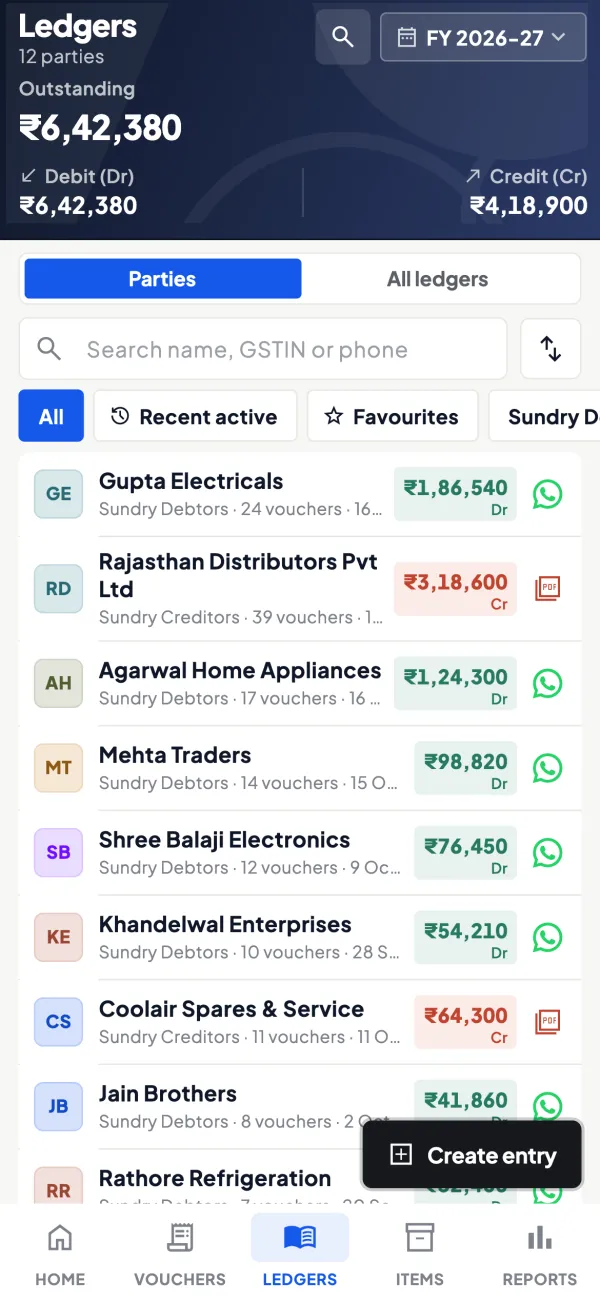
Roles instead of full PC access
Roles per company keep a salesperson to items and their own customers, and frontline orders can need approval before they reach Tally.
See Team roles and access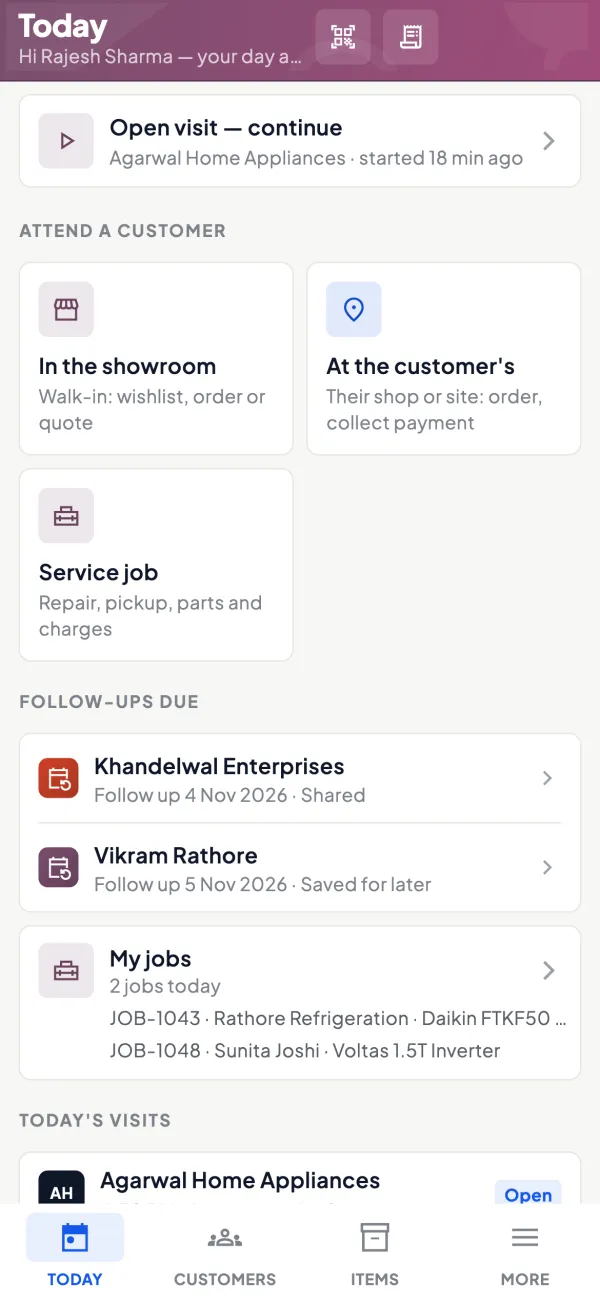
Questions people ask
Can I use both remote desktop and a sync app?
Is a sync app slower than remote desktop?
What happens if the internet goes down at the office?
Does a sync app need a Tally licence?
Can several people use remote desktop on one Tally PC together?
Does a sync app show every Tally report?
Which is safer for salespeople?
Can I share a party statement on WhatsApp from either tool?
This page is general information for Indian businesses, not tax, legal or financial advice. Rules and rates change — check the official portals or your CA before acting.