
Tally how-tos TallyPrime
Tally on mobile: how it works
TallyPrime runs on a Windows PC. To use its data on a phone, a small program on that PC reads your companies from Tally and keeps a synced copy online, which a mobile app shows in phone-friendly screens. Entries made on the phone are sent back to Tally to be saved there.
- Owners who travel
- Distributors and wholesalers
- Accountants on TallyPrime
- Sales teams in the field
- Businesses with several companies

On this page 11
The three pieces
| Piece | Where it runs | What it does |
|---|---|---|
| TallyPrime | Your office PC | Holds the books of record, validates every entry |
| Connector | The same PC | Reads the companies open in Tally and syncs them; passes approved entries back to Tally |
| Mobile and web app | Your phone and browser | Shows the synced data; lets permitted users create entries |
Nothing replaces Tally. The phone shows a copy of what is in Tally, and anything written goes through Tally's own checks. The guide to how Tally sync works explains the data flow in more detail.
Why not just open Tally on the phone?
Remote desktop can show the actual Tally screen on a phone, but Tally is designed for a keyboard and a wide screen. Scrolling a trial balance on a 6-inch display, typing voucher entries with an on-screen keyboard, and keeping the office PC unlocked for remote sessions all become daily friction. A sync app instead shows the same data in screens built for a phone: a balance at the top, tap to drill into bills, share as PDF. See remote desktop vs sync app for a full comparison.
What you can see on the phone
- Home: sales, purchases, receipts, payments, cash and bank for today, the month or the year, compared with the period before.
- Ledgers: any ledger or party ledger with its live balance and vouchers.
- Outstanding: bill-wise receivables and payables with ageing.
- Reports: Profit & Loss, Balance Sheet, Trial Balance, Day Book, cash and bank book, stock and item summaries, expenses, top customers and a cashflow forecast, with Excel and PDF export.
- GST: GSTR-1 and GSTR-3B views prepared from your Tally data, with JSON download; filing is still done on the GST portal.
- Any financial year and custom date ranges across years, and several Tally companies in one account.
What you can do from the phone
Writing into Tally is off until the owner switches it on for a company. Once on, permitted users can create and alter vouchers: sales, purchase, receipt, payment, journal, contra, credit note, debit note, sales order, purchase order, delivery note, receipt note and stock journal. They can also create ledgers, stock items, stock groups and categories, units and cost centres. GST is worked out from the item and the party's state. Tally validates each entry; if Tally refuses one, the app shows Tally's reason so it can be corrected.
Setting it up
- Install the connector on the Windows PC where TallyPrime is used.
- Open TallyPrime with the companies you want to sync.
- On your phone, sign in to the Cashflow OS app with your mobile number.
- Scan the QR code that the connector shows. The PC and your account are now linked.
- Invite your team with a link, giving each person a role.
The step-by-step connector setup guide covers each step and common problems.
What the PC needs
The connector reads from Tally while Tally is running with the company open on that PC. If the PC is switched off or Tally is closed, the app still shows the last synced data, but new entries in Tally will not appear and entries created on the phone wait until Tally is available again. Many businesses keep the Tally PC on through working hours for this reason. A stable internet connection on the PC helps sync stay current.
Who sees what
Each person gets a role per company: owner, admin, accountant, staff or salesperson. A salesperson sees items and their own customers, not the company's accounts. Orders from frontline staff can be set to need approval. The app can be locked with fingerprint, face or PIN, the web app at app.cashflowos.in is opened by scanning a QR with the phone, and the owner can see the team's activity. Each person can choose English or Hindi.
Avoid these
Common mistakes
- MistakeExpecting fresh figures while the Tally PC is switched offDo this instead
Keep the Tally PC on with the company open through working hours; otherwise the app shows only the last synced data.
- MistakeUsing remote desktop for everyone who needs balancesDo this instead
Keep remote desktop for full-Tally work; give owners and salespeople a sync app with roles that limit what they see.
- MistakeSwitching on writing before roles are setDo this instead
Give each person the right role first, set approval for frontline orders, then let the owner switch on writing into Tally.
- MistakeTreating the synced copy as a Tally backupDo this instead
Keep taking regular backups of the Tally company data; a sync app is a view and an entry route, not a backup.
Keep handy
Checklist
Tally on mobile: how it works — 7 checks. Tick them as you go.
In Cashflow OS
How Cashflow OS helps
Cashflow OS puts your TallyPrime books on every phone in the team. Where it fits this topic:
Your Tally numbers on the phone
Home shows sales, purchases, receipts, payments, cash and bank against the period before, with ledgers, outstanding and reports a tap away.
See Tally on mobile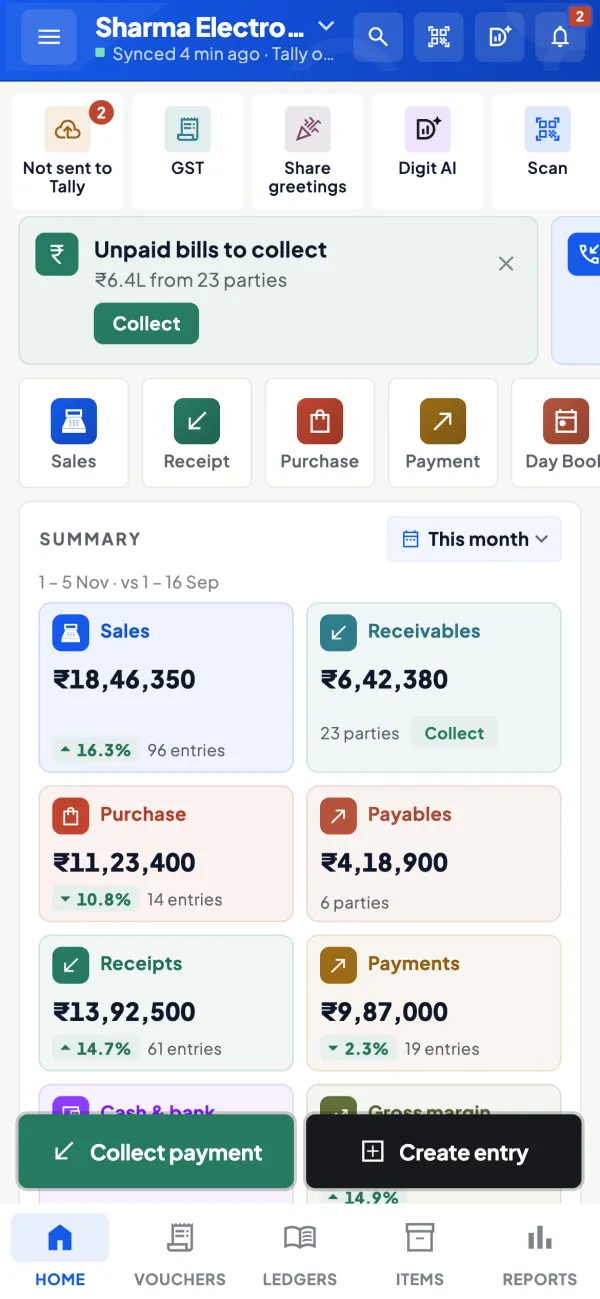
Entries that Tally checks
Once the owner switches writing on, permitted users create vouchers from the phone; Tally validates each one and a refused entry comes back with Tally's reason.
See Create Tally vouchers from your phone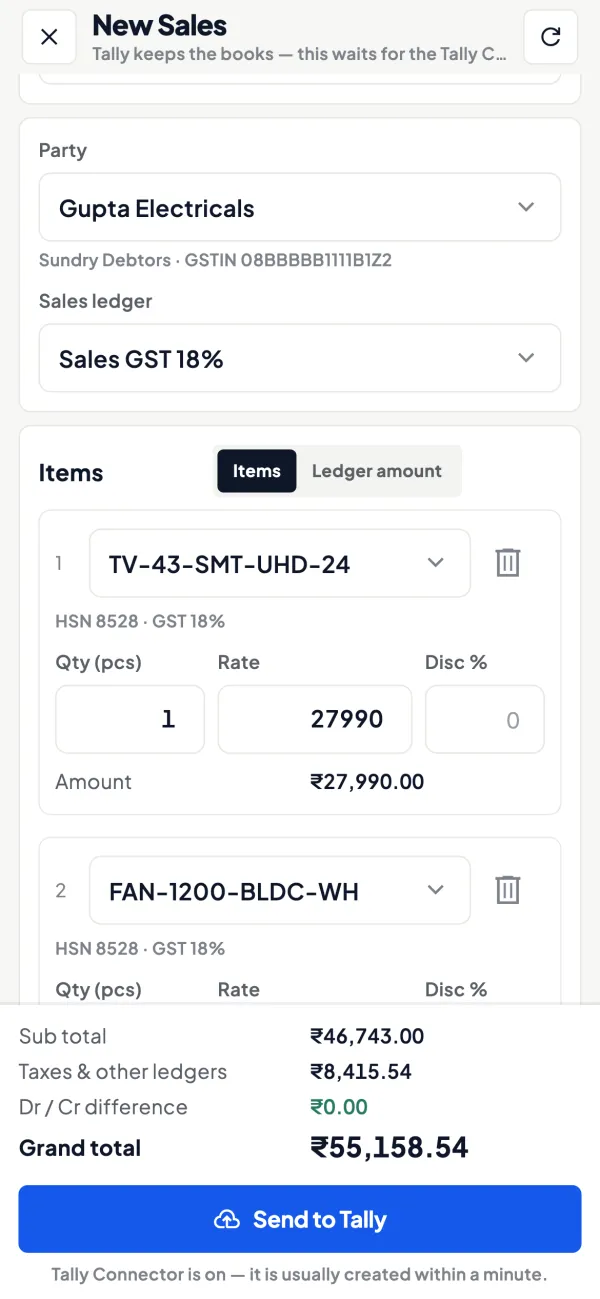
Questions people ask
Does Tally have to be open for the mobile app to work?
Is my data changed by the app?
Which phones does it work on?
Can I see more than one Tally company?
Is there a free trial?
Does the connector need to run on the same PC as Tally?
Can I use it from a laptop browser too?
Can salespeople see the company's profit?
This page is general information for Indian businesses, not tax, legal or financial advice. Rules and rates change — check the official portals or your CA before acting.