
Tally how-tos TallyPrime
Tally connector setup guide
Setting up takes four steps: install the connector on the PC where TallyPrime runs, sign in to the Cashflow OS app with your mobile number, scan the QR the connector shows, and invite your team. This guide covers each step, the checks before you start, and fixes for common problems.
- TallyPrime users
- Business owners
- In-house accountants
- Tally support staff
- Businesses with several companies

On this page 12
Before you start: a quick checklist
- The right PC: the Windows PC (or server) where TallyPrime is used daily and the companies are opened. If several PCs use Tally, choose the one that stays on longest during working hours.
- TallyPrime open with the companies you want to sync.
- Tally allows connections: in TallyPrime's connectivity settings, Tally must be set to accept connections from other programs on that PC (Tally's ODBC / port setting, commonly port 9000). Whoever manages your Tally can confirm this in a minute.
- Internet on the PC, so the connector can send data.
- Your phone with the Cashflow OS app installed (Android), or a browser for app.cashflowos.in.
- A backup of your Tally data, as good practice before installing anything on the accounts PC; see backing up accounting data.
Step 1: install the connector on the Tally PC
Download the Windows connector from Cashflow OS and install it on the Tally PC. It is a small program that runs alongside Tally. Once open, it finds the companies currently open in TallyPrime. If it does not see Tally, check that Tally is running and that the connectivity setting above is on.
Step 2: sign in on your phone
Open the Cashflow OS app and sign in with your mobile number. The person who signs in first and links the connector is normally the owner of the account, so the business owner should do this step, not a staff member. Choose English or Hindi; each person can pick their own language later.
Step 3: scan the QR to link
The connector shows a QR code. In the app, scan it. This links that PC, and the Tally companies it reads, to your account. There is no password to type on the PC. After linking, the connector starts reading the open companies and the app fills in as data arrives; the first sync of a large company can take a while, so let it run.
If you have several Tally companies, open all of them in Tally so the connector can read them. They appear in the app as separate companies you can switch between. More on this in managing multiple companies in Tally.
Step 4: check the numbers, then invite the team
Before inviting anyone, compare a few figures in the app with Tally for the same date: a bank balance, one party's ledger balance, total receivables, and this month's sales. They should match. Then invite your team by sending them a link, choosing a role for each person per company:
| Role | Typical person |
|---|---|
| Owner | Business owner, partners |
| Admin | Manager who runs operations |
| Accountant | In-house or visiting accountant |
| Staff | Billing desk, counter, godown |
| Salesperson | Field or showroom sales; sees items and own customers only |
Step 5 (optional): switch on writing into Tally
By default, Cashflow OS only reads from Tally. Writing into Tally, such as creating sales orders, invoices, receipts or ledgers from the app, stays off until the owner switches it on for a company. Turn it on when you are ready, start with a few trusted users, and decide whether orders from frontline staff need approval. Each entry goes through Tally's own validation; if Tally refuses one, the app shows Tally's reason.
Keeping it running day to day
- Keep the Tally PC on with the companies open during working hours; when Tally is closed, the app shows the last synced data and entries from the app wait.
- Stop the PC from sleeping during the day.
- Open the same companies each morning.
- If you replace the PC, install the connector on the new one and link it again by scanning the QR.
The guide to how Tally sync works explains what happens behind the scenes.
Fixing common problems
| Problem | Check |
|---|---|
| Connector says Tally not found | Tally is open; connectivity setting is on; no other program is using the same port |
| A company is missing in the app | That company is open in Tally on the connector PC |
| Figures look old | PC is on, online, and Tally is open with the company |
| An entry from the app was refused | Read Tally's reason shown in the app, such as a missing ledger, and correct it |
| Staff cannot see a company | They were invited to that company with a role |
For anything else, contact Cashflow OS support from the app. The Tally on mobile page summarises what you get once set up.
Avoid these
Common mistakes
- MistakeInstalling on a PC that is rarely onDo this instead
Install on the PC where Tally stays open longest in working hours, or on the Tally server if that is where it runs.
- MistakeA staff member linking the account firstDo this instead
Let the owner sign in and scan the QR, since the first person to link is normally the account owner.
- MistakeInviting the team before checking figuresDo this instead
First compare a bank balance, one party balance, total receivables and this month's sales with Tally.
- MistakeLetting the Tally PC sleep during the dayDo this instead
Keep the PC awake and the companies open in working hours, so data stays current.
Keep handy
Checklist
Tally connector setup guide — 8 checks. Tick them as you go.
In Cashflow OS
How Cashflow OS helps
Cashflow OS puts your TallyPrime books on every phone in the team. Where it fits this topic:
Your Tally on phone and web
Once linked, the connector keeps a synced copy of the open companies, and ledgers, outstanding and reports open on the phone and at app.cashflowos.in.
See Tally on mobile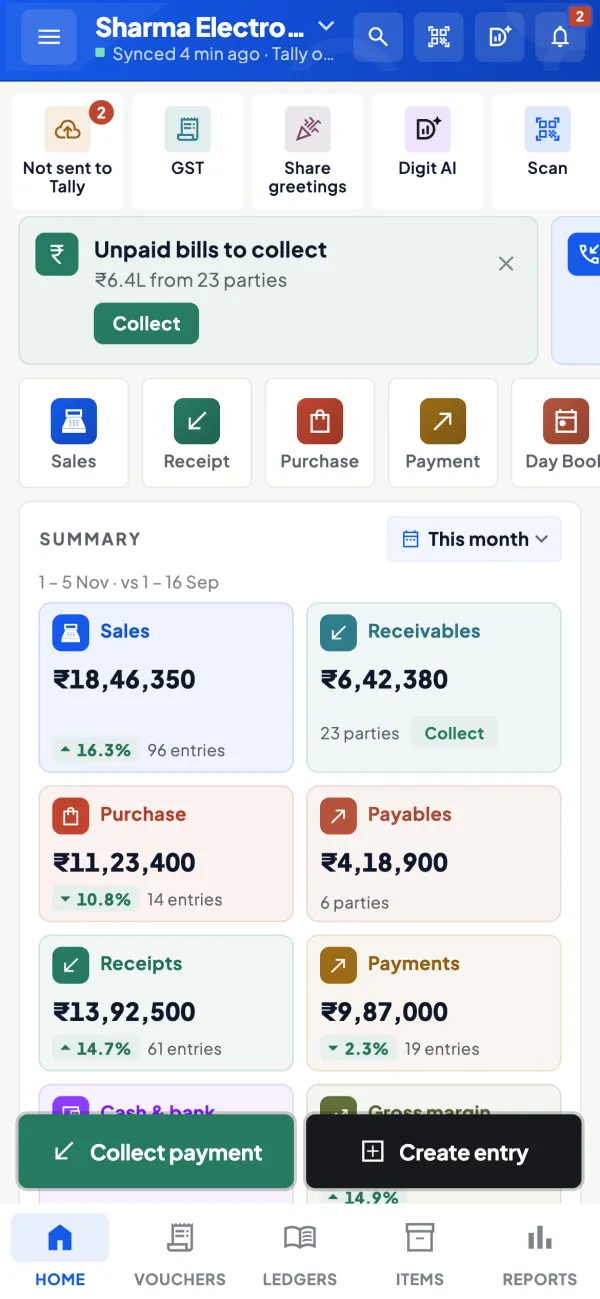
Several companies in one account
Each company open in Tally on the connector PC appears as a separate company you can switch between.
See Multiple Tally companies in one account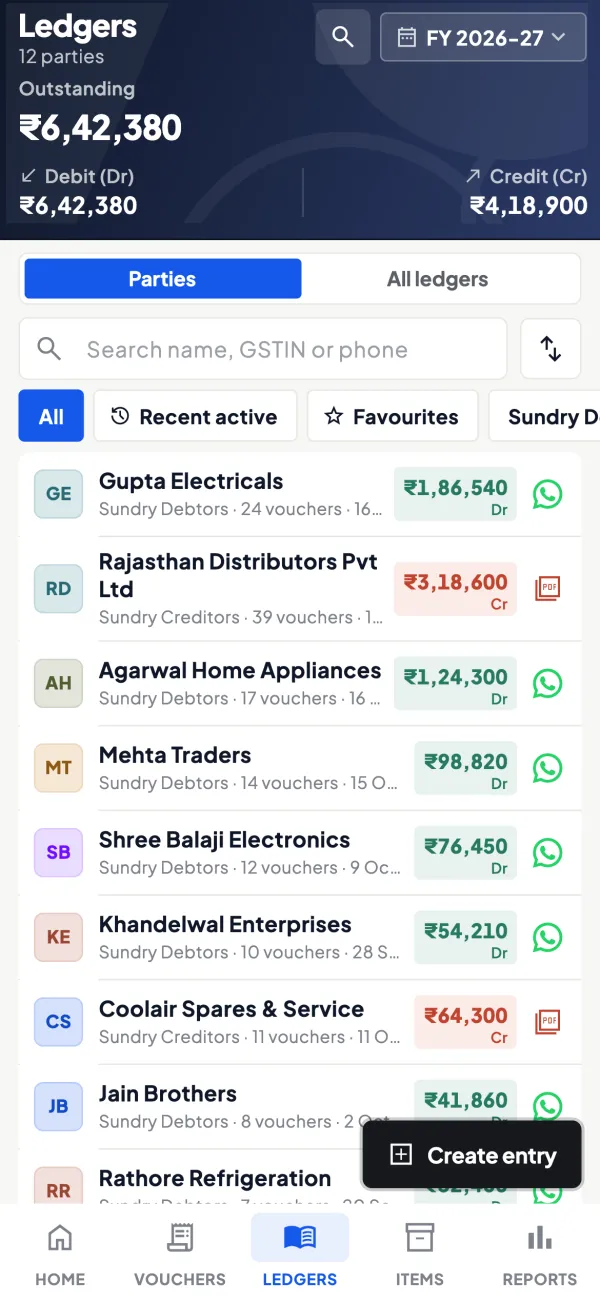
Questions people ask
Do I need to install anything on staff phones besides the app?
Can I set it up on a Tally server instead of a PC?
Will the connector change my Tally data?
How long is the free trial?
How do I sign in to the web app?
Does the connector work with older TallyPrime releases?
What happens when the Tally PC is off?
Can each person use the app in Hindi?
This page is general information for Indian businesses, not tax, legal or financial advice. Rules and rates change — check the official portals or your CA before acting.