
Tally how-tos TallyPrime
How to access Tally remotely
There are four common ways to reach your Tally data when you are not at the office PC: remote desktop, Tally's own remote-access options, running Tally on a hosted server, or a sync app that keeps a copy of the data on your phone and web.
- Owners who travel
- Accountants working from home
- CAs reviewing client books
- Businesses with branches
- Field salespeople
- Multi-company owners
On this page 12
First, decide what you need remotely
"Remote Tally" means different things to different people. Write down who needs access and for what:
- The owner wants to check sales, cash, bank and outstanding from home or while travelling.
- The accountant wants to enter vouchers from home on some days.
- The CA wants to review books and pull reports without visiting.
- Salespeople want customer balances and to book orders in the field.
- A branch wants to bill into the head office's company.
Each need points to a different option, and many businesses combine two.
Option 1: remote desktop
Remote desktop software lets you see and control the office PC's screen from another computer or a phone. You see Tally exactly as it looks in the office and can do anything you could do there.
- Good for: an accountant working from home on a laptop; occasional full-Tally tasks.
- Limits: one person at a time on that PC; hard to use on a phone; the office PC must stay on and unlocked for remote sessions; slow on weak connections.
- Security: use strong passwords and two-step sign-in on the remote desktop tool; never leave unattended access open with a weak password.
Option 2: Tally's own remote options
Tally Solutions provides its own ways to access company data remotely, which depend on your TallyPrime release and licence. These typically let authorised users reach reports or data through Tally's infrastructure rather than through a third-party remote desktop. Because features and licence conditions change between releases, check Tally's current documentation or your Tally partner for what your licence includes and how to set it up.
Option 3: Tally on a hosted server
Some businesses move Tally off the office PC onto a cloud server or a hosted Windows machine, and every user connects to it remotely. Branches and home users all reach the same company.
- Good for: several people in different places entering vouchers into one company.
- Limits: monthly hosting cost, licence conditions for multi-user access, dependence on internet for everyone including the office, and still a keyboard-and-screen experience.
- Check: who manages backups and updates on the server, and where the data physically sits.
Option 4: a sync app
A small connector on the Tally PC reads the companies open in Tally and keeps a synced copy online. The owner and team use a mobile app or web browser built for that data: balances, outstanding, reports, statements to share. If the app supports it, entries made in the app are sent back to Tally and validated there.
- Good for: owners, salespeople and many users who mostly need to see data and make specific entries.
- Limits: not every Tally screen or configuration is available; Tally must be running on the connector PC for fresh data and for entries to reach Tally.
Security checklist for any option
- Give every remote user their own login; never share the administrator password.
- Turn on two-step sign-in wherever the tool offers it.
- Keep the Tally PC updated and protected by antivirus, and do not use it for personal browsing.
- Remove remote access the day someone leaves.
- Keep backing up Tally data regardless of the remote method; see backing up accounting data.
Comparing the options
| Need | Remote desktop | Hosted server | Sync app |
|---|---|---|---|
| Owner checking figures on phone | Awkward | Awkward | Designed for it |
| Accountant doing full entries from home | Good | Good | For supported vouchers |
| Several users at once | No | Yes | Yes |
| Salespeople with limited access | No | Hard to limit | Role-based |
| Office PC must stay on | Yes | No | Yes, for fresh data |
Where Cashflow OS fits
Cashflow OS is a sync app for TallyPrime. Install the connector on the Tally PC, sign in with your mobile number, scan the connector's QR, and invite your team. Owners see sales, cash, bank, outstanding, GST views and reports; salespeople see their own customers and items; and, once the owner switches writing on, vouchers can be created into Tally. Many businesses keep remote desktop for the accountant's occasional full-Tally work and use the sync app for everyone else. See Cashflow OS vs remote desktop and Tally on mobile.
Avoid these
Common mistakes
- MistakeSharing the Tally administrator password with everyoneDo this instead
Give each remote user their own login with only the access they need, and remove it the day they leave.
- MistakeLeaving unattended remote desktop open with a weak passwordDo this instead
Use a strong unique password and two-step sign-in on the remote tool, and switch off unattended access you do not use.
- MistakeGiving salespeople full remote desktop just to check a balanceDo this instead
Use a method with role-based access, so a salesperson sees their own customers and items, not the company's accounts.
- MistakeStopping backups because the data is now reachable onlineDo this instead
Remote access is not a backup. Keep taking regular Tally backups, with one copy stored away from the office PC.
Keep handy
Checklist
How to access Tally remotely — 8 checks. Tick them as you go.
In Cashflow OS
How Cashflow OS helps
Cashflow OS puts your TallyPrime books on every phone in the team. Where it fits this topic:
Your Tally figures on phone and web
The connector on the Tally PC keeps a synced copy, so you see sales, cash, bank, outstanding and reports from anywhere without taking over the office screen.
See Tally on mobile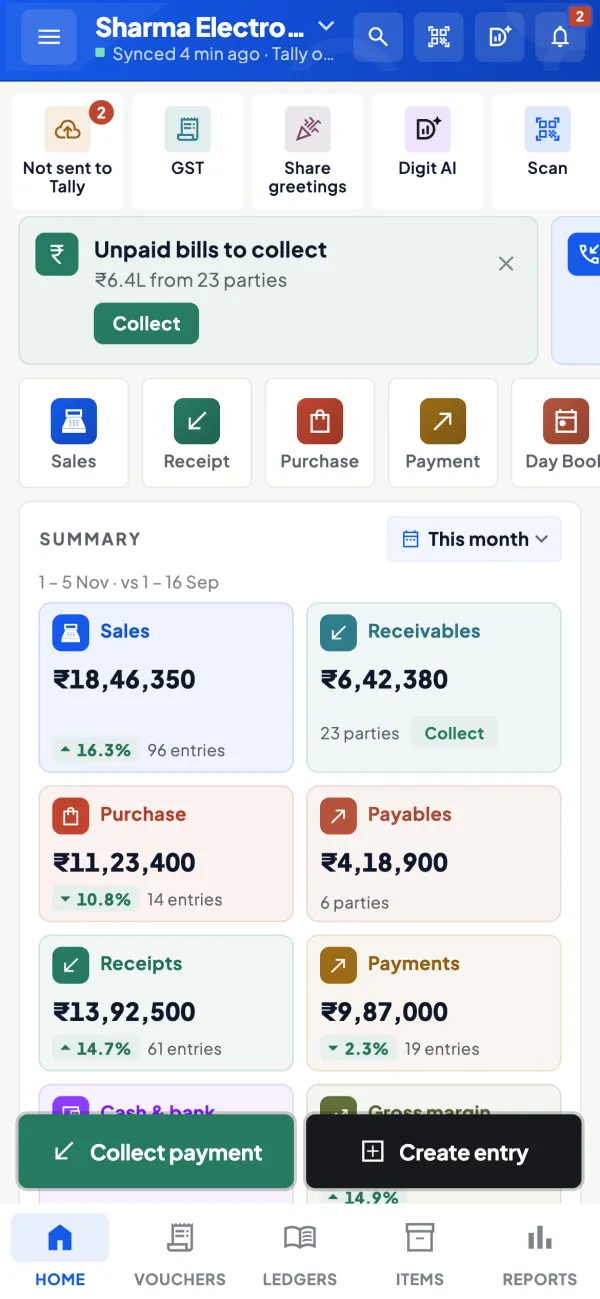
Access by role for the team
Invite the accountant, staff or salespeople with a link and give each a role; a salesperson sees items and their own customers, not the accounts.
See Team roles and access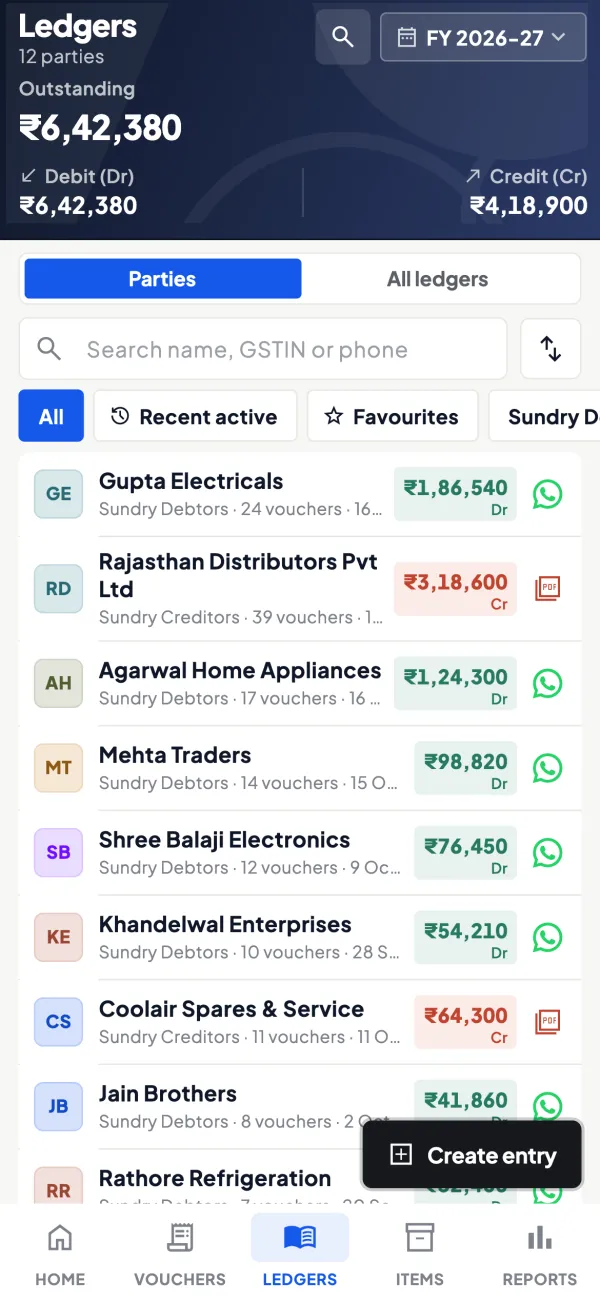
Questions people ask
Is remote access to Tally safe?
Can two people use Tally remotely at the same time?
Will remote access slow down Tally in the office?
Do I need a static IP to access Tally remotely?
Does the office PC have to stay on for remote access?
Can my CA see my books without visiting the office?
Can I make entries into Tally from my phone?
Is remote access a replacement for backups?
This page is general information for Indian businesses, not tax, legal or financial advice. Rules and rates change — check the official portals or your CA before acting.