Compared · as of November 2026
Cashflow OS vs remote desktop for Tally
Remote desktop lets you sit at your Tally PC from anywhere, with every Tally feature. Cashflow OS takes a different route: it syncs the books and shows them in phone and web screens, with roles for each person. Both are legitimate; they suit different jobs.
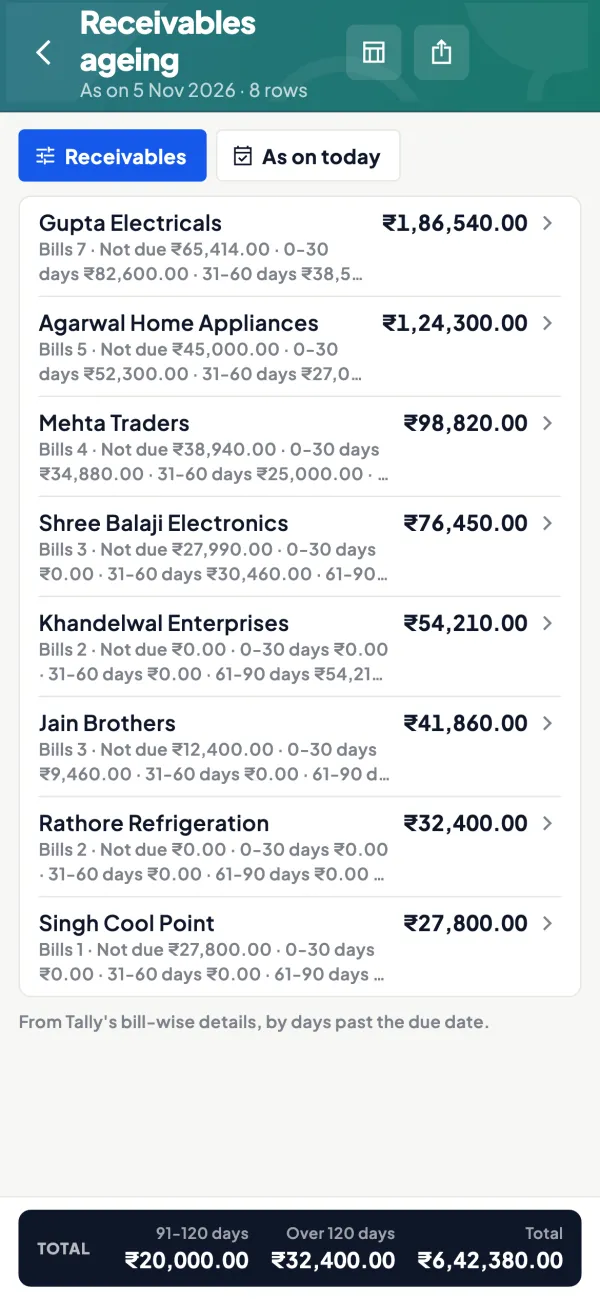
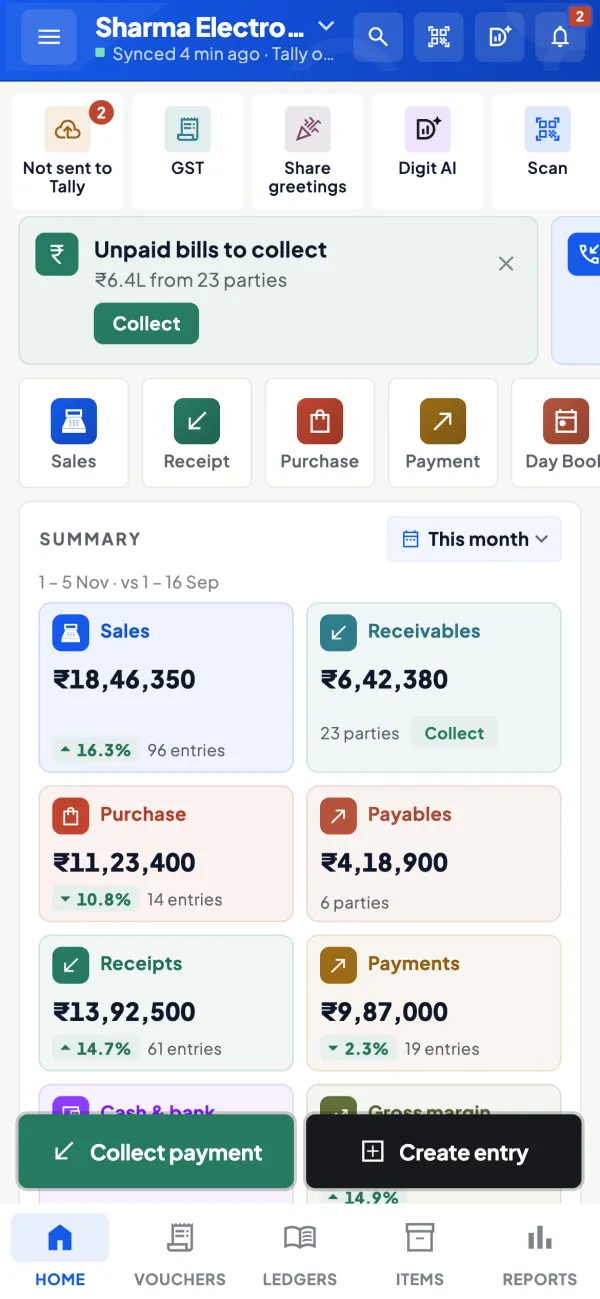
- Screens built for phones
- Tally PC user not disturbed
- Access limited by role
- Statements in a few taps
Start free trialSee the verdict
Fair comparison, facts from public websitesJaipur team, call +91 70738 53555

In one minute
The short verdict
Both can be the right answer. It depends on who in your business needs what.
Cashflow OS
Choose Cashflow OS if…
Several people need parts of the books on their phones — owner, partners, salespeople, branch managers — with access limited by role. It reads a synced copy, so the person at the Tally PC keeps working undisturbed.
Remote desktop
Choose remote desktop if…
An accountant or one or two Tally power users need full Tally from outside the office: complex entries, statutory reports, year-end work or TDL customisations. Many businesses keep it for exactly that, alongside a phone app.
Cashflow OS
Where Cashflow OS is stronger
Facts only — where Cashflow OS does more than remote desktop, or does it differently.
- 01Built for a phone screenHome figures, ledgers, outstanding and reports in screens made for phones, not Tally's keyboard menus.Tally on mobile
- 02Each person sees their partRoles per company; a salesperson sees their own customers' dues, not the Balance Sheet.Team roles and access
- 03Web app without a shared passwordSign in to app.cashflowos.in by scanning a QR with the phone app.Tally on the web
To be fair
Where remote desktop may suit you
An honest view: when the other option could be the better choice for you.
- Full Tally, every featureAn accountant doing complex entries, statutory reports or year-end work from home needs the real Tally screen, which remote access gives.
- Work that lives only in TallyConfiguration, print formats and TDL-based customisations are done in Tally itself, not in any app.
In detail
The full comparison
Feature by feature, price, and when each one fits.
In this comparison 7
✓ yes
Two ways to reach Tally from outside the office
Remote desktop means installing a remote-access program on the Tally PC (or running Tally on a server or a hosted desktop) and connecting to it from another computer or phone. You see the actual Tally screen and work exactly as you would at the desk.
A sync app such as Cashflow OS runs a small connector on the Tally PC that reads the companies open in TallyPrime and keeps a synced copy. People then use their own app or the web app to read the books, share statements and, if the owner allows, post entries back into Tally through the connector. Our guide on remote desktop vs a sync app explains the mechanics further.
Side by side
| Question | Remote desktop | Cashflow OS |
|---|---|---|
| Every Tally feature available? | Yes, it is Tally | No, its own screens and reports |
| Comfortable on a phone? | Hard; Tally is built for keyboard and large screens | Yes, screens are built for phones |
| Blocks the person at the Tally PC? | Often, unless set up as a multi-user server | No, it reads a synced copy |
| Per-person access | Usually whatever the login allows | Roles per company; salesperson sees own customers only |
| Share a statement on WhatsApp | Export, save, then send | From the party screen |
| Works when the Tally PC is off? | No | Shows last synced copy; live data needs the connector |
| Team of 10 on the road | Awkward and risky | Designed for it |
When remote desktop is the better choice
- Your accountant works from home and needs full Tally: complex entries, statutory reports, year-end work, things beyond what any app shows.
- One or two power users who know Tally well and want nothing else.
- Tasks that are only in Tally, such as certain configuration, printing formats or TDL-based customisations.
For these, remote access to Tally is often the simplest answer, and Cashflow OS does not try to replace it.
Where remote desktop struggles
Phones: using Tally through a remote session on a 6-inch screen is slow and error-prone. Owners usually give up and call the office instead.
Sharing the PC: on a single desktop, a remote session typically takes over the screen. The billing clerk stops while the owner checks a ledger.
Access control: giving a salesperson remote access to check his customers' dues gives him the whole company, including the Balance Sheet and other salespeople's parties. Shared passwords to the remote tool travel further than intended. See user roles and access control.
Security exposure: a remote-access tool on the Tally PC is a doorway into that machine, not just into Tally. It needs strong passwords, updates and care.
A worked comparison: one owner, one week
Take an owner of an electricals distribution business who travels three days a week. With remote desktop only, his week looks like this: on Monday he connects from a hotel to check outstanding, but the billing clerk is mid-invoice, so he waits. On Wednesday a dealer asks for a statement; he connects from his phone, struggles to navigate Tally's menus on the small screen, and finally asks the office to send it, which happens the next morning. On Friday he wants a salesman to check a customer's dues, but cannot give the salesman the remote login without exposing everything.
With Cashflow OS on his phone, Monday's check takes a minute and disturbs no one. Wednesday's statement goes from the party screen to WhatsApp in a few taps. On Friday the salesman already sees his own customers' dues in the app, within the salesperson role. The accountant, meanwhile, still uses remote access for the quarter's TDS work, which is exactly what it is good at.
When Cashflow OS is the better fit
- Several people need specific parts of the books on their phones: owner, partners, salespeople, branch managers.
- The common needs are reading: Home figures, ledgers, outstanding, statements, reports, GST views.
- Entries made outside the office are simple and repetitive: receipts, payments, sales orders, delivery notes.
- You want each person's access limited by role and the team's activity visible to the owner.
- You want the Tally PC user to keep working undisturbed.
Many businesses use both
A common, sensible set-up: the accountant keeps remote access to Tally for heavy work, while the owner and the team use Cashflow OS on phones and the web app. The connector reads the same Tally companies the accountant is working in, so everyone sees the same books. Writing from the app goes through Tally's own checks, so there is no second set of books to reconcile. For the wider picture, read ways to access Tally remotely.
Facts about other products come from their public websites as of November 2026 and may have changed. Tally, TallyPrime and other names are trademarks of their owners.
No risk
Try it side by side in 4 steps
Your Tally stays as it is. Try Cashflow OS on your own books before you decide.
- 1
Keep remote access for the accountant's heavy work
- 2
Install the Cashflow OS connector on the Tally PC
- 3
Sign in with your mobile number and scan the QR
- 4
Invite the team with roles; salespeople see only their own customers
Plans
Simple yearly plans
- 14-day free trial on your own books
- 3-year term saves up to 25%
- Premium modules (catalogue, field force, price lists, store…) priced extra
Start free trialGet the price for your business
Compare all plans- Growth₹3,000/year + GSTBooks, reports, outstanding and sharing
- Pro₹5,000/year + GSTEverything in Growth, plus entries into Tally
- Pro+₹7,000/year + GSTEverything in Pro, plus e-invoice and e-way bill