Business software & ERP Business software
Cloud vs desktop accounting
Desktop accounting keeps your books on a computer in your office. Cloud accounting keeps them on the vendor's servers and you open them in a browser or app. Many Indian businesses end up with a hybrid: desktop books with a synced copy for mobile access.
- Business owners choosing software
- Tally users wanting mobile access
- Multi-branch businesses
- Accountants and CAs
- Owners who travel often
On this page 11
How they differ day to day
| Point | Desktop | Cloud |
|---|---|---|
| Where data lives | Your PC or office server | Vendor's data centre |
| Access from outside | Needs remote access set up | Any device with internet |
| Internet outage | Office keeps working | Work stops or slows |
| Speed for heavy entry | Usually fast | Depends on connection |
| Backups | Your responsibility | Vendor's, but check terms |
| Updates | Installed by you | Automatic |
| Cost pattern | Licence plus renewal | Monthly or yearly per user |
Why desktop is still common in India
A large share of Indian MSMEs keep their books on desktop software, and the reasons are practical. Data-entry operators type hundreds of vouchers a day and want keyboard speed. Internet in many market areas is still patchy. Owners like knowing the data is physically in their office. And CAs across the country know the desktop tools deeply.
The weak points are equally practical: a single PC is a single point of failure, the owner cannot see anything when away from the office, and backups depend on someone remembering to take them. The guide on backing up accounting data covers that risk.
Why businesses move to cloud
- Owners travel or run several locations and want live numbers.
- Salespeople and branch staff need to enter or check data from outside.
- No one in the office wants to manage backups or updates.
- A CA prefers to log in remotely instead of collecting data files.
The cost is a full migration: new ledgers, new reports, staff retraining and a period of running two systems. Opening balances, pending bills and stock all need to move correctly.
Counting the real cost over three years
Compare the two on a three-year view, not on the first-year price. Take a business with five users:
- Desktop: licence and yearly renewal, a reliable PC or small server, a UPS, an external drive or online backup, and occasional IT help. Remote access, if needed, adds its own cost.
- Cloud: per-user subscription every year, better internet with a backup connection, and the one-time migration effort. Users added later raise the bill each year.
Then add the costs people forget: staff time lost during a migration, reports you have to rebuild, and the risk of errors in opening balances and pending bills. For a business whose books are already clean on desktop, those switching costs often outweigh the savings on hardware.
Questions to settle before choosing
- How many people need to enter data, and how many only need to look?
- Where are they? In the office, at branches, on the road?
- How reliable is internet at each location? Is there a backup connection?
- Can you export the complete data, including masters and bill-wise details, if you leave?
- Will your CA and auditors accept the reports it produces?
Often the answer is that a few people enter data in the office and many more need to look or do small entries from outside. That pattern suits a hybrid.
If you stay on desktop, reduce the risks
- Keep the accounting PC on a UPS and away from the counter where anyone can use it.
- Take a daily backup to a second drive and a weekly copy to a location outside the office.
- Give each person their own login with only the rights they need.
- Restore a backup on another PC once a quarter to prove it works.
The hybrid: desktop books, cloud access
In a hybrid, the books stay on the office PC and a synced copy is kept online. People outside the office read from the copy; entries they make are sent back to the desktop books to be saved there. You keep the speed and familiarity of desktop entry, and the office can keep working if the internet drops, while the owner and team get mobile access.
This is how Cashflow OS works with TallyPrime. A Windows connector on the Tally PC reads the companies open in Tally and keeps a synced copy. The owner sees sales, outstanding, GST views and reports on the phone or at app.cashflowos.in, and staff can post vouchers into Tally once the owner switches writing on. Tally stays the books of record. For a side-by-side view, read Tally sync vs moving to cloud accounting.
Avoid these
Common mistakes
- MistakeComparing only the first year's priceDo this instead
Compare three years: licences or subscriptions, hardware, internet, backups and the staff time a migration takes.
- MistakeRunning desktop books with no tested backupDo this instead
Back up daily to a second drive, keep a weekly copy outside the office, and restore it on another PC once a quarter.
- MistakeMoving to cloud without checking data exportDo this instead
Confirm you can export everything, including masters and bill-wise details, before you sign up.
- MistakeSharing one login among all staffDo this instead
Give each person their own login with only the rights they need, whichever system you use.
Keep handy
Checklist
Cloud vs desktop accounting — 7 checks. Tick them as you go.
In Cashflow OS
How Cashflow OS helps
Cashflow OS puts your TallyPrime books on every phone in the team. Where it fits this topic:
Tally books on the phone
A connector on the Tally PC keeps a synced copy, so the owner sees sales, outstanding, GST views and reports on the phone while Tally stays the books of record.
See Tally on mobile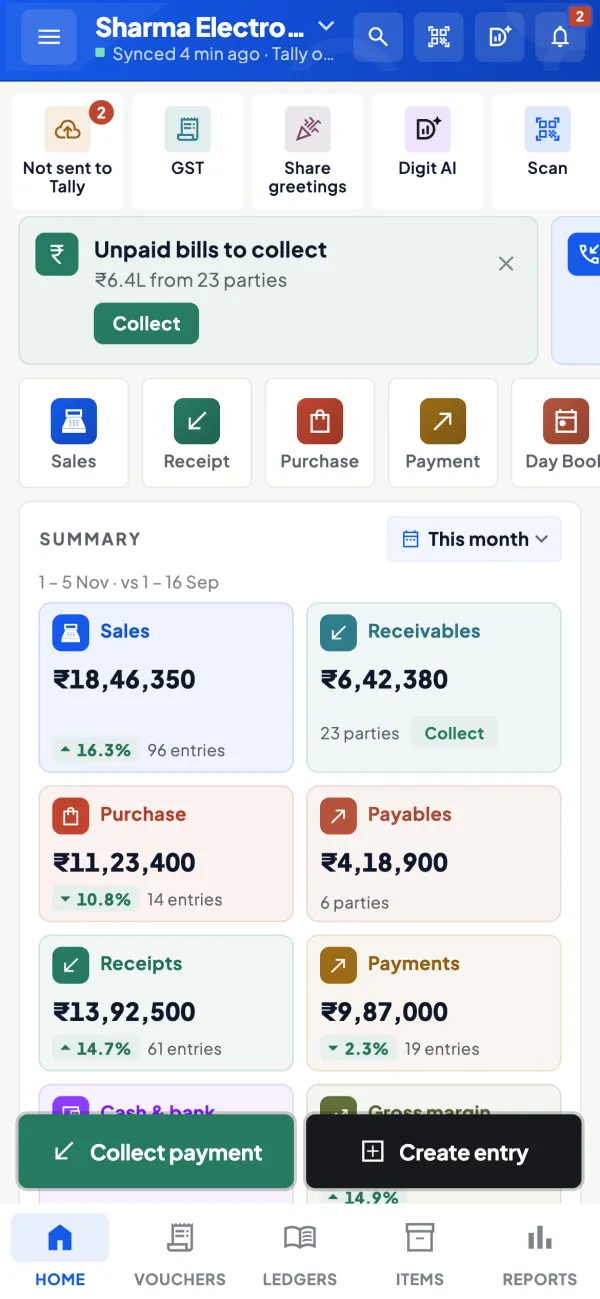
The same data in a browser
Open the synced books at app.cashflowos.in by scanning a QR with the phone app; staff can post vouchers into Tally once the owner switches writing on.
See Tally on the web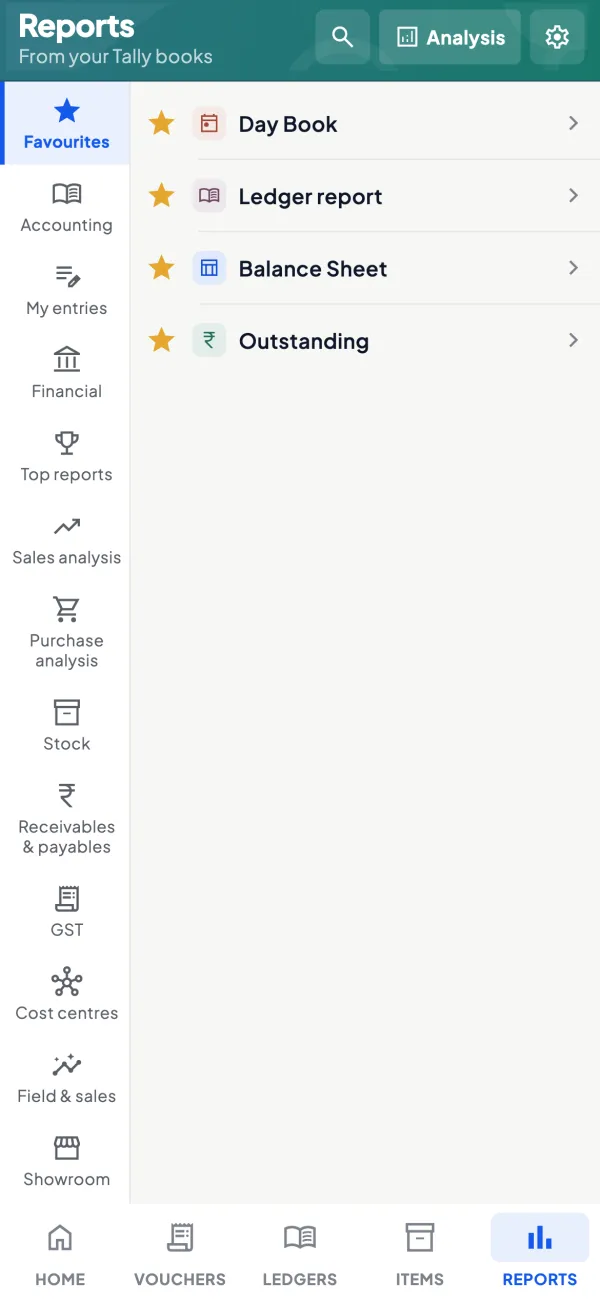
Questions people ask
Is cloud accounting safer than desktop?
Can I use desktop accounting from my phone?
Does the office stop working if the internet goes down?
What happens to my data if I stop a cloud subscription?
What is hybrid accounting?
Is remote desktop a good way to use Tally from outside?
Do I need to retrain staff if I stay on desktop?
How long does a migration to cloud accounting take?
This page is general information for Indian businesses, not tax, legal or financial advice. Rules and rates change — check the official portals or your CA before acting.