Feature
Reports in Excel and PDF
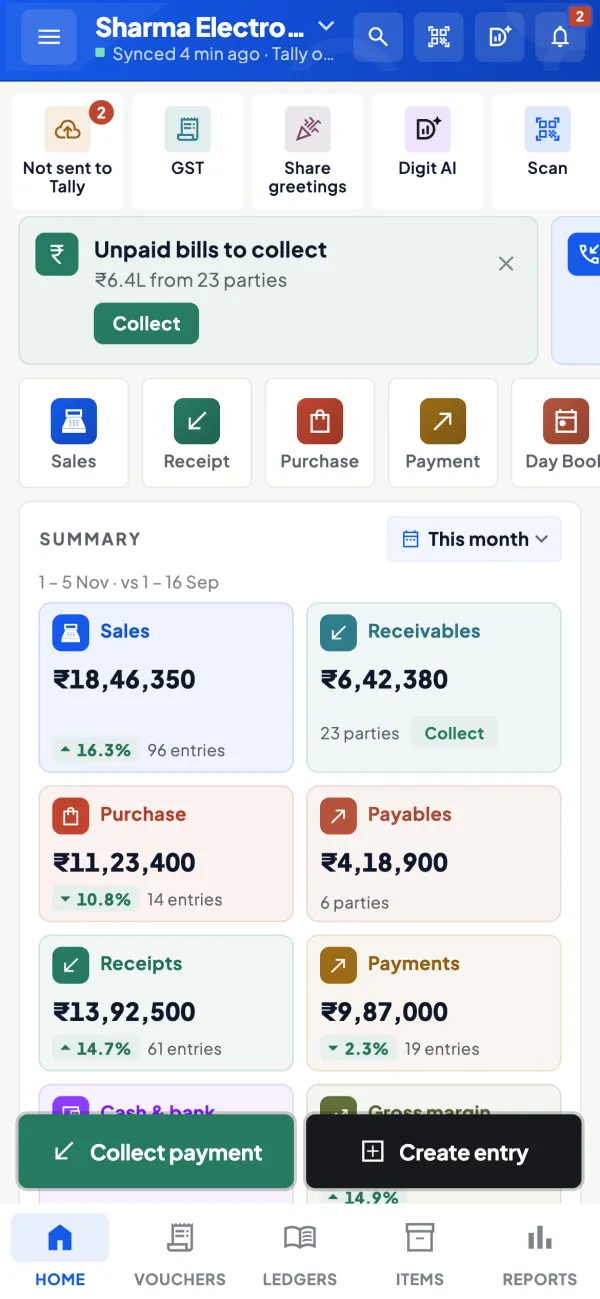
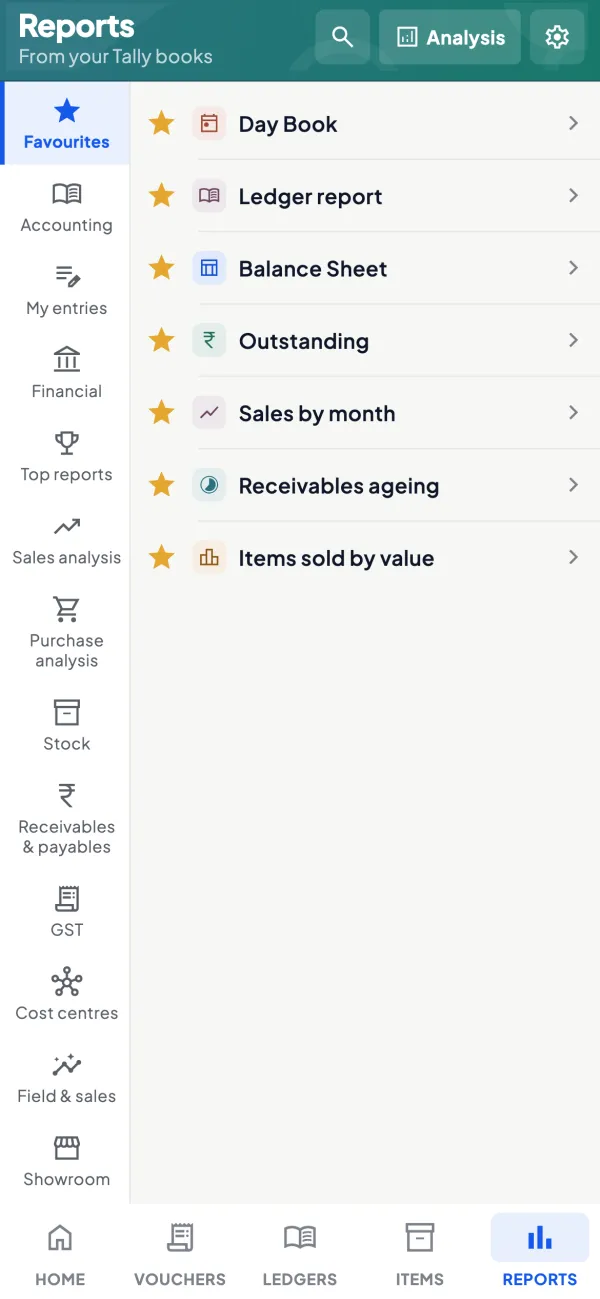
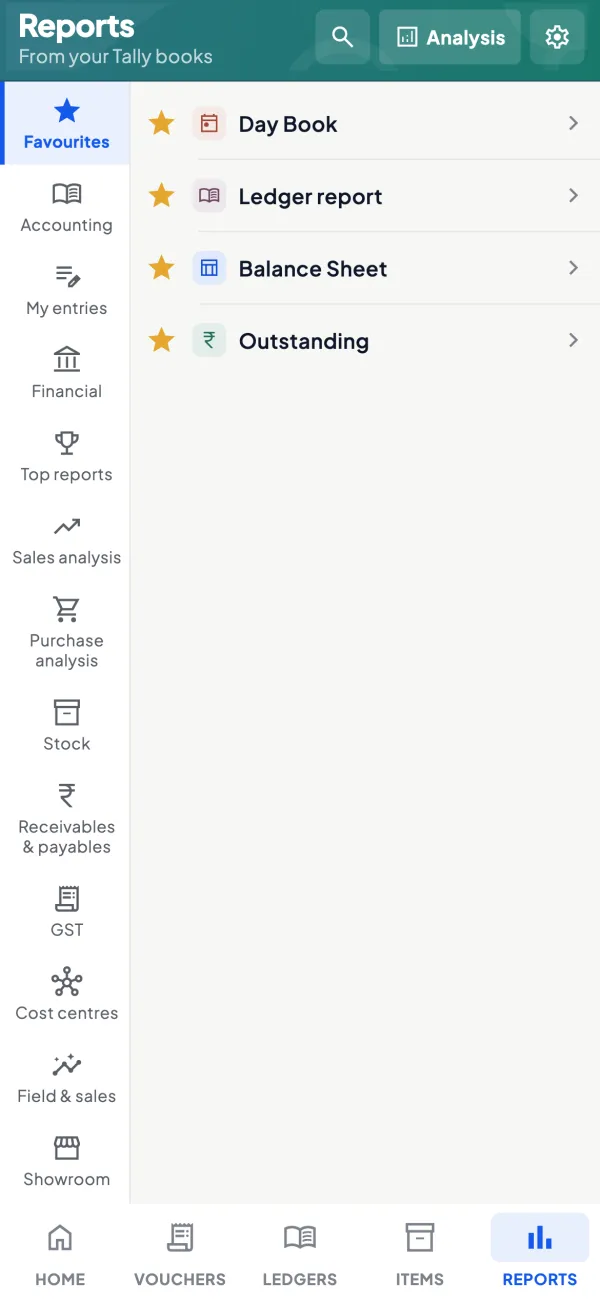
Banks, CAs, partners and suppliers all ask for reports, usually when you are not at the Tally PC. Cashflow OS runs the main reports from your synced TallyPrime data and exports them to Excel or PDF from the phone or the web app, for any financial year or a custom date range.
- Excel for work, PDF to send
- Figures that match Tally
- Ranges across 31 March
- From phone or web
Start free trialBook a free demo
Works with your TallyPrime14-day free trialJaipur team, call +91 70738 53555

Who it’s for
Who uses reports in Excel and PDF
- OwnersStatements for banks, investors and family partners
- AccountantsMonth-end packs and supplier reconciliations in Excel
- CAsA client's reports with the accountant role, ready to adjust
- Businesses with bank limitsP&L, debtors ageing and stock for the renewal file
- Branch managersTheir branch's figures to head office in a set format
- Purchase staffSupplier ledgers sent for confirmation before payment
- Family groups with several firmsThe same report from each company, combined in Excel
Pain → fix
The problems reports in Excel and PDF solves
What goes wrong without it, and what changes with Cashflow OS.
- The problemBank wants P&L and debtors by this evening
The accountant is out, and the Tally PC is the only place the figures live.
With Cashflow OSExport P&L, Balance Sheet and ageing yourselfRun the reports from the synced Tally data on your phone or laptop and export them as PDF in minutes.
Financial reports from Tally - The problemSupplier wants our ledger confirmed by Friday
Purchase staff wait for someone to print the ledger, sign it and scan it.
With Cashflow OSExport the party's ledger as PDF or ExcelThe ledger report for any date range goes out from the phone, and Excel lets them tick entries line by line.
Party ledger statements - The problemA three-year trend means three Tally reports
Every range that crosses 31 March has to be pulled year by year and stitched together.
With Cashflow OSOne custom date range across financial yearsSet a range that spans several financial years once, then export it as a single report.
- The problemCA needs Excel, not a scanned printout
Retyping figures from a PDF for the final accounts invites errors.
With Cashflow OSExcel exports the CA can sort and adjustInvite the CA with the accountant role, and they export the Trial Balance or ledgers to Excel themselves.
Team roles and access - The problemDebtors list takes a day to prepare
Someone copies party balances into a sheet and works out the ageing by hand.
With Cashflow OSAgeing exported straight from bill-wise dataReceivables and payables come bill by bill with ageing from your Tally books, ready to export.
Outstanding receivables - The problemGSTR-1 figures checked only at the last minute
Mistakes in B2B invoices are found when the portal is already slow.
With Cashflow OSGST views with JSON for the portalGSTR-1 and GSTR-3B views are prepared from the Tally data, with a JSON download for the GST portal.
GST reports from your Tally data
What it does
What you can do with reports in Excel and PDF
Financial statements that match Tally
How it works. Profit & Loss, Balance Sheet and Trial Balance are built from the synced Tally data, so a PDF from the app agrees with Tally for the same period. Export for any financial year or a custom range.
- PDF that looks the same on every screen
- Excel for the CA's adjustments
- Any year, or a range that crosses 31 March
In practiceFor a ₹50,00,000 cash credit renewal, Vikas exports the year's P&L and Balance Sheet as PDF and emails them to the bank the same afternoon.
Sales and top customers for any period
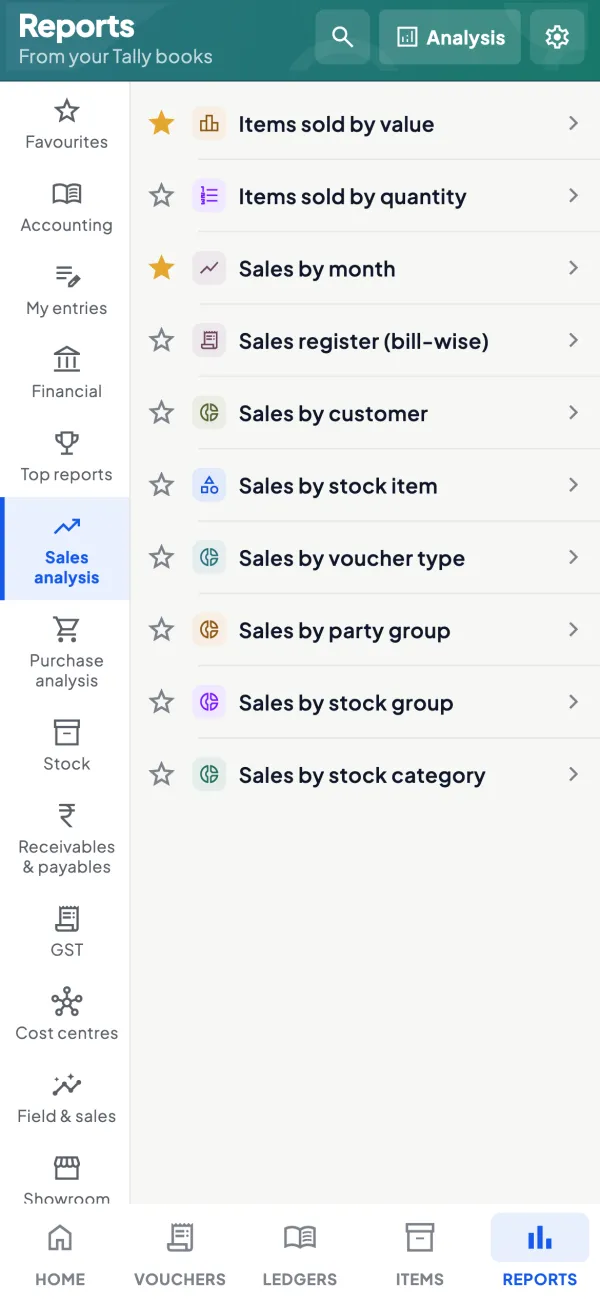
How it works. Run sales, top customers, expenses, Day Book and cash and bank book for the period you choose, then export to Excel to sort, filter or compare.
- Compare this Diwali season with the last one
- Top customers sorted in Excel in seconds
- Same date range for every company you own
In practiceNeha compares October sales across two firms in the family group, ₹38,60,000 and ₹22,15,000, by exporting the same report from each company.
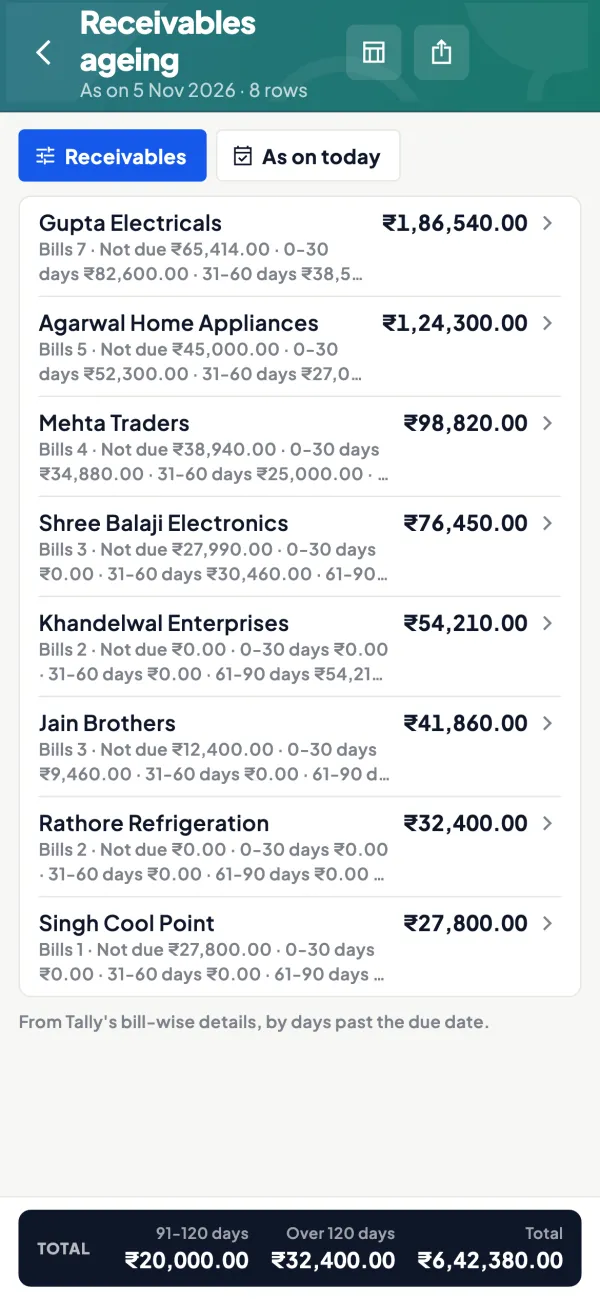
Debtors and creditors with ageing
How it works. Bill-wise receivables and payables with ageing come from your Tally books. Export them as Excel for follow-up lists, or as PDF for the bank's debtors statement.
- Bill-wise ageing, not just party totals
- Debtors list ready for the bank file
- Payables list for the week's payment plan
In practiceThe bank asks for debtors over 90 days. The owner exports the ageing to Excel, filters it, and sends a list of 7 parties totalling ₹6,80,000.
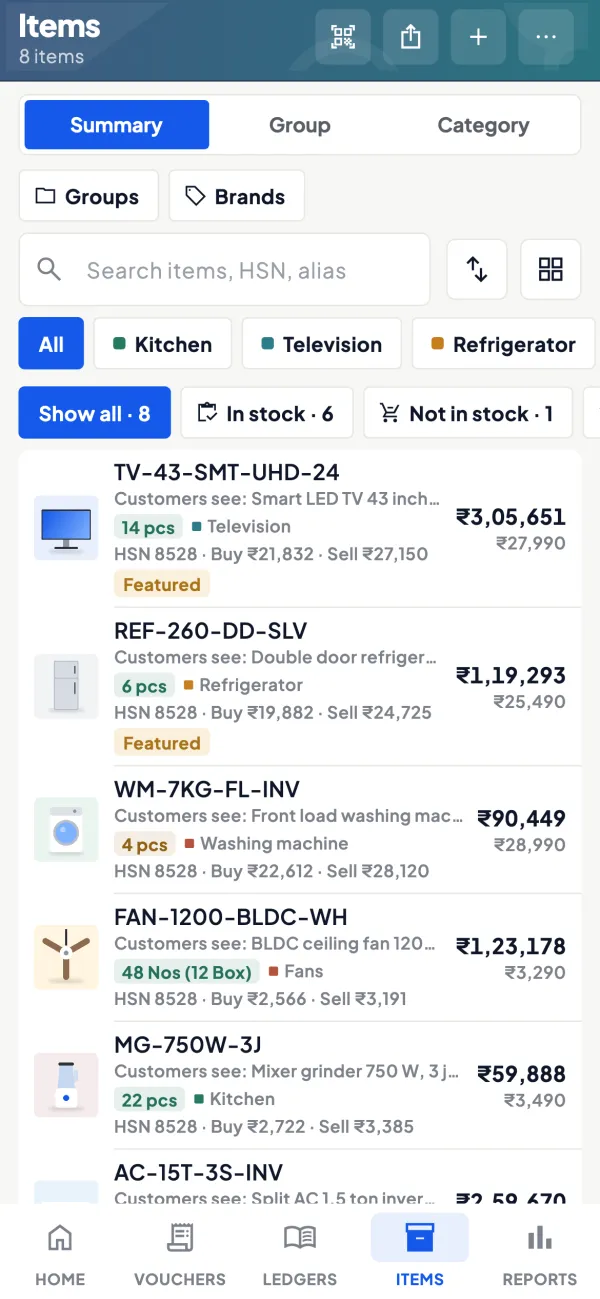
Stock summaries for stock statements
How it works. Stock and item summaries come from your Tally items. Export them as on a month-end date for the bank's monthly stock statement or a godown check.
- Month-end stock as on the date you pick
- Excel for a physical count sheet
- No visit to the Tally PC to print it
In practiceOn the 2nd, Arvind exports stock as on 31 October to Excel and sends the bank its monthly stock statement before noon.
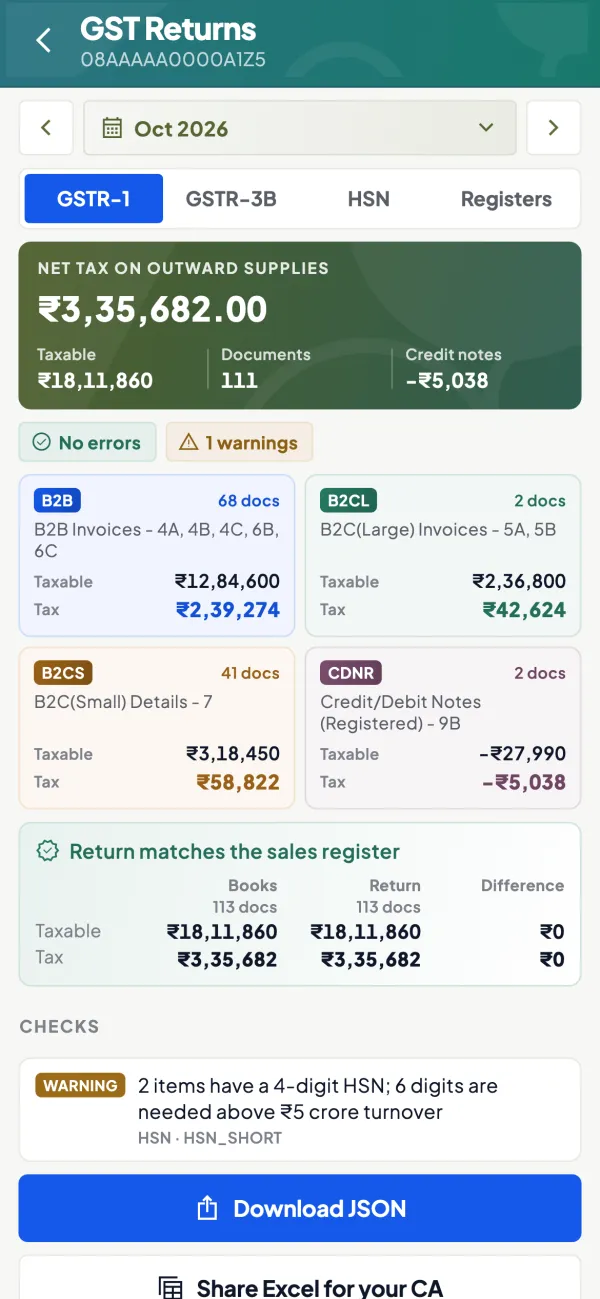
GST views and the portal JSON
How it works. GSTR-1 and GSTR-3B views are prepared from the Tally data. GSTR-1 tiles open bill-wise and HSN-wise detail, and the JSON downloads for the GST portal, where you file.
- Check B2B invoices before the due date
- HSN-wise detail for the summary table
- JSON download for upload on the portal
In practiceBefore the 11th, the accountant reviews 340 B2B invoices in the GSTR-1 view, fixes two in Tally, and downloads the JSON after the sync.
Guide
Reports in Excel and PDF: the full guide
How it works day to day, who does what, and the points to watch.
Which reports are available
| Area | Reports |
|---|---|
| Financial statements | Profit & Loss, Balance Sheet, Trial Balance |
| Books | Day Book, cash and bank book, ledger report |
| Parties | Bill-wise receivables and payables with ageing, top customers, party statements |
| Stock | Stock and item summaries |
| Spending and planning | Expenses, cashflow forecast |
| GST | GSTR-1 and GSTR-3B views, with JSON for the GST portal |
All of them come from the same synced Tally data, so a PDF from the app matches what Tally shows for that period.
Excel or PDF: which to send
PDF is for reading and filing: a bank's loan file, a partner who wants the year's Profit & Loss, a supplier asking for a ledger confirmation. It looks the same on every screen and cannot be edited by accident.
Excel is for working: your CA adjusting entries for the final accounts, an accountant ticking a supplier's statement against your ledger, an owner comparing two branches side by side, or a sales manager sorting customers by outstanding. Our guide on signs you have outgrown spreadsheets is a reminder that Excel works best as an output of the books, not a second set of them.
Date ranges across financial years
Reports run for any financial year, and for custom date ranges that span several financial years. That matters more than it sounds. A bank asking for a three-year sales trend, a dispute with a party that goes back eighteen months, or a comparison of this Diwali season with the last one all cross the 31 March line. In Tally that often means opening reports year by year. Here you set the range once. See Tally reports across financial years for the general approach.
Who uses exports
Exports are where the books meet people outside the accounts team. A few typical users:
- Owners sending numbers to banks, investors and family partners.
- Accountants reconciling with suppliers and preparing month-end packs.
- CAs who have been invited with the accountant role, reviewing a client's books.
- Branch managers sharing their branch's figures with head office.
- Purchase staff sending a supplier our ledger for confirmation before a payment.
When several companies sit in one account, the same report can be exported for each company in turn and combined in Excel, which is how many family groups prepare a single view of their firms for a meeting. Keep the same date range for each so the figures compare fairly.
A worked example: the bank renewal
A trader's cash credit limit of ₹50,00,000 is up for renewal and the bank wants the latest Profit & Loss, Balance Sheet, a debtors list with ageing and stock as on the last month-end. Before, this meant a request to the accountant, a wait for the Tally PC, and four separate prints. In Cashflow OS the owner opens each report on the web app, sets the date to 31 October, exports the financial statements as PDF, the debtors ageing and stock summary as Excel, and emails them to the bank the same afternoon. The figures match Tally because they come from Tally. If the bank then asks for the previous year's statements, those take a minute more. For what banks usually ask for, see the business loan documents checklist.
Tips
- Check the sync before you export something important; the report reflects Tally as of the last sync.
- Name files clearly, with company, report and date, before sending.
- Send PDF outside the business and Excel inside it, unless someone specifically needs to work on the figures.
- Use Hindi for partners or family members more comfortable reading it; each person picks their own language.
- Remember roles. A salesperson does not see the company's accounts, so financial reports are not available to that role.
What it does not do
- It does not create audited or certified statements; it exports what is in Tally.
- It does not change the books; corrections are made in Tally, or from the app if writing is switched on.
- It does not file GST returns; GST views and JSON are prepared for filing on the portal.
- It does not show data newer than the last sync from the connector.
This page is general information for Indian businesses, not tax, legal or financial advice. Rules and rates change — check the official portals or your CA before acting.
Set-up
Start using reports in Excel and PDF in 4 steps
Works on top of your TallyPrime — nothing to migrate, no second set of books.
- 1
Make sure the connector has synced your Tally company
- 2
Open Reports on the phone or at app.cashflowos.in
- 3
Pick the report, the date range and English or Hindi
- 4
Export to Excel or PDF and share, email or save it
Buyer’s checklist
What to look for in reports in Excel and PDF software
Whatever you choose, check these before you commit.
- Figures that match Tally for the same period, not a separate copy of the books
- Both formats: PDF for sending outside, Excel for working inside
- Custom date ranges that can cross 31 March
- Bill-wise ageing for debtors and creditors, not only party totals
- Stock and item summaries as on a chosen date for bank stock statements
- Exports from a phone as well as from a computer
- Roles, so only the right people can export the company's accounts
- Reports in the language the reader is comfortable with
Plans
Simple yearly plans
- 14-day free trial on your own books
- 3-year term saves up to 25%
- Premium modules (catalogue, field force, price lists, store…) priced extra
Start free trialGet the price for your business
Compare all plans- Growth₹3,000/year + GSTBooks, reports, outstanding and sharing
- Pro₹5,000/year + GSTEverything in Growth, plus entries into Tally
- Pro+₹7,000/year + GSTEverything in Pro, plus e-invoice and e-way bill
Why Cashflow OS
Why use reports in Excel and PDF in Cashflow OS
- Straight from your TallyEvery report is built from the synced TallyPrime data, so the figures agree with Tally.
- Phone or browserExport from the phone app or the web app, wherever you are when the request comes.
- Across financial yearsAny financial year, or one range spanning several, without stitching reports together.
- Every company in one accountSwitch company and export the same report for each firm in the group.
- English or HindiEach person picks their language, so a partner can read the report in Hindi.
- Accounts stay privateThe salesperson role cannot open the company's financial reports.