Feature
Item photos and display names
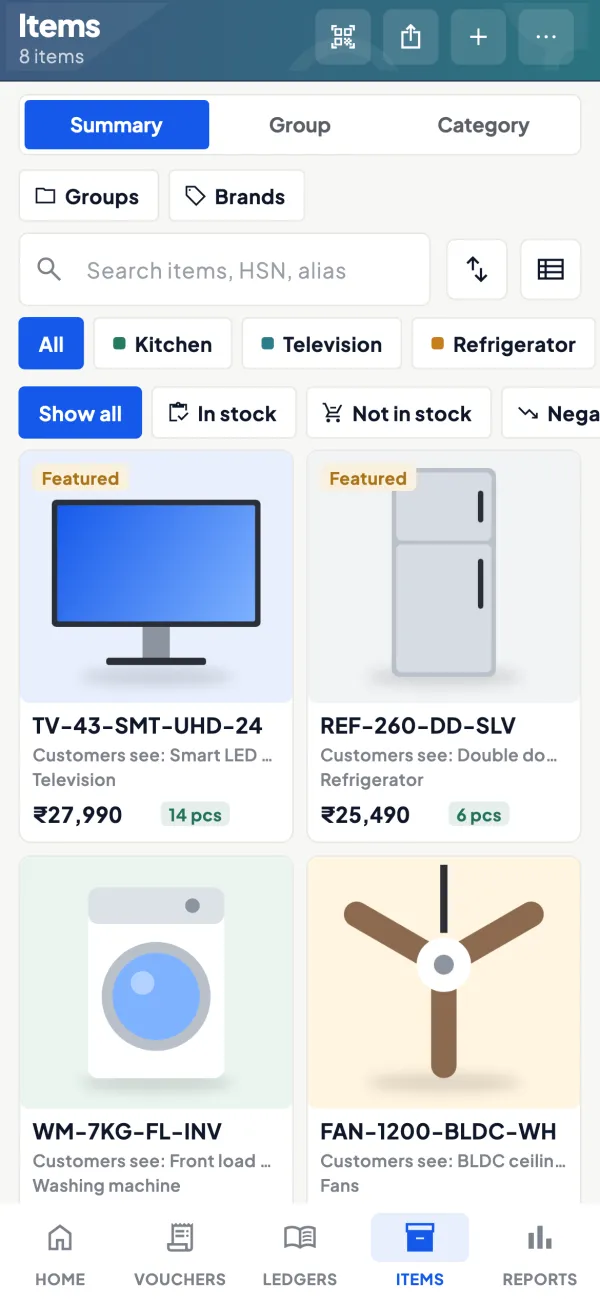
Tally item names are written for the accounts and the godown, not for customers. Cashflow OS lets you add photos and your own display names to Tally items, use Tally stock groups as categories, and add brands and custom fields, without changing anything in Tally.
- Photos on your Tally items
- Your own display names
- Tally stock groups as categories
- Brands and custom fields
Start free trialBook a free demo
Works with your TallyPrime14-day free trialJaipur team, call +91 70738 53555

Who it’s for
Who uses item photos
- Tile and sanitaryware showroomsDesigns chosen by look, not by code
- Furniture showroomsFinish, fabric and size shown before the visit
- Lighting and electrical dealersPlain names for cryptic wattage codes
- Electronics and appliance dealersModels told apart by photo and brand
- DistributorsThe full range shared with retailers
- Retailers selling onlinePart of the stock on a hosted shop
- Manufacturers with dealer networksDealers see the range without a printed catalogue
- New sales staffA photo and a plain name instead of 800 codes
Pain → fix
The problems item photos solves
What goes wrong without it, and what changes with Cashflow OS.
- The problemCustomers can't read 'LED PNL 18W CW RND'
Tally names work for the godown, but mean nothing on a customer's phone.
With Cashflow OSA display name beside the Tally nameWrite the name in the customer's words; the Tally name stays as it is for invoices and reports.
Online catalogue - The problemProduct photos lost on salesmen's phones
Each salesperson has a different, cropped photo, mixed up with other items.
With Cashflow OSPhotos saved on the item itselfPhotos sit on the Tally item, so every staff phone shows the same pictures.
Staff app - The problemThe family wants to see the item at home
The customer leaves to 'ask at home' and the choice is forgotten by evening.
With Cashflow OSShare a wishlist with photos on WhatsAppThe family sees exactly what was shortlisted, with photos and plain names.
Wishlists - The problemStaff can't answer size or finish on a call
Every phone enquiry means someone walking to the godown to look.
With Cashflow OSCustom fields for size, finish and warrantyThe details customers ask about most sit on the item, ready to read out.
Showroom walk-ins - The problemCatalogue categories that differ from Tally
Two structures to maintain, and they drift apart within a month.
With Cashflow OSTally stock groups are the categoriesThe groups you already keep in Tally are the ones customers browse.
- The problemGoing online means entering every item again
A separate product list for a website is one more thing to keep updated.
With Cashflow OSA hosted shop built from the same Tally itemsThe online store uses your items, photos and display names, with products hidden or 'price on request' as you choose.
Online store
What it does
What you can do with item photos
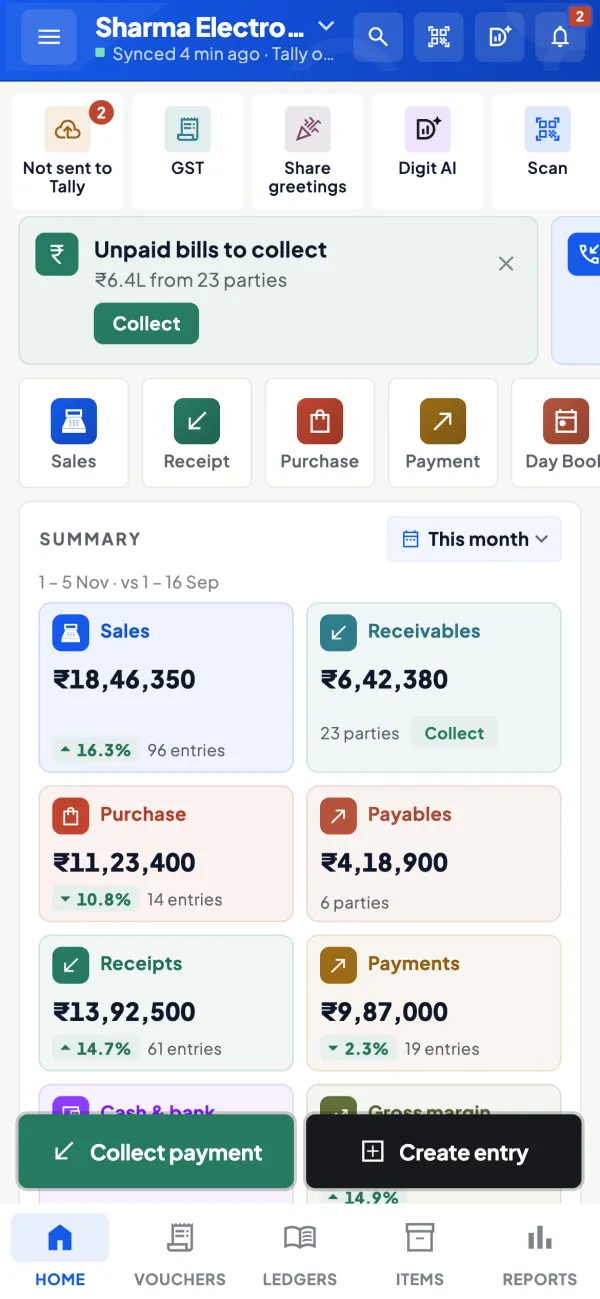
Photos and a display name on each item
How it works. Open an item synced from Tally, add photos from the camera or gallery and give it a display name customers understand. Add a brand and custom fields such as size or finish.
- Tally name unchanged for invoices and reports
- Several photos per item: front, side, in use
- Brand and custom fields answer common questions
In practice'FAN-CL-1200-BRN-5S' gets the display name 'Ceiling fan, 1200 mm, brown, 5-star' and three photos, so a caller hears exactly what is on offer.
Categories from your Tally stock groups
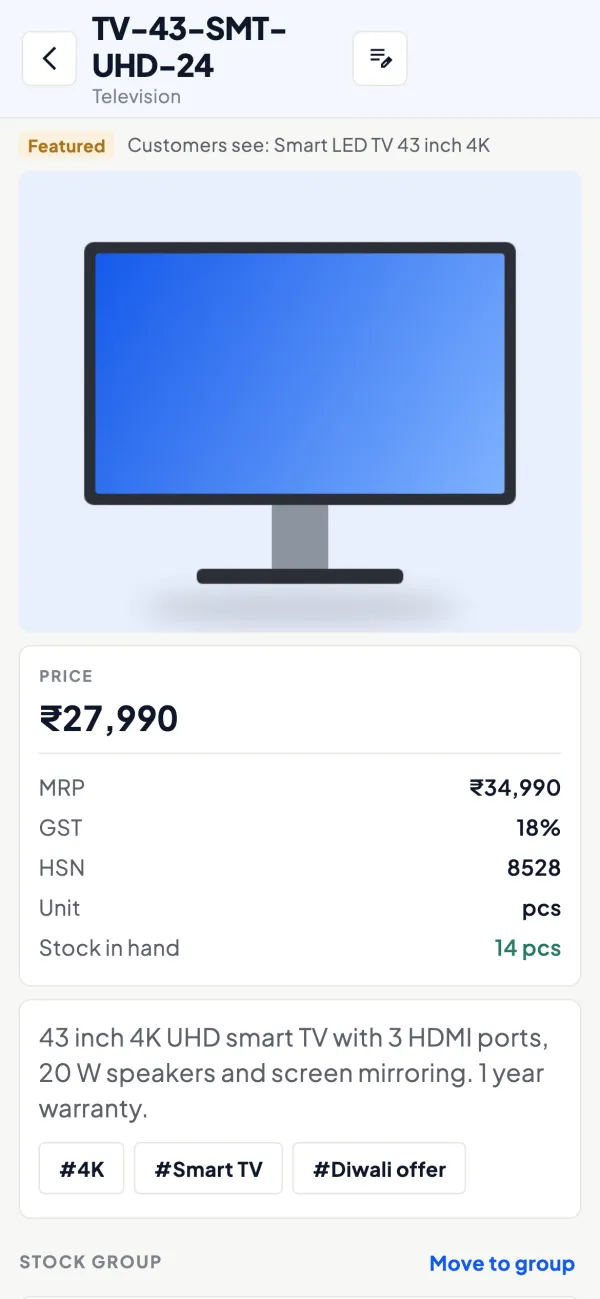
How it works. Items are grouped by the stock groups you already keep in Tally, with stock value per group, so browsing follows your own structure.
- No second category list to maintain
- Clean up groups in Tally, and browsing follows
- In-stock and not-in-stock filters
In practiceAn appliance dealer's items fall into Fans & cooling, Televisions, Refrigerators and Kitchen, exactly as the groups are set in Tally.
Photos where customers see them
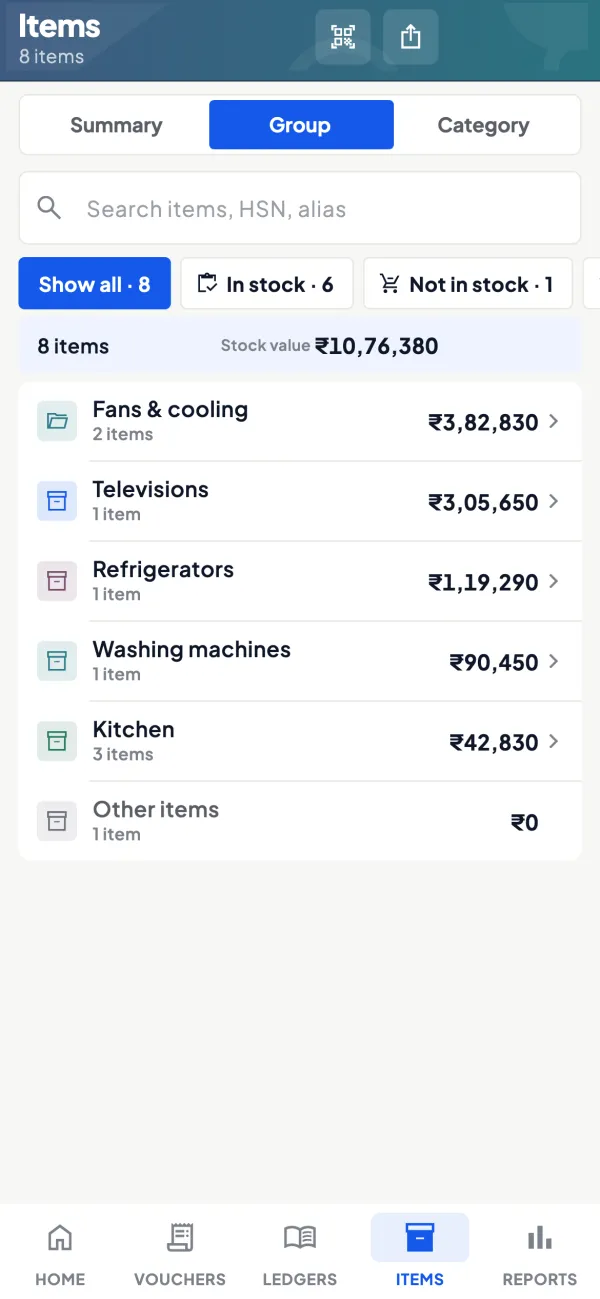
How it works. When a showroom customer's wishlist is shared on WhatsApp, the family sees the photos and plain names of what was chosen.
- The family decides from home
- No mix-up between look-alike designs
- Quantities and notes travel with the photos
In practicePooja shortlists a teak-finish 3-seater sofa and two side tables worth ₹45,000; her husband sees the photos at home and approves that evening.
One item list for catalogue and store
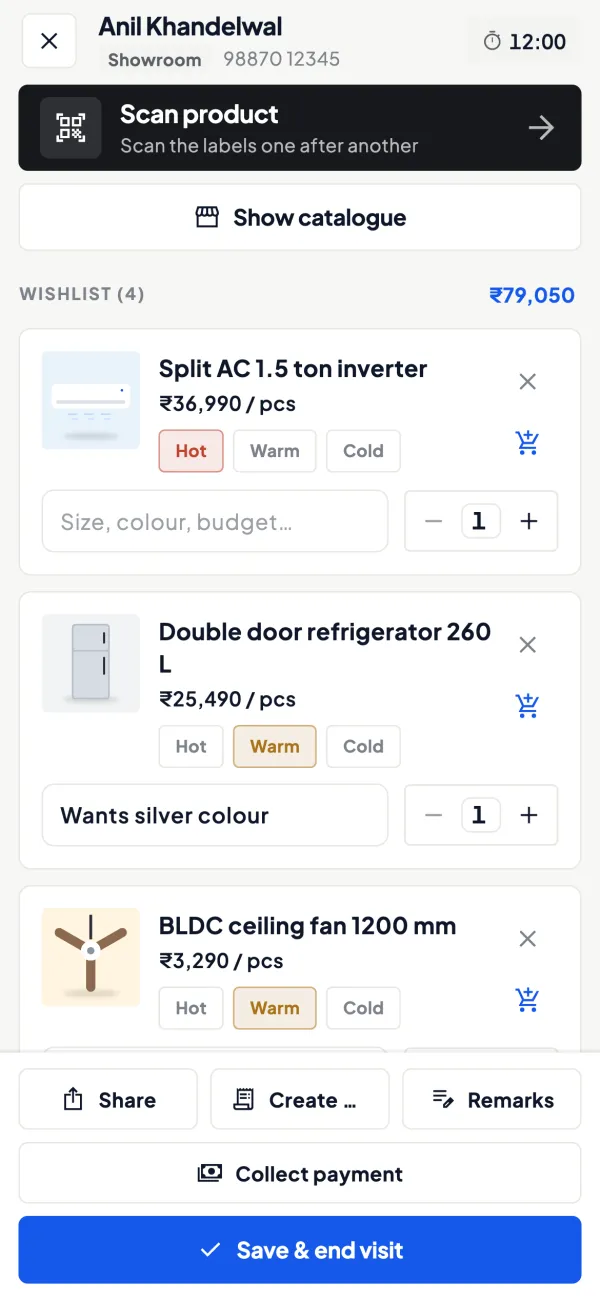
How it works. The same photos and names feed the online catalogue link customers open without the app and the hosted shop built from your Tally items.
- Enquiries from the catalogue arrive on WhatsApp
- Hide items or show 'price on request'
- Update a photo once, it changes everywhere
In practiceA lighting dealer shares the catalogue link with an electrician in Bhilwara, who forwards four panel lights to his client and sends an enquiry on WhatsApp.
Guide
Item photos: the full guide
How it works day to day, who does what, and the points to watch.
Why Tally names are not enough
Look at a typical stock item list in Tally: "SW-BSN-WH-500-CER", "LED PNL 18W CW RND", "FAN-CL-1200-BRN-5S". These names work for the person who created them. They are short, sortable and unique. But show them to a customer on a phone and they mean nothing. Renaming items in Tally to suit customers usually creates a different problem: invoices, reports and old habits all depend on the existing names.
Cashflow OS keeps both. The Tally name stays as it is for the books. A display name and photos sit alongside it for anyone selling the item.
What you can add to an item
| Field | Example | Where it helps |
|---|---|---|
| Photos | Front, side, in-use shots | Catalogue, wishlists, store |
| Display name | White ceramic wash basin, 500 mm | Anything a customer sees |
| Category | Your Tally stock group, e.g. Sanitaryware | Browsing and filtering |
| Brand | The maker's brand | Customers who ask by brand |
| Custom fields | Size, finish, colour, warranty | Answering questions without a call |
Categories come from Tally stock groups, so the structure you already maintain in Tally is the one customers browse. Our guide on Tally stock groups and categories explains how to set those up sensibly.
Where the photos and names show up
- Online catalogue: a link customers can browse without the app, with enquiries coming to you on WhatsApp.
- Wishlists: when a showroom customer's wishlist is shared on WhatsApp, the family at home sees what was chosen.
- Online store: the hosted shop built from your Tally items.
- Inside the app: salespeople and showroom staff recognise items faster from a photo than from a code.
Who uses it
Showrooms selling tiles, furniture, lighting or electronics, where the look of a product decides the sale. Distributors and dealers who share their range with retailers. Retailers putting part of their stock online. Manufacturers whose dealers want to see the full range. In each case the person adding photos is usually someone in the showroom or godown with a phone, not the accountant.
It also helps inside the team. A new salesperson who joined last week cannot be expected to know 800 item codes, but he can recognise a photo and read a plain name. Counter staff answering a phone enquiry can describe an item accurately when the custom fields hold size, finish and warranty. And when the owner is away, staff can send a customer the right picture instead of guessing which of five similar items he meant. Over time the item record becomes the shared memory of the business about what it sells, which is useful long after the first catalogue has been shared.
A practical way to do 500 items
Nobody photographs a whole catalogue in one afternoon. A plan that works:
- Export the stock summary and sort by sales value. The top 50 items usually carry a large share of the selling conversations.
- Set up a corner with plain white or grey background and good daylight.
- Photograph and name 20 items a day. In a month, the top 500 are done.
- Write display names in the customer's words: material, size, colour, use. "Teak finish 3-seater sofa" beats "SOFA-3S-TK".
- Fill brand and the two or three custom fields customers ask about most.
A worked note on value: if a ₹45,000 sofa set gets shared on WhatsApp with a clear photo and the customer's family approves it from home, that one sale pays for many hours of photography.
Tips
- Keep photos honest. Shoot your actual stock; customers complain when the delivered item does not match.
- Use consistent naming patterns across a category so lists read cleanly.
- Clean up stock groups in Tally first; they become your categories.
- Do not put prices in display names. Prices change; names should not.
- For barcoded items, pair this with barcodes and labels so staff can scan and see the photo.
What it does not do
- It does not rename items in Tally; the Tally name stays as it is for invoices and reports.
- It does not create categories separate from Tally; categories are your Tally stock groups.
- It does not edit or enhance photos for you.
This page is general information for Indian businesses, not tax, legal or financial advice. Rules and rates change — check the official portals or your CA before acting.
Set-up
Start using item photos in 4 steps
Works on top of your TallyPrime — nothing to migrate, no second set of books.
- 1
Install the Tally Connector so your stock items sync from TallyPrime
- 2
Clean up stock groups in Tally; they become your categories
- 3
Photograph and name the top-selling items first, about 20 a day
- 4
Add brand and custom fields, then share the catalogue link
Buyer’s checklist
What to look for in item photos software
Whatever you choose, check these before you commit.
- Photos added to the items in your books, not to a separate product list
- A display name for customers that leaves the accounting name untouched
- Categories taken from the stock groups you already maintain
- Brand and custom fields such as size, finish, colour and warranty
- Photos added from a phone's camera or gallery by showroom or godown staff
- The same photos used in the catalogue, wishlists and online store
- A catalogue customers can open without installing an app
- Item details visible to salespeople without showing them your accounts
Plans
Simple yearly plans
- 14-day free trial on your own books
- 3-year term saves up to 25%
- Premium modules (catalogue, field force, price lists, store…) priced extra
Start free trialGet the price for your business
Compare all plans- Growth₹3,000/year + GSTBooks, reports, outstanding and sharing
- Pro₹5,000/year + GSTEverything in Growth, plus entries into Tally
- Pro+₹7,000/year + GSTEverything in Pro, plus e-invoice and e-way bill
Why Cashflow OS
Why use item photos in Cashflow OS
- Your Tally itemsPhotos and names go on the items already in your books, nothing re-entered.
- Tally names untouchedThe display name sits beside the Tally name; invoices and reports stay as they are.
- Categories you already keepTally stock groups are the categories customers browse.
- Used everywhereCatalogue, wishlists, online store and the staff app all show the same photos.
- Answers without a callBrand and custom fields hold the details customers ask about.
- Made for the phoneWhoever is in the showroom or godown adds photos from the camera.