
Tally how-tos TallyPrime
Stock groups and stock categories in Tally
Stock groups and stock categories are two separate ways to classify items in TallyPrime. Groups form the main tree, usually by product type or brand; categories cut across groups, letting you report the same items another way.
- Distributors with many brands
- Tile and sanitaryware dealers
- Electrical and hardware traders
- Godown in-charges
- Accountants setting up masters

On this page 12
Stock groups: the main tree
Every stock item can sit under a stock group, and groups can sit under other groups. An electrical distributor might build:
- Wires and Cables
- House Wires
- Flexible Cables
- Switches and Sockets
- Lighting
- LED Panels
- Bulbs
- Tube Lights
- Fans
Stock summary reports roll up by group, so you can see total holding of Lighting and drill into LED Panels. A stock group can also be set to add up quantities of its items, which makes sense when the items share a unit, such as metres of wire, and not when they do not. The stock group glossary entry has a short definition.
Stock categories: a second view
Stock categories are enabled in the company's inventory features. They form a separate classification independent of groups. The same distributor might use categories for brands, so a single LED panel sits in group LED Panels and category Brand A. Now you can report by product type through groups, and by brand through categories, without duplicating items.
Groups or categories: which for what?
| Classify by | Usually as | Why |
|---|---|---|
| Product type | Stock group | Natural hierarchy, matches how stock is counted |
| Brand | Category, or group if you think brand-first | Cuts across product types |
| Price range or quality tier | Category | A second dimension for analysis |
| Season or collection | Category | Changes over time without moving items |
If your trade thinks brand-first, such as a paint dealer carrying three brands, make brands the groups and product types the categories. Choose whichever matches how your team talks about stock.
Designing them well
- Keep the tree shallow. Two or three levels is enough for most traders.
- Name groups the way staff speak. If everyone says "panels", do not call the group "LED Luminaires - Recessed".
- Put every item in a group. Items left at the top level make summaries messy.
- Set GST details at group level where they are common, if your setup uses that, and check them per item.
- Agree on the design before creating hundreds of items. Moving items later is possible but tedious.
Using them in reports and pricing
Groups and categories are not only for neat summaries. They drive:
- Stock summary and movement by group, for reorder and dead-stock decisions; see inventory turnover and dead stock.
- Price lists: Tally's price lists are defined per stock group, so the group design affects how easily you can set rates.
- Sales analysis by group or category, to see which product lines grow.
A worked example: tile and sanitaryware dealer
A dealer selling tiles, sanitaryware and bath fittings from four brands sets up:
- Stock groups: Floor Tiles, Wall Tiles, Sanitaryware, Faucets, Accessories. Floor and Wall Tiles are set to add quantities because all items are counted in boxes; Faucets and Accessories are not, because units vary.
- Stock categories: the four brands, plus "Premium" and "Economy" if the dealer wants price-tier reports.
Now the owner can ask "how many boxes of floor tiles do we hold?" through groups, and "how much of Brand B's stock is lying unsold for six months?" through categories, from the same items. When a fifth brand is added, it is just a new category; no items move.
Common mistakes
- Creating a group for every item, which turns the tree into a list.
- Using groups for brand and also adding the brand to every item name, then renaming one and not the other.
- Mixing units inside a group set to add quantities, producing meaningless totals.
- Leaving a "Misc" group that ends up holding a third of the items.
Fixing an existing messy setup
- Export the stock summary with groups and list every item's current group.
- Design the new tree on paper and get the sales and godown team to agree.
- Create the new groups, then alter items into them, one old group at a time.
- Delete empty old groups only after checking nothing remains in them.
- Recheck price lists that depended on the old groups.
Do this at a quiet time, ideally at the start of a month, so reports before and after are easy to explain.
Groups as catalogue categories in Cashflow OS
Cashflow OS uses your Tally stock groups as the categories for items in the app, the online catalogue and the store, so customers and salespeople browse the same structure you maintain in Tally. Once writing is switched on, stock groups and categories can be created and altered from the app and saved into Tally. Items can also carry photos, display names, brands and custom fields. See online catalogue.
Avoid these
Common mistakes
- MistakeA stock group for every itemDo this instead
Group by product type or brand, two or three levels deep, so summaries roll up into something useful.
- MistakeMixing units in a group set to add quantitiesDo this instead
Only add quantities in groups where every item uses the same unit, such as boxes or metres.
- MistakeA Misc group that holds a third of the itemsDo this instead
Move items into proper groups one old group at a time and delete the empty ones afterwards.
- MistakeBrand in both the group and every item nameDo this instead
Keep brand in one place, a group or a category, so renaming it later does not leave mismatches.
Keep handy
Checklist
Stock groups and stock categories in Tally — 7 checks. Tick them as you go.
In Cashflow OS
How Cashflow OS helps
Cashflow OS puts your TallyPrime books on every phone in the team. Where it fits this topic:
Your Tally groups as categories
Cashflow OS uses Tally stock groups as the item categories in the app, the online catalogue and the store, so everyone browses the structure you keep in Tally.
See Online catalogue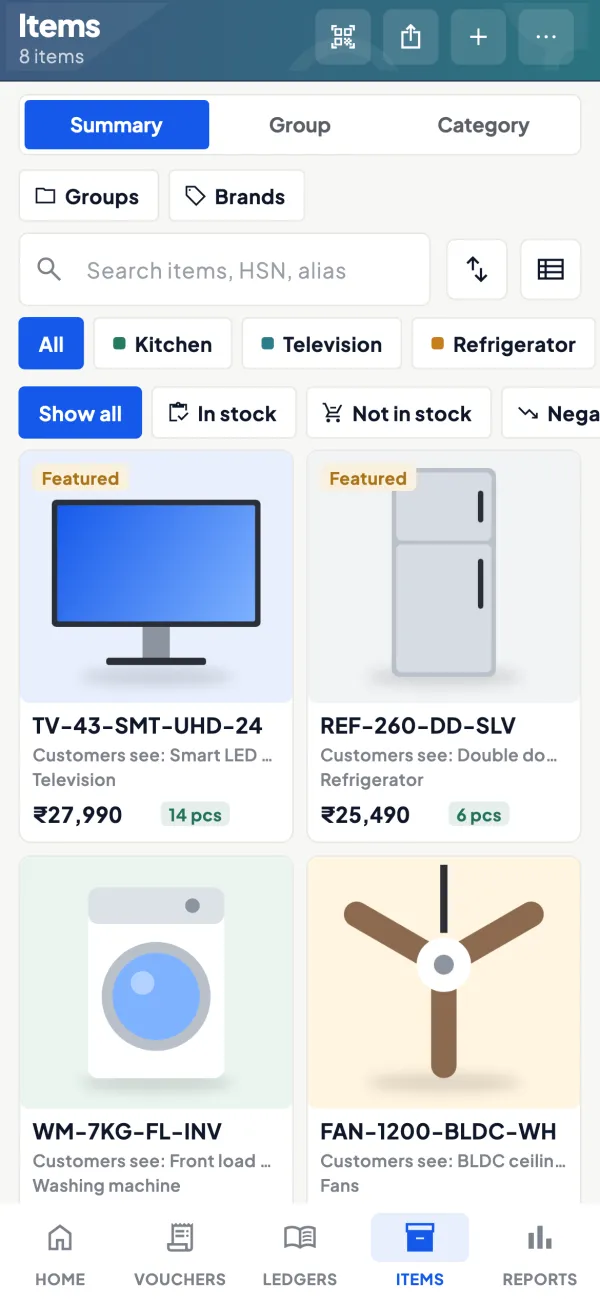
Items with photos and display names
Items carry photos, your own display names, brands and custom fields; with writing on, stock groups and categories can be created and altered from the app into Tally.
See Item photos and display names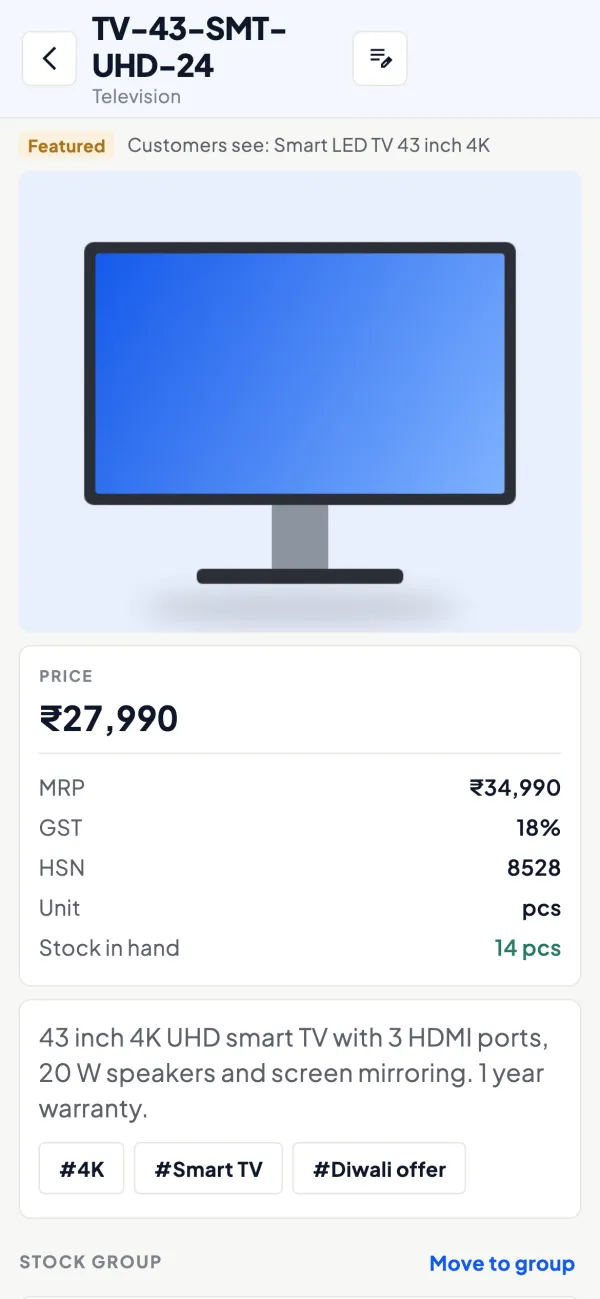
Questions people ask
Can an item be in two stock groups?
Do I have to use stock categories?
Should HSN codes be set at group level?
Can I move items between groups later?
Should brands be stock groups or categories?
Where are stock categories switched on?
Does regrouping change past invoices?
How deep should the group tree be?
This page is general information for Indian businesses, not tax, legal or financial advice. Rules and rates change — check the official portals or your CA before acting.