
GST GST returns
GSTR-1 JSON upload: steps and error fixes
Instead of typing invoices on the portal, you can upload them as a JSON file generated by your accounting software or the GST offline tool. The portal checks each record, accepts the valid ones and gives an error report for the rest.
- Accountants filing GSTR-1
- Tax practitioners
- Businesses with many invoices
- Tally users
- Distributors and wholesalers

On this page 12
Where the JSON comes from
- Your accounting software: exports GSTR-1 data directly as a JSON file in the portal's format.
- The GST offline tool: a free utility from the GST portal. You import an Excel or CSV template, it validates the data and generates the JSON.
Either way, the JSON must be for one GSTIN and one tax period. Uploading a file for the wrong period or GSTIN is rejected.
Before you generate the file
- Close the month in the books: all sales, credit notes and debit notes entered.
- Clear any entries your software flags as incomplete or uncertain.
- Check that every B2B party has a valid GSTIN and the right state.
- Check that the invoice series has no gaps or duplicates.
- Note the totals per table (B2B, B2C, credit notes, exports, HSN) to compare after upload.
Uploading, step by step
- Log in to gst.gov.in and open the Returns Dashboard. Select the financial year and period.
- On the GSTR-1 tile, choose to prepare offline.
- On the upload tab, choose the JSON file and upload.
- Status shows 'In progress', then 'Processed' or 'Processed with error'. Large files can take a while.
- If processed, open GSTR-1 online and check the summary of each table.
- If processed with error, generate and download the error report.
- When everything is in, generate the summary, preview, and file with DSC or EVC.
Uploading saves data; it does not file the return.
Reading the error report
Valid records in a file are saved even when others fail. The error report lists only the failed records with a reason. Open it in the offline tool, correct the records there or in your software, generate a fresh JSON with only those records, and upload again.
| Typical error | Usual fix |
|---|---|
| Recipient GSTIN invalid or not active | Verify on Search Taxpayer; correct or move to B2C |
| Invoice already exists / duplicate | Check whether it was uploaded or filed earlier; fix numbering |
| Invoice date outside the period | Wrong month in software, or a late invoice that needs the right period |
| Place of supply mismatch with tax type | IGST for inter-state, CGST + SGST for intra-state |
| Invalid HSN or UQC | Use a valid HSN code and a unit from the GST unit list |
| Note references an invalid original invoice | Link the credit note to the right invoice number and date |
Uploading more than once
You can upload several files for a period. A record with the same invoice number replaces the one already saved, so re-uploading a corrected invoice updates it. That also means a mistake in numbering can overwrite a good record. Before filing you can delete individual records online, or use the reset option to clear all saved GSTR-1 data for the period and start again.
Worked example: checking totals after upload
Your books show for the month: B2B taxable value ₹18,40,000, B2C ₹6,20,000, credit notes ₹45,000. After uploading, the portal summary shows B2B ₹18,10,000. The gap of ₹30,000 is usually one or two failed records. Download the error report: perhaps one invoice of ₹30,000 to a buyer whose GSTIN was cancelled. Correct and re-upload before filing. Never file while totals differ from the books without knowing why.
Common mistakes
- Filing straight after upload without opening the summary.
- Uploading B2C data again after the period's totals are already saved, doubling B2C figures.
- Ignoring the HSN summary and document summary tables, which have their own validations; see HSN summary in GSTR-1.
- Correcting the JSON but not the books, so next month's data disagrees.
More errors and fixes are in common GSTR-1 errors. This is general information, not tax advice.
Getting the JSON from Cashflow OS
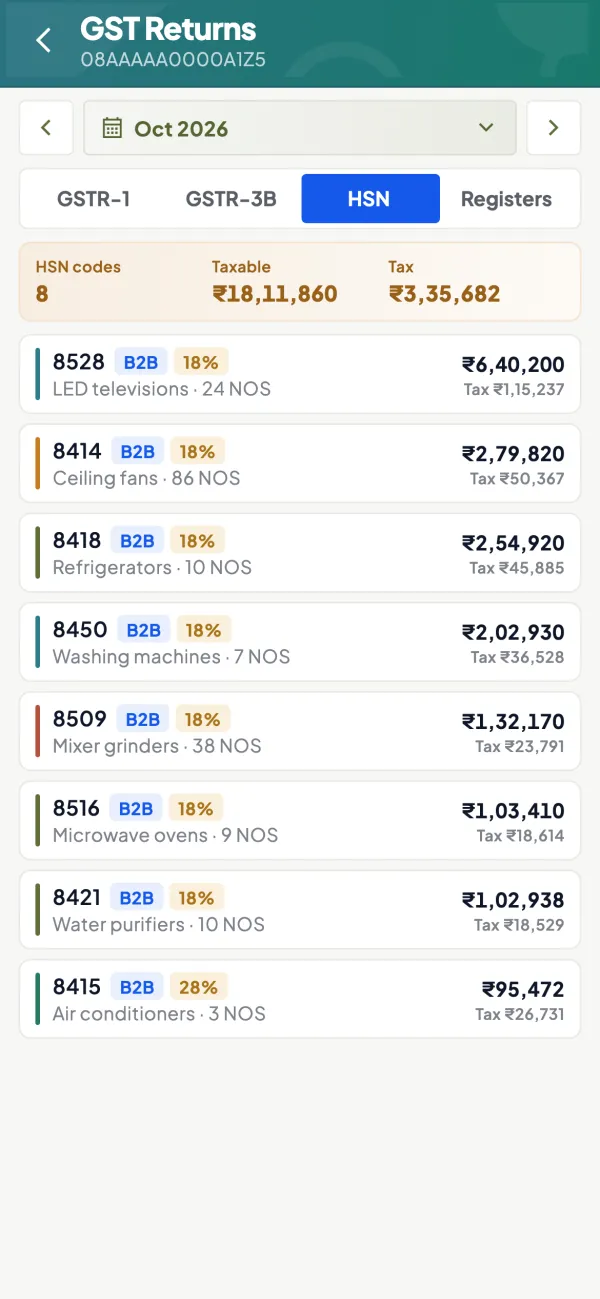
Cashflow OS prepares a GSTR-1 view from your synced Tally data and offers a JSON download for the GST portal. Before downloading, open the tiles for bill-wise and HSN-wise detail to check GSTINs and values. The upload, error handling and filing are then done on the portal as above. You can also export from TallyPrime directly; see preparing GSTR-1 from Tally.
Avoid these
Common mistakes
- MistakeFiling straight after upload without checking the summaryDo this instead
Open each table's summary and compare totals with your books before filing.
- MistakeUploading B2C data again after it was savedDo this instead
Check what is already saved for the period; a second B2C upload can double the figures.
- MistakeIgnoring HSN and document summary tablesDo this instead
Check these tables too; they have their own validations and must tie to the sales.
- MistakeCorrecting the JSON but not the booksDo this instead
Make the same correction in your accounting data so next month's figures agree.
Keep handy
Checklist
GSTR-1 JSON upload: steps and error fixes — 8 checks. Tick them as you go.
In Cashflow OS
How Cashflow OS helps
Cashflow OS puts your TallyPrime books on every phone in the team. Where it fits this topic:
JSON download from your Tally data
Cashflow OS prepares a GSTR-1 view from your synced Tally data and offers a JSON download for the GST portal.
See GST reports from your Tally data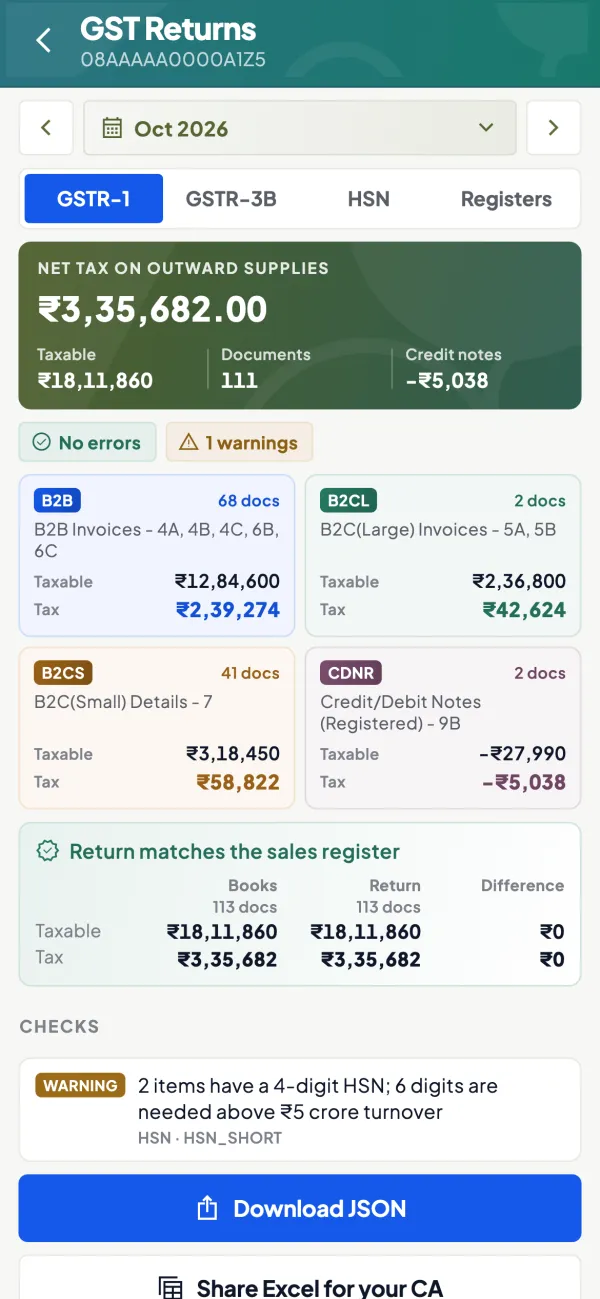
Check bill-wise and HSN detail first
Before downloading, the tiles open bill-wise and HSN-wise detail to check GSTINs and values. Upload, error handling and filing are then done on the portal.
Questions people ask
Does uploading the JSON file my GSTR-1?
What happens if I upload the same invoice twice?
Are valid invoices lost if the file has errors?
Can I delete uploaded data before filing?
What is the GST offline tool?
Why does the portal say the invoice date is outside the period?
How long does processing take?
Can I upload several JSON files for one period?
This page is general information for Indian businesses, not tax, legal or financial advice. Rules and rates change — check the official portals or your CA before acting.