GST E-invoicing
E-invoice QR code explained
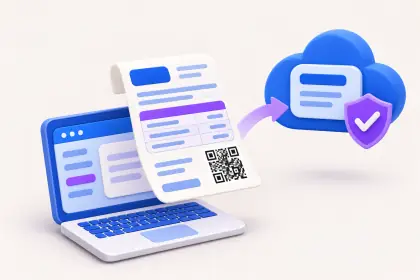
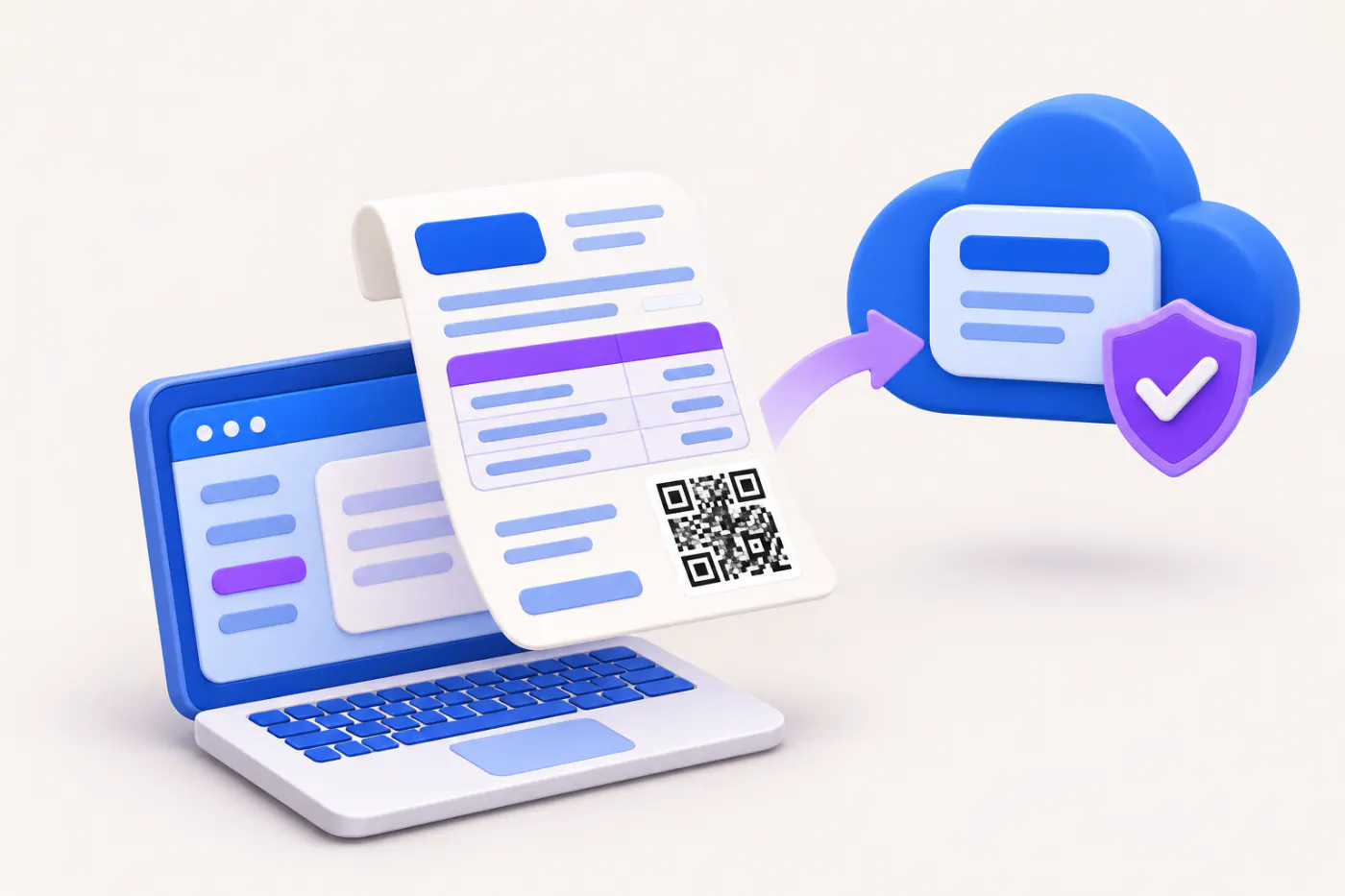
The QR code on a GST e-invoice is generated and digitally signed by the Invoice Registration Portal. It carries the key details of the invoice and its IRN, so anyone can scan it and confirm the invoice was registered.
- Businesses covered by e-invoicing
- Purchase and goods-inward staff
- Accountants matching GSTR-2B
- Billing staff printing invoices
- Buyers checking supplier invoices
On this page 12
Where the QR code comes from
When a business covered by e-invoicing reports an invoice to the Invoice Registration Portal (IRP), the IRP returns the IRN and a signed QR code. The supplier's software prints this QR on the invoice. The supplier does not create the QR itself; if the code on an invoice was made by the billing software without going through the IRP, it is not an e-invoice QR. The full process is in e-invoicing and IRN.
What the QR contains
| Field | Example |
|---|---|
| Supplier GSTIN | 33ABCDE1234F1Z5 (made up) |
| Recipient GSTIN | 32PQRSX5678K1Z2 (made up) |
| Document number, type and date | CBE/25-26/1450, INV, 03/03/2026 |
| Total invoice value | ₹4,13,000 |
| Number of line items | 3 |
| HSN code of the main item | 8413 |
| IRN and IRN date | 64-character IRN, 03/03/2026 |
The data is signed with the IRP's digital key. Changing even one character, such as the value, breaks the signature, which is what makes the QR useful for checking. The main item's HSN is the line with the highest taxable value.
How a buyer can verify it
- Install the QR verification app published for GST e-invoices, or use the verify option on the e-invoice portal.
- Scan the QR on the printed or PDF invoice.
- The app checks the signature and shows the decoded details.
- Compare them with the invoice: GSTINs, number, date, value.
- If the signature fails or details differ, ask the supplier for the correct registered invoice before booking credit.
This check is quick at the goods-inward desk and helps catch altered or fake invoices. It does not prove the supplier has paid tax; the invoice reaching your GSTR-2B is still the test for credit.
E-invoice QR vs payment QR
Two different QR codes can appear on Indian invoices, and people mix them up:
| E-invoice QR | Dynamic payment QR | |
|---|---|---|
| Used on | B2B invoices of e-invoicing businesses | B2C invoices of very large businesses |
| Generated by | Invoice Registration Portal | Supplier's own system |
| Purpose | Prove the invoice is registered | Let the customer pay by UPI |
| Contains | GSTINs, invoice details, IRN | Payee UPI ID, amount, invoice details |
Many small businesses also print a simple UPI QR on invoices so customers can pay. That is useful but has nothing to do with e-invoicing; see UPI QR code on invoices.
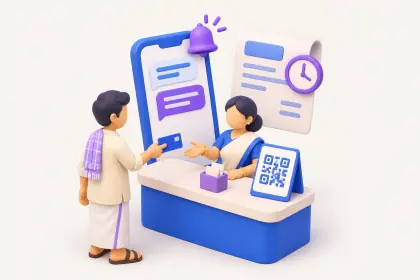
Using the QR at the goods-inward desk
For a buyer receiving many supplier invoices, a short routine at the inward desk catches problems before they reach the accounts team:
- When goods arrive, scan the QR on the supplier's invoice with the verification app.
- Check that the recipient GSTIN in the QR is yours, and for the right branch.
- Check that the invoice value matches the printed total and the purchase order.
- If the supplier is above the e-invoice limit and the invoice has no QR or IRN, hold the bill and ask for the registered version.
- Note the IRN in your purchase entry so the bill can be traced when matching GSTR-2B.
This takes under a minute per bill, and it is far easier than chasing a supplier months later when credit is questioned.
Printing it properly
- Print the QR large enough to scan: a common minimum is around 2.5 cm square on A4.
- Keep a white margin around it; do not print over a logo or watermark.
- Print the IRN in text as well, so it can be typed if the QR is damaged.
- On thermal or dot-matrix printers, test that phones can read it before going live.
- In PDF invoices, embed the QR as an image at good resolution, not a blurred screenshot.
Common mistakes
- Printing a QR generated by the billing software instead of the IRP's signed QR.
- Sending the invoice before the IRN is received, then sending a second copy with the QR, so the buyer has two versions.
- Using the e-invoice QR as a payment QR, or vice versa.
- Re-issuing a corrected invoice with the old QR after editing values in the PDF. The signature will fail.
This is general information, not tax advice.
Where Cashflow OS fits
On plans that include e-invoicing, Cashflow OS can get the IRN and signed QR from the IRP for a synced Tally sales voucher, using your own e-invoice API login, and write them back into Tally so the Tally print carries the QR. An IRN already made in Tally is shown, not made again. Cashflow OS documents such as quotations and proforma invoices can carry your UPI details for payment, which is a separate thing from the e-invoice QR. Invoices synced from Tally appear in the GSTR-1 view with bill-wise detail.
Avoid these
Common mistakes
- MistakePrinting a QR made by the billing softwareDo this instead
Print only the signed QR returned by the IRP with the IRN; a self-made QR is not an e-invoice QR.
- MistakeSending the invoice before the IRN arrivesDo this instead
Wait for the IRN and QR before sharing the invoice, so the buyer never gets two versions of the same bill.
- MistakeEditing values in a PDF that already has a QRDo this instead
Never edit a registered invoice. Correct it through a credit or debit note, or cancel and re-issue within the allowed window.
- MistakePrinting the QR too small or over a logoDo this instead
Keep it a scannable size with a white margin, print the IRN in text too, and test on your printer before going live.
Keep handy
Checklist
E-invoice QR code explained — 7 checks. Tick them as you go.
In Cashflow OS
How Cashflow OS helps
Cashflow OS puts your TallyPrime books on every phone in the team. Where it fits this topic:
IRN and QR for Tally sales vouchers
On plans that include e-invoicing, Cashflow OS gets the IRN and signed QR for a synced Tally sales voucher using your own API login and writes them back into Tally.
See Create Tally vouchers from your phone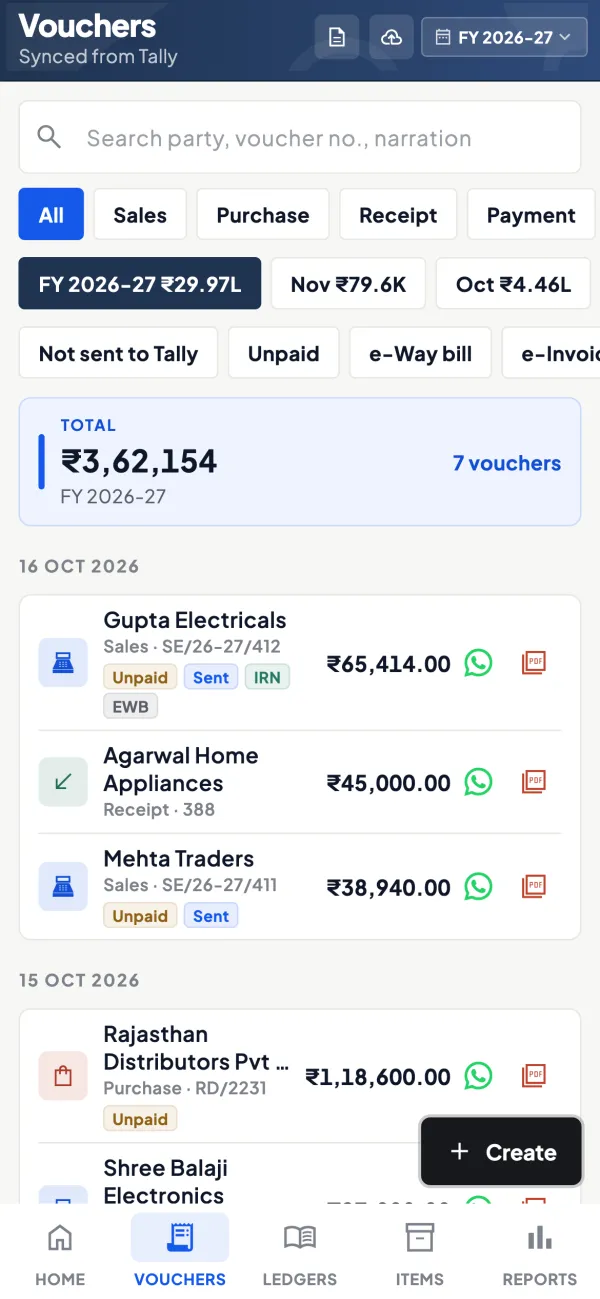
Invoices checked in the GSTR-1 view
Invoices synced from Tally appear in the GSTR-1 view with bill-wise detail, so you can see what is going into your return.
See GST reports from your Tally data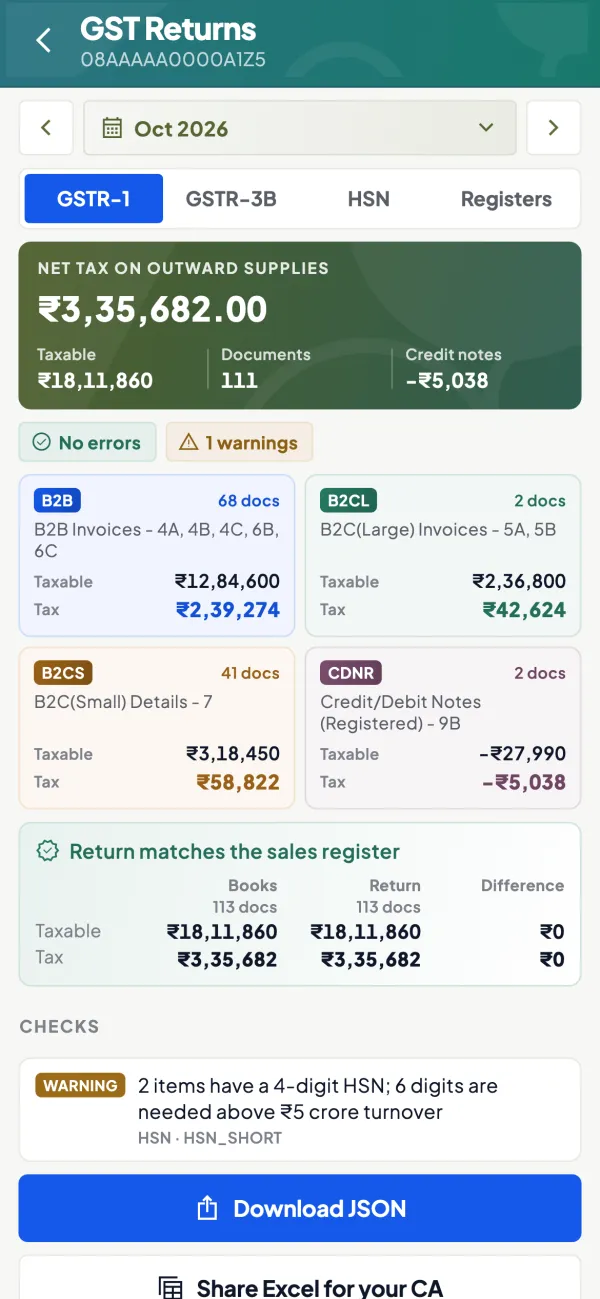
Questions people ask
Can I make the e-invoice QR code myself?
Does the QR code show item-wise details?
Is the QR required on B2C invoices?
What happens if the QR is damaged on a printout?
Does a valid QR mean I can claim input tax credit?
Is the e-invoice QR the same as the IRN?
Can a credit note have an e-invoice QR?
Do I need to print the QR on an exported PDF as well?
This page is general information for Indian businesses, not tax, legal or financial advice. Rules and rates change — check the official portals or your CA before acting.